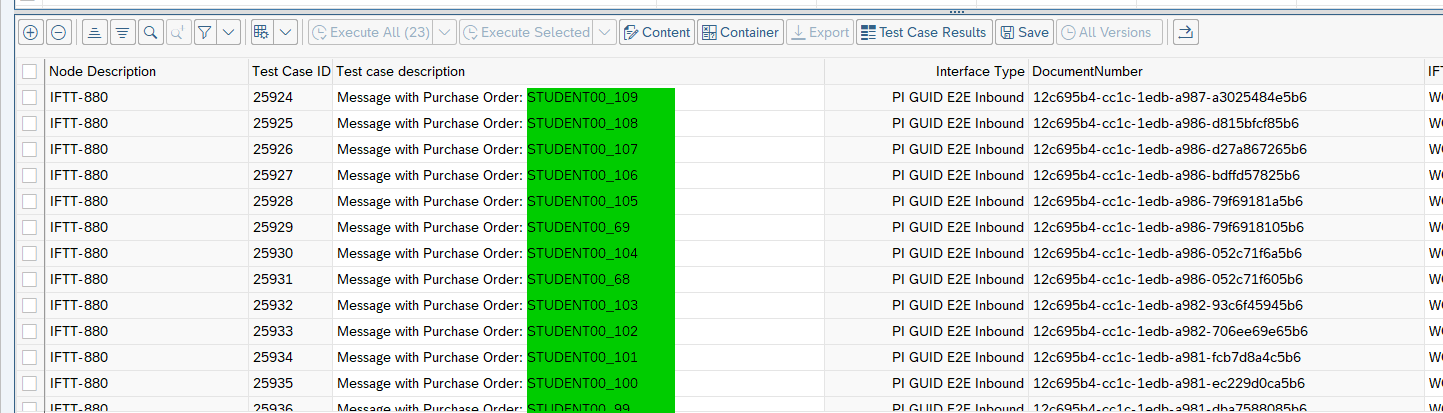
Test Cases can be created with a dynamic description based on the values stored in variables.
Steps
-
Add Variable in the Int4 IFTT Automation Object.

2. In the variable processing tab, add a new entry. Choose an action: Populate variable before execution, variable processor: READ_MSG, and processing parameter: XPATH/FLAT FILE expression/REGEX matching the value you want to store in the variable.

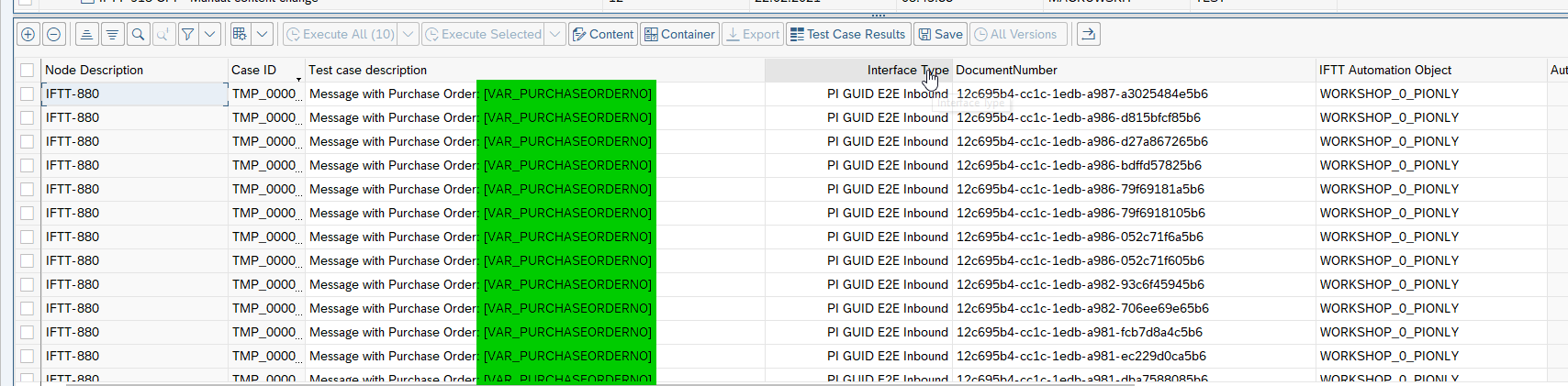
3. Add one or more test cases manually or using message selector tools. Add your description with the following pattern: [VAR_VariableName].
In our example, the variable’s name is PURCHASEORDERNO hence the pattern [VAR_PURCHASEORDERNO] is used.
4. Click the Save button, and the pattern [VAR_VariableName] will be replaced with values from payload messages.