
General information
|
Scenario |
SOLMAN |
|
|---|---|---|
|
Implementing class |
/INT4/IFTT_CM_SOLMAN |
|
|
XSLT1 |
RequestGuid.xslt |
Incident Guid request |
|
XSLT2 |
RequestSystemGuid.xslt |
System Guid Request |
|
XSLT3 |
ProcessIncident.xslt |
Request creating incident |
|
XSLT4 |
ReadCompleteIncident.xslt |
Request reading incident status |
|
XSLT5 |
CloseIncident.xslt |
Request closing incident |
|
XSLT6 |
AddInfo.xslt |
Request adding infos (texts and urls) to incident |
ICT_SERVICE_DESK_API Configuration
To enable integration between IFTT and SolMan, you need to activate ICT_SERVICE_DESK_API.
All necessary steps are described in links:
-
https://blogs.sap.com/2015/03/11/how-to-create-incident-in-solution-manager-71-from-the-soapui-or-any-other-external-application/
-
https://blogs.sap.com/2013/03/09/activating-ictservicedeskapi-in-71/
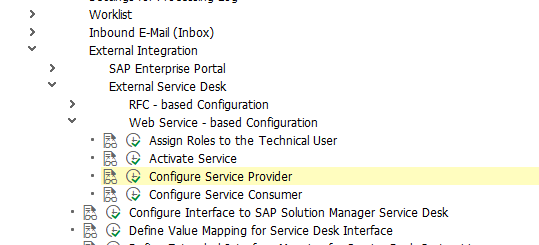
Go to transaction SPRO and go to SAP Solution Manager → Capabilities (Optional) → IT Service Management → External Integration → External Service Desk → Web Service - based Configuration:
-
Create the technical user that will be used to call the web service and assign the following roles:
-
SAP_CM_MANAGED_ADMIN
-
SAP_SMWORK_CHANGE_MAN
-
SAP_SMWORK_INCIDENT_MAN
-
SAP_SMWORK_SM_ADMIN
-
SAP_SUPPDESK_CREATE
-
SAP_SM_CRM_UIU_SOLMANPRO
-
SAP_SM_CRM_UIU_SOLMANPRO_CREA
-
SAP_SM_CRM_UIU_SOLMANREQU
-
-
Activate service ICT_SERVICE_DESK_API in the transaction SICF
-
Configure the service provider for the service ICT_SERVICE_DESK_API in SOAMANAGER
-
Configure Service Consumer. If the application has the SOAP API, provide the WSDL

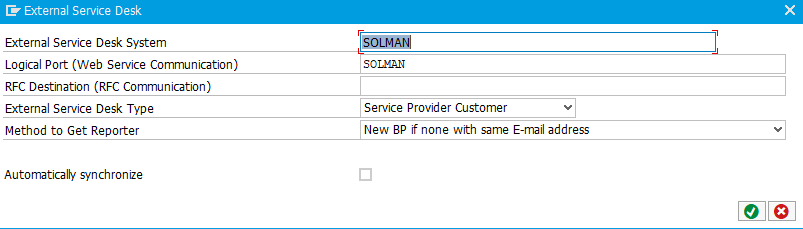
Add a new entry in table ICT_SYSCONF via tcode ICTCONF:
-
Logical port - port you defined in step 4 of activating ICT_SERVICE_DESK_API
-
Name - type any name you like
The next step is to define value mapping:
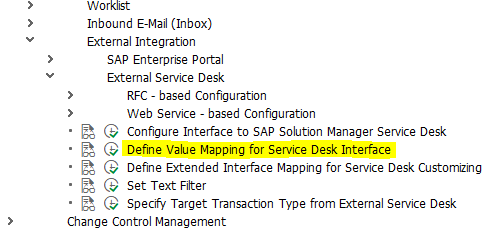
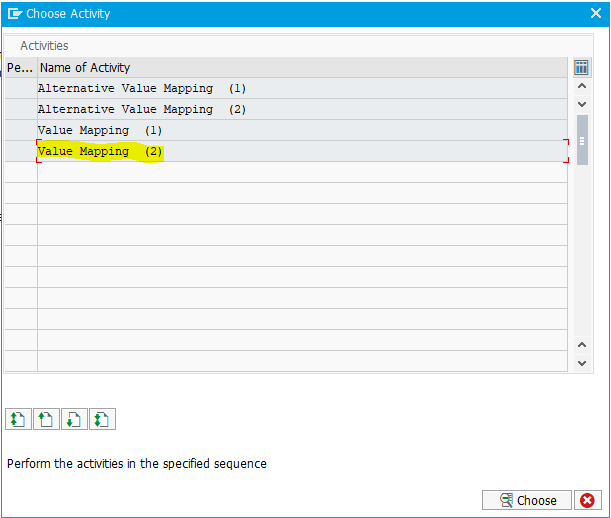
Fill entries as provided on the screenshot:
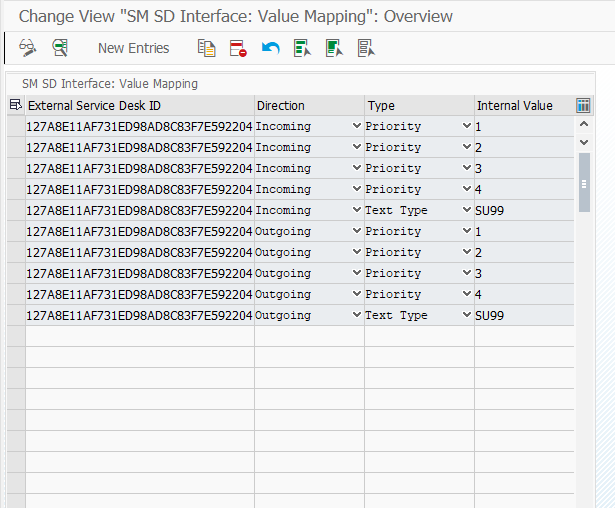
External Service Desk ID is the GUID from ICT_SYSCONF.
XSLT Configuration
To send valid requests to SolMan ICT_SERVICEDESK_API, you need to configure XSLTs in transaction /INT4/IFTT_IMG → Run Configuration wizard → Maintain Change Management Integration. Add a new record:

You need to upload proper XSLTs to matching fields.
The great advantage is that the user is enabled to modify information passed to SolMan by changing XSLTs.
|
XSLT1 |
RequestGuid.xslt |
No configuration |
|---|---|---|
|
XSLT2 |
RequestSystemGuid.xslt |
No configuration |
|
XSLT3 |
ProcessIncident.xslt |
Remember, that <IctPerson> has to exists and all fields <PersonId> and <Langauage> have to contain the same values. |
|
XSLT4 |
ReadCompleteIncident.xslt |
NECESSARY: Insert generated Guid from ICT_SYSCONF into <SystemGuid> field |
|
XSLT5 |
CloseIncident.xslt |
NECESSARY: Insert generated Guid from ICT_SYSCONF into <RequesterGuid> field Regarding the rest of the fields - refer to the XSLT3 description |
|
XSLT6 |
AddInfo.xslt |
NECESSARY: Insert generated Guid from ICT_SYSCONF into <RequesterGuid> field Regarding the rest of the fields - refer to the XSLT3 description |
Usage
When you go to SolMan to the specific incident:
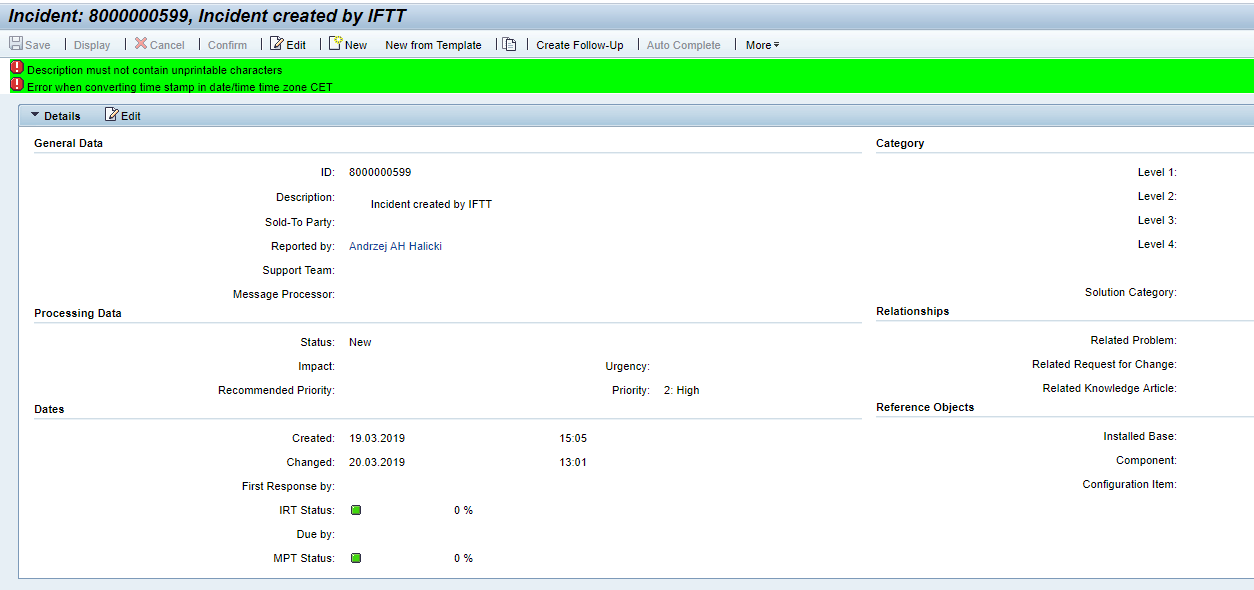
-
In Description you will see what was typed in <ShortDescription> in ProcessIncident.xslt.
-
Reported by is assigned to <PersonId> in ProcessIncident.xslt
-
Priority is <Priority> in ProcessIncident.xslt
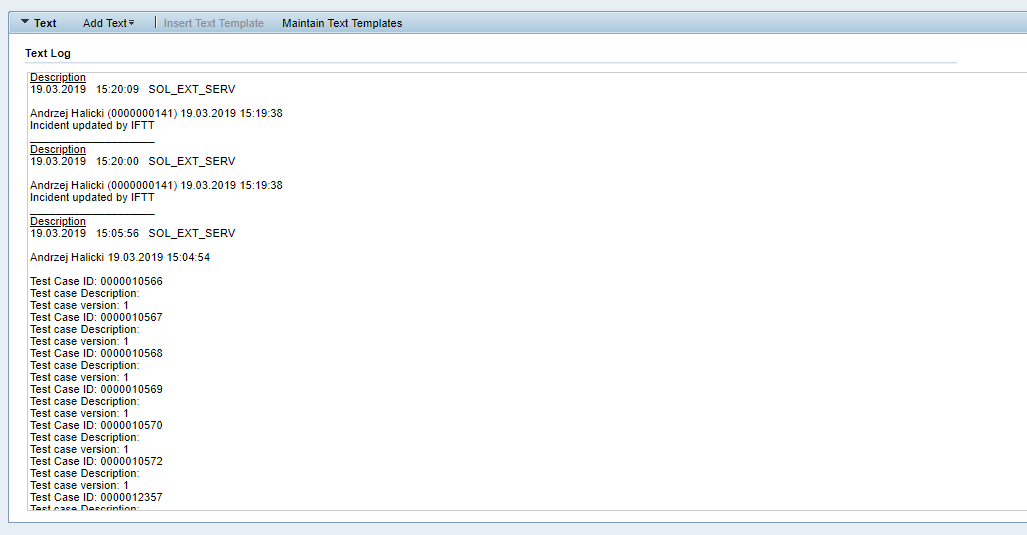
In text section you will see Information typed in <Texts> → <item> in ProcessIncident.xslt when incident is created, in AddInfo.xslt when incident is updated:
-
SOL_EXT_SERV is a technical user defined earlier
-
0000000141 is <PersonId> from the request
In the Attachments section, you will see URLs linked to test case report in IFTT:
