
USE:
The Object Definition contains parameters, e.g., the name of the tested service interface and its namespace, allowing IFTT to locate the XML message on the middleware platform to store it inside the IFTT repository for further comparison. Below is presented how to create a new object definition for PI inbound interface, PI outbound interface, synchronous interface, IDOC inbound/outbound interfaces, and AIF interfaces
In the General Settings section, you will find how to use already existing object configuration for a newly created object or configure IFTT to test data on remote ERP systems.
PI INBOUND / OUTBOUND / SYNCHRONOUS INTERFACE:
-
Enter object definition ID and description.
-
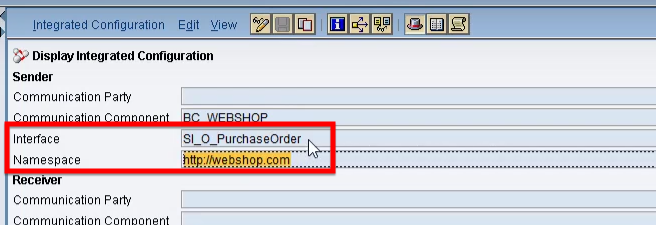
Enter PI/PO service interface name and namespace.

You can copy them from the ICO of the configured interface:
-
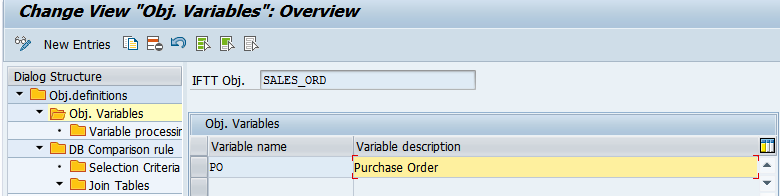
Define an unlimited number of variables and add a meaningful description for each of them.
-
For each of the variables, define actions and define the processing that will be performed. For each action, select one of the variable processors and provide the processing parameter: This way, variables can be used e.g.
-
to identify documents to be compared,
-
for creating new values from a number range for a newly created messages,
-
for passing values to variables in the following test cases.

-
IDOC INBOUND / OUTBOUND INTERFACE:
AIF INTERFACE
USE:
The Object Definition contains parameters, such as the generated name of the tested AIF interface allowing IFTT to locate the XML message in the AIF persistence on ECC. Thanks to this, it is possible to store AIF XML messages inside the IFTT repository for further comparison.
-
Enter object definition ID and description.
-
Provide AIF interface details in the Name field.
The name of AIF the interface is a combination of an AIF Namespace and the first six letters of an AIF interface.
-
To provide correct information, go to transaction /n/AIF/CUST
-
Open branch: SAP AIF → Interface Development → Define Interface
-
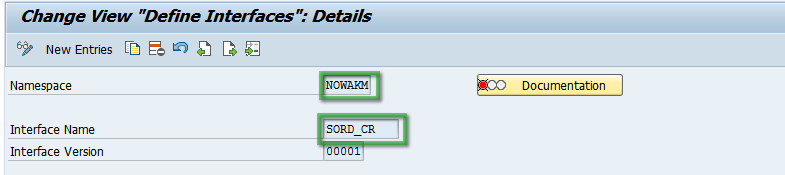
Open specific namespace and then open interface you want to test in IFTT
-
The name of the interface is the combination of full Namespace and six first letters of Interface Name separated by a dot (".").
Example: For NOWAKM namespace and SORD_CR interface name - the name of the interface should be NOWAKM.SORD_C

-
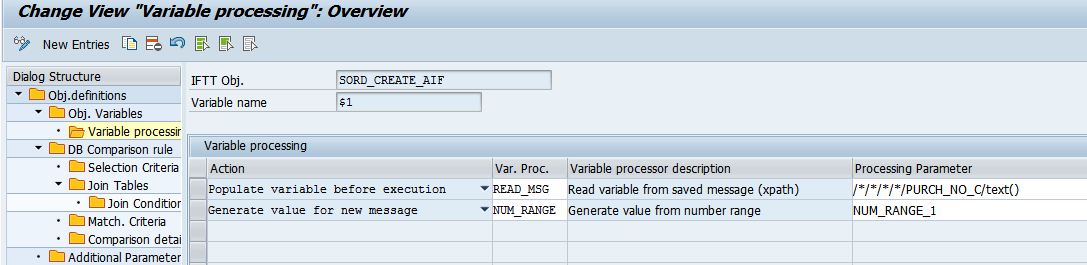
Define an unlimited number of variables and add a meaningful description for each of them.
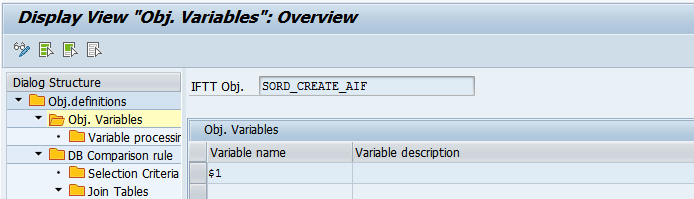
For each of the variables, define actions and define the processing that will be performed. For each action, select one of the variable processors and provide the processing parameter: This way, variables can be used e.g.
-
to identify documents to be compared,
-
for creating new values from a number range for newly created messages,
-
for passing values to variables in the following test cases.
GENERAL SETTINGS
-
(OPTIONAL) Reference Object Definition ID can be entered in order to use configuration of another object definition.

-
(OPTIONAL)
If IFTT is installed on a remote system and is intended to use documents from another system,
Ref. RFC Destination
and
Res. RFC Destination
are required.

-
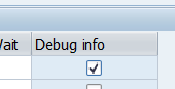
To receive additional debugging details select Debug Info as active while configuring a new object. Debugging details will be available on the results screen
during the test case execution.
-
-