
Test Case Groups is a tool that utilizes LDA Algorithm (read more in the Int4 Suite Machine Learning section) for grouping and selecting test cases according to their statistical similarity, to allow for limiting test cases count while keeping the coverage of business scenarios.
Starting the tool
To start, navigate to the Machine Learning section to the Test Cases Groups application
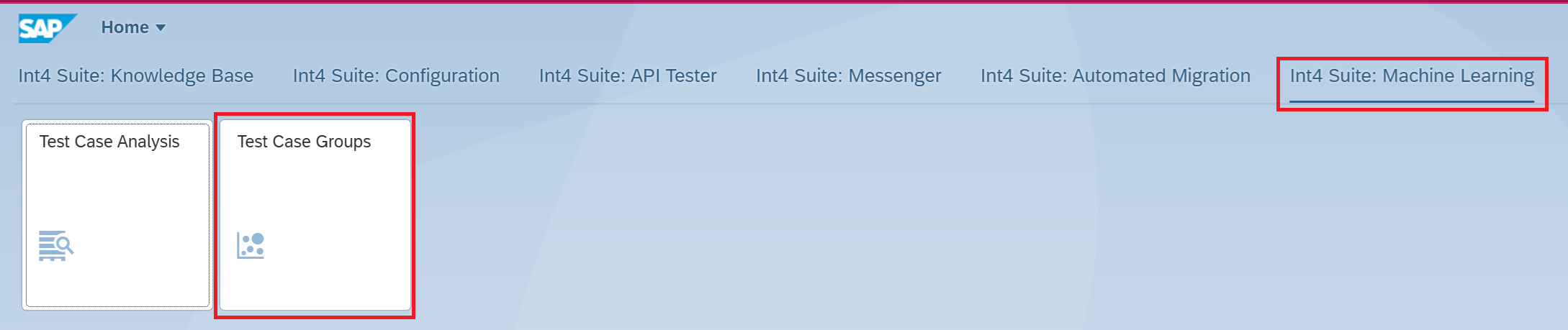
The “Managate TC ML Topics” screen will open, listing the created analysis entries.

The screen follows the familiar navigation approach known from other Int4 Suite and SAP Fiori applications, for creation, deletion, copying and overall management of items.
Creating new analysis
Click on the create button, a pop-up to provide name and description will open.
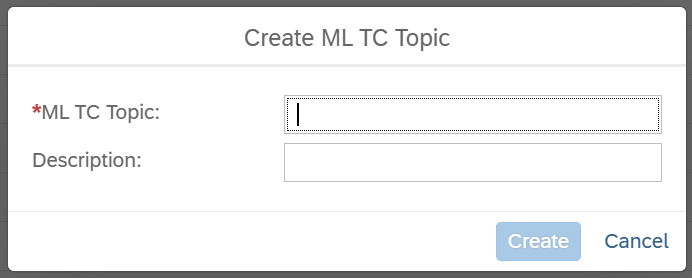
Click create after providing the necessary inputs.
Topic management details screen will open.
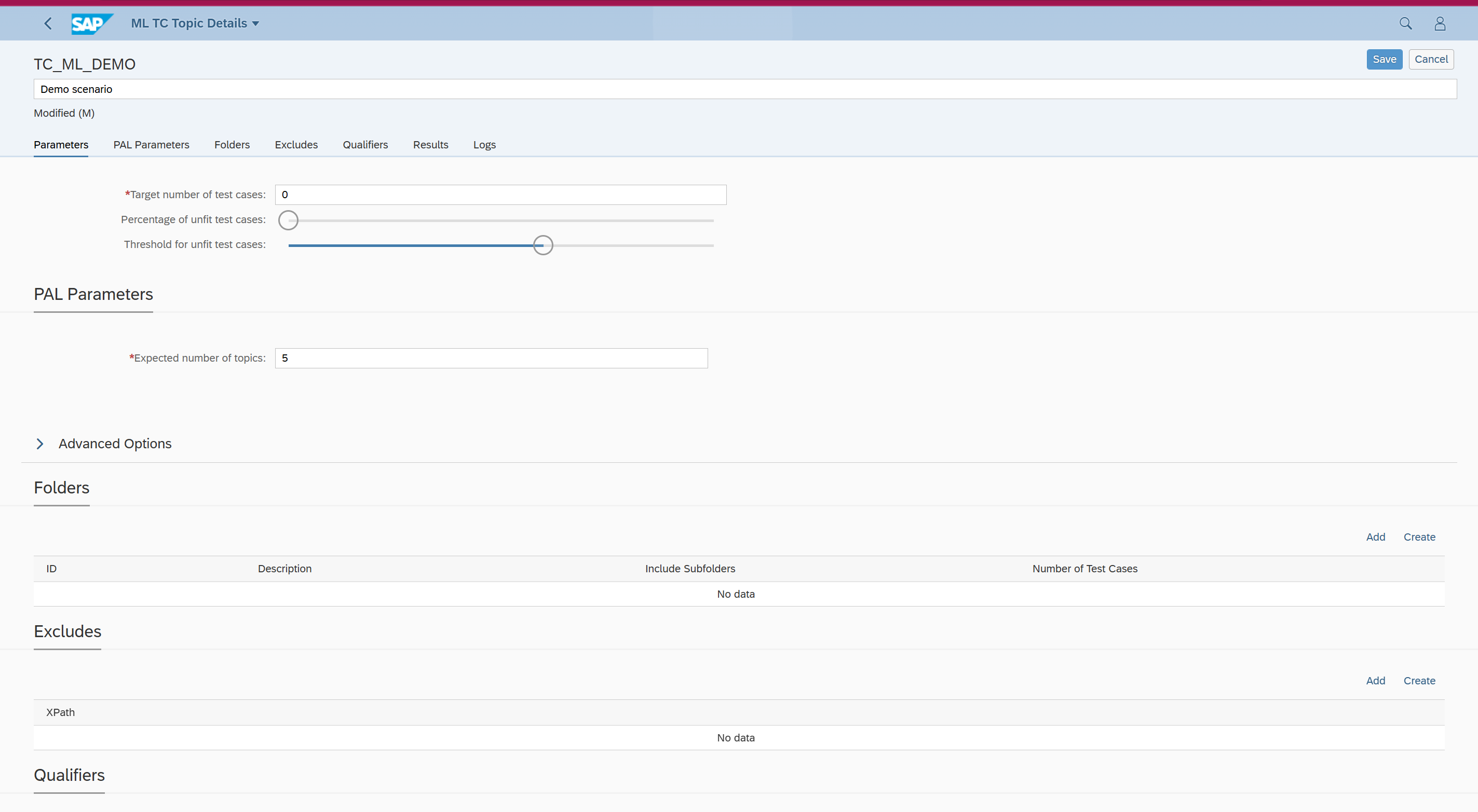
Screen sections
Parameters
-
Target number of test cases - number of test cases to be captured in the processing results
-
Percentage of unfit test cases - percentage of outliers (bearly matching) to be included as mandatory
-
Threshold for unfit test cases - percentage threshold level (fitness to the group) to distinguish between group matching and outlier test cases
PAL Parameters
-
Expected number of topics - number of classification topics (groups) to split the messages into. For regular scenarios, keep this between 5 and 10. In general, one could use a formula like this

So, if Your folders contain 100’000 test cases and You want 1000 test cases to cover the scenarios, You should set the number of topics to 10.
The formula above should serve as a rule of thumb. The LDA algorithm normally works best with a number of topics between 5 and 20. If the formula provides a value outside of these ranges, consider using a maximum of 30 topics for the first attempt.
Advanced Options
PAL library for S/4HANA provides additional parameters to control the LDA algorithm implementation. We do not suggest making any changes to the default options. Read more here: https://int4support.atlassian.net/wiki/spaces/IUM/pages/2795012099/Int4+Suite+Machine+Learning#Technical-Considerations
In case You’d like to explore these options in more detail, please consult a Machine Learning expert to handle more demanding scenarios. Int4 AG may provide a service to help with this.
In most cases, as proven by our customer experience, it is sufficient to use the default parameters and apply Test Case Analysis Report to understand the generated data, by comparing the analysis before and after ML run. We do not recommend altering the PAL library advanced parameters without prior consultation.
Folders
Here add the folders that contain the test cases for processing. In case the test folder contains sub-folders with relevan test cases, make sure to mark the Include Subfolders checkbox.
Excludes
Many business messages transported via interfaces contain data that is irrelevant for the business processing. That could be the summary, technical header or other information that would differentiate the messages. It will be helpful to exclude these segments from the message. The Create button of the Exclue section will bring a pop-up allowing to select the segments of the message to exclude, defined as XPath filters.
The helper tool considers the messages from the Folders provided in the previous section. In case the data is not XML, Int4 Suite attempts to automatically provide a conversion from the common message types like ANSI X12 and EDIFACT to XML-like structure and so, the Exclude filter tool will suggest the appropriate XPath’s to handle these messages.
Qualifiers
In certain scenarios, specifically in the IDOC XML representation, there are certain data elements that change their meaning depending on the value of a qualifier tag. Clicking “Create” for the Qualifiers section will open up a helper selector allowing to select XML representation tags that serve as qualifiers. For IDOC’s be sure to select QUALF as a qualifier.
Results
Once the analysis run is completed, this section contains the list of topics (classes) created.
Logs
This section contains the processing logs for that specific analysis definition.
Running analysis
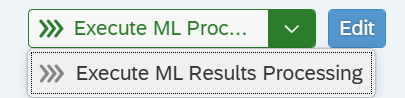
Once the analysis setup is complete, save it and click the Execute ML Results Processing button on the top right. Processing will start in the background.
After analysis
Once the analysis is complete, the Results sections will offer additional options

-
Execute Test Cases - this will run all the test cases from the groups
-
Copy Test Cases - this will copy the test cases captured (considering the options for outliers discussed above) to a selected folder
Comparison Analysis
In order to fully benefit from the ML solution in Int4 Suite, it’s recommended to combine Groups and Analysis options in a flow
-
Select folders with relevant test cases
-
Run TC Analysis on these folders
-
Run ML TC Groups on these folders
-
Copy the resulting TC’s to a new folder
-
Run TC Analysis on the new folder
-
Display TC Analysis comparison between the source and target folders
Executing Comparison Analysis
In order to compare results of different analysis,
-
Ensure that both the analysis reports use the same business dimensions
-
Select the two completed analyses and click on the Compare button
