
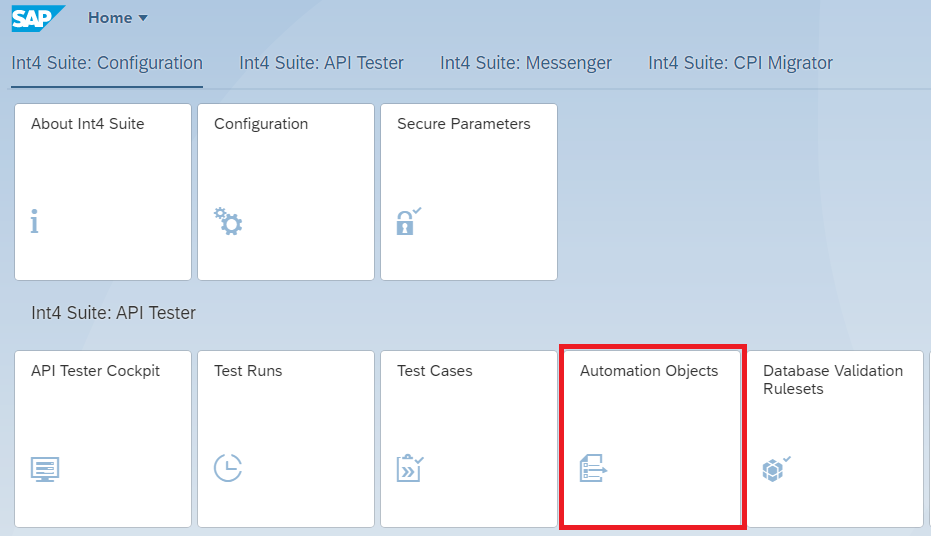
To start working with Automation Objects go to the Fiori launchpad and select the Automation Objects tile.
Automation Objects list will open, with typical list filtering features available.
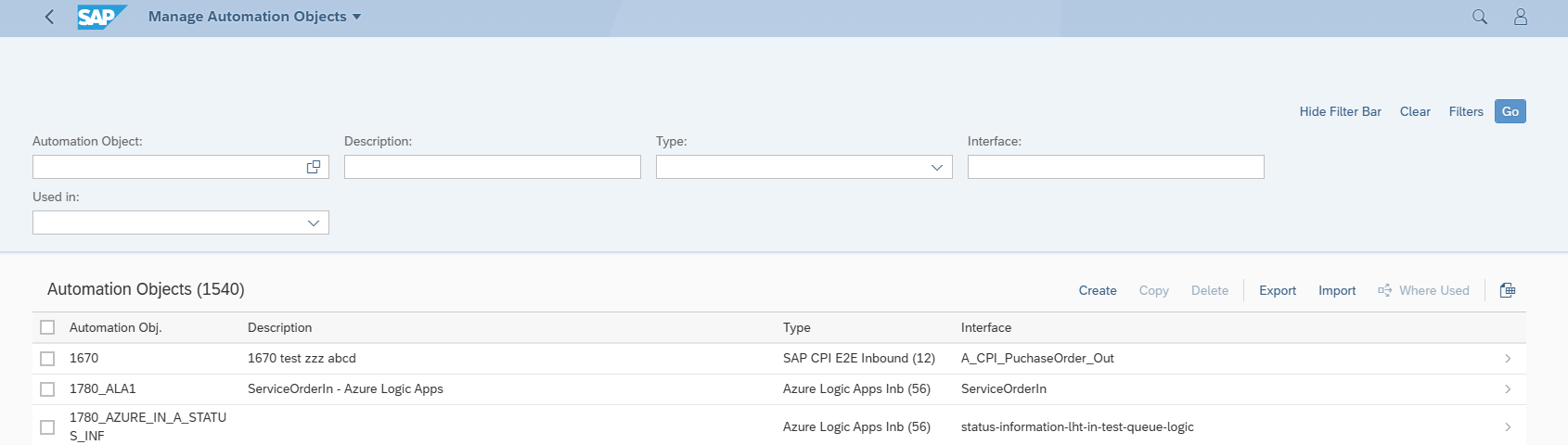
Elements of Automation Objects list
-
Automation Obj. - technical name of automation object
-
Description - user friendly free form description
-
Type - Type of test case supported by the Automation Object
-
Interface - Interface name as defined in the Automation Object
Automation Object list features
-
List filtering
-
Create new Automation Object
-
Copy selected Automation Objects
-
Delete selected Automation Objects
-
Export selected Automation Objects to file
-
Import Automation Objects from file
-
Export Automation Objects lists to spreadsheet file
-
Where Used listing
Working with Automation Objects
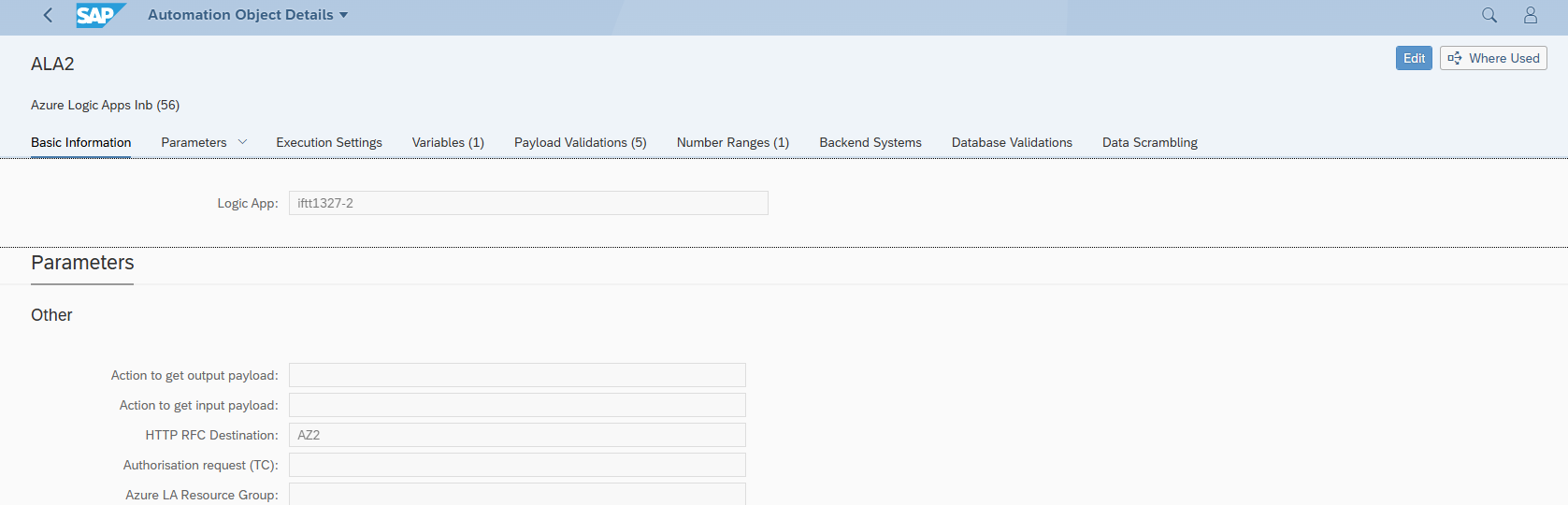
Clicking an Automation Object from the list or creating a new one will open Automation Object edition screen.
Video guide for Automation Object creation
Automation Object Edit Screen Sections
At the top of the automation object edit screen, you will find the automation object name, description, and assigned test type. The screen is organised into several sections, which you can navigate through by scrolling or clicking on the section names.
The sections displayed will vary depending on the assigned test type. For more information on each test type, please refer to the dedicated pages of this manual.