These settings require administrative access to the SAP Cloud ALM
Configuring connections from SAP Cloud ALM to Int4 Suite
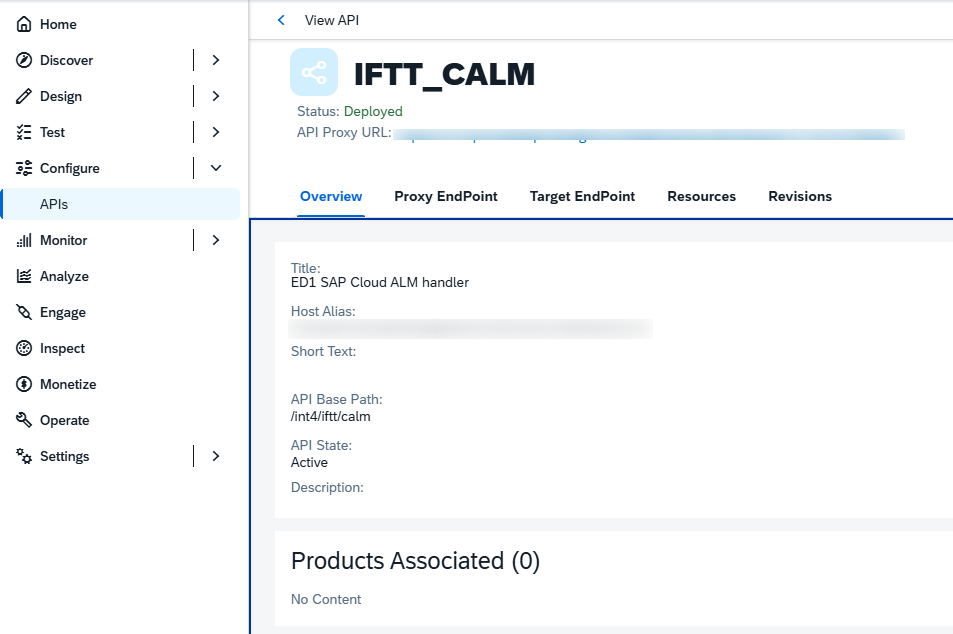
1. Expose Int4 Suite service /sap/bc/int4/iftt/calm in Integration Suite
2. Configure CALM Landscape
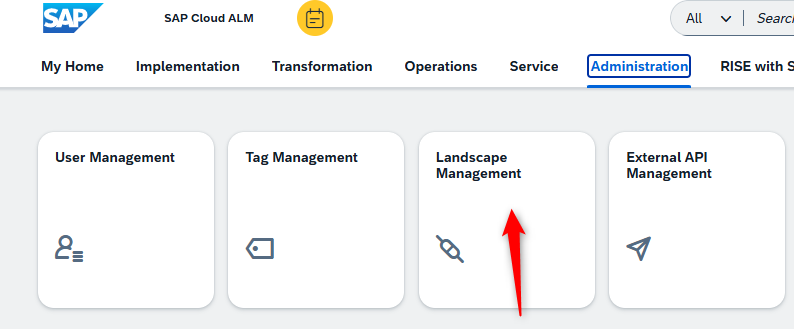
Go to Landscape Management
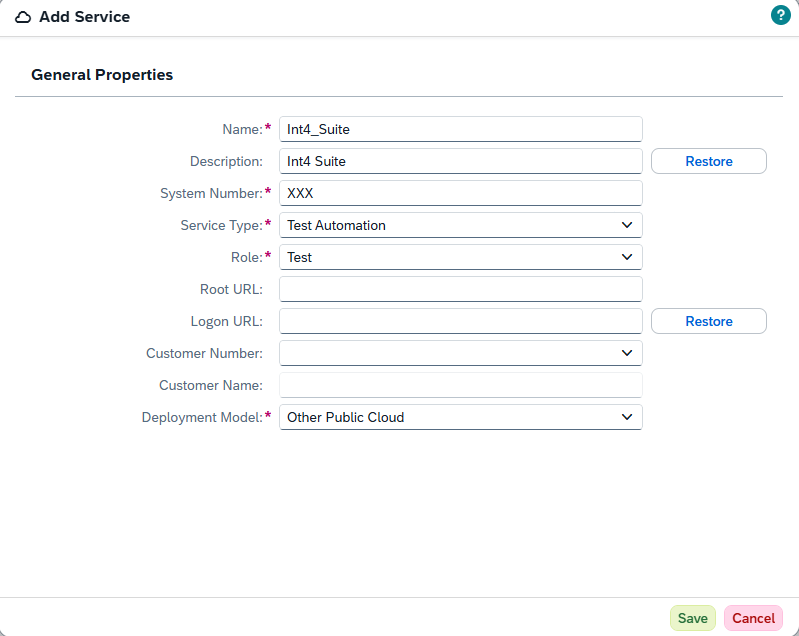
Open Services & Systems and click on Add, then New Service.
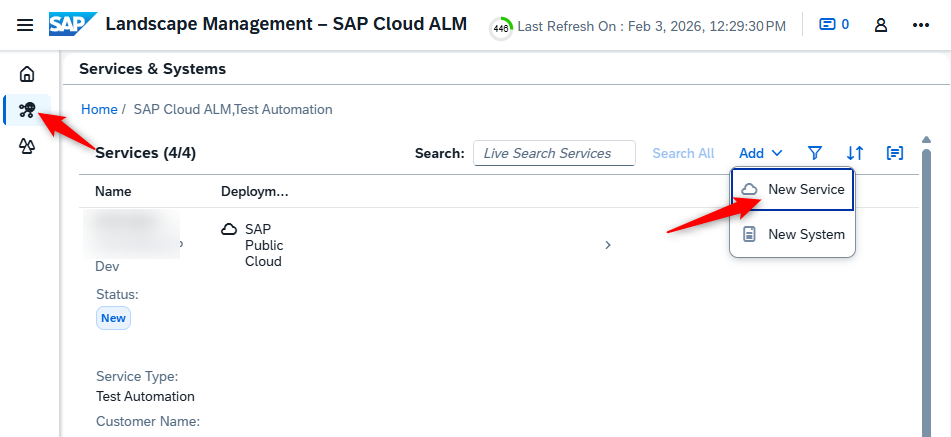
Provide the following details of your system with Int4 Suite installation.
|
Property |
Description |
Value |
|---|---|---|
|
Name |
Service name |
example: Int4_Suite |
|
Description |
Service Description |
example: Int4 Suite |
|
System Number |
SAP System ID |
example: XD8 |
|
Service Type |
Type of service in ALM |
Test Automation |
|
Role |
Role of your system |
example:Test |
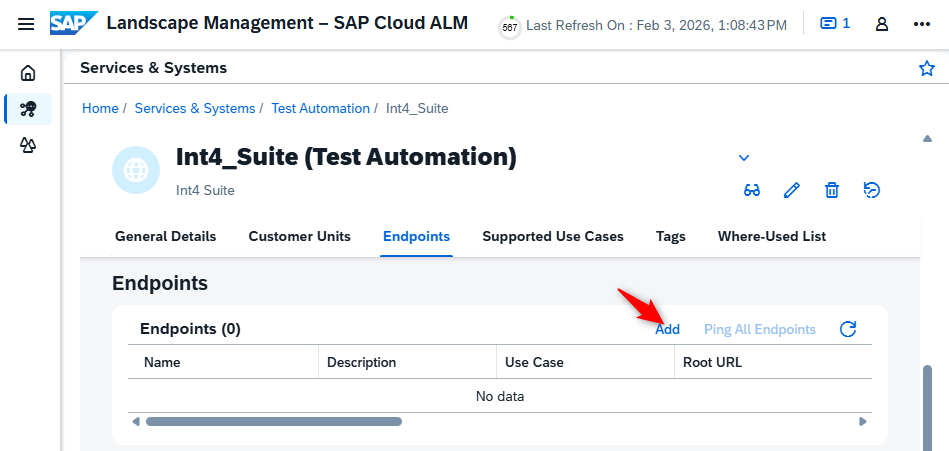
Add New Endpoint.
Fill below details.
|
Property |
Description |
Value |
|---|---|---|
|
Endpoint Name |
CALM name of the endpoint |
example: Int4_Suite_01 |
|
Description |
Endpoint Description |
example: Int4 Suite |
|
Root URL |
Url to CALM service in Int4 Suite ( exposed in step 1 ) |
example: https://xxx-apim.test.apimanagement.euXX.hana.ondemand.com/int4/iftt/calm |
|
AuthenticationType |
Authentication type configured for Int4 Suite connection |
example: Basic Authentication |
|
User |
User name for Int4 Suite connection |
example: user |
|
Password |
Password for Int4 Suite connection |
example: password |
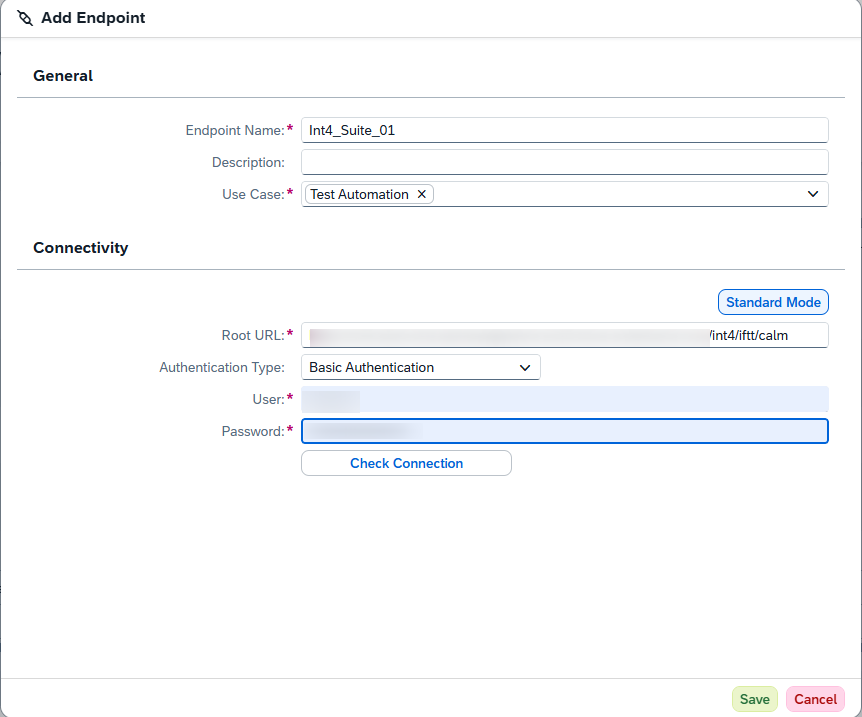
Save changes.
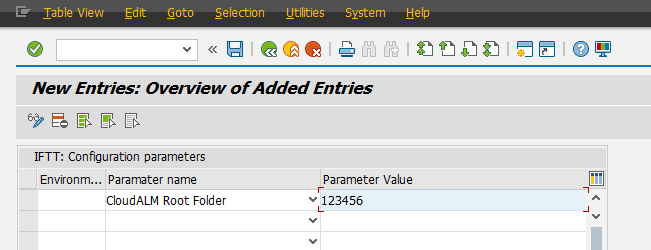
3. Configure Root ALM Folder in Int4 Suite
This is the folder Id in which ALM will create its ‘Test Cases’ - in Int4 Suite it will be reflected as folder structure.