
SAP PI/PO
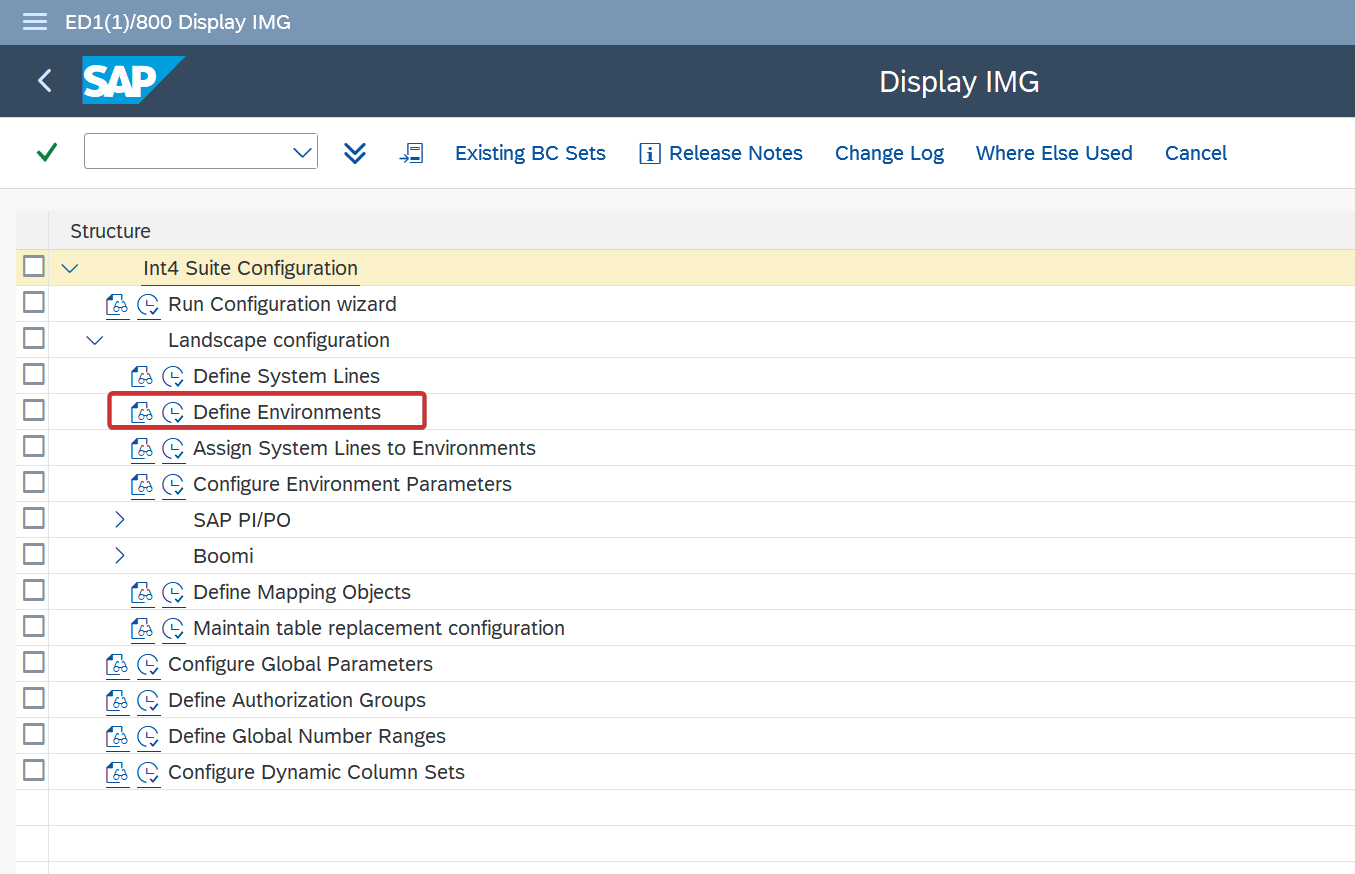
For SAP PI/PO one RFC per each environment needs to maintained, rest of the connections will be genereated using Configuration wizzard. Launch transaction /INT4/IFTT_IMG and select “Define Environments”
Click on “New Entries“ button:

Put Enviromennt name and description, mark checkbox for PI/PO, and save it:

Non-prod Environment
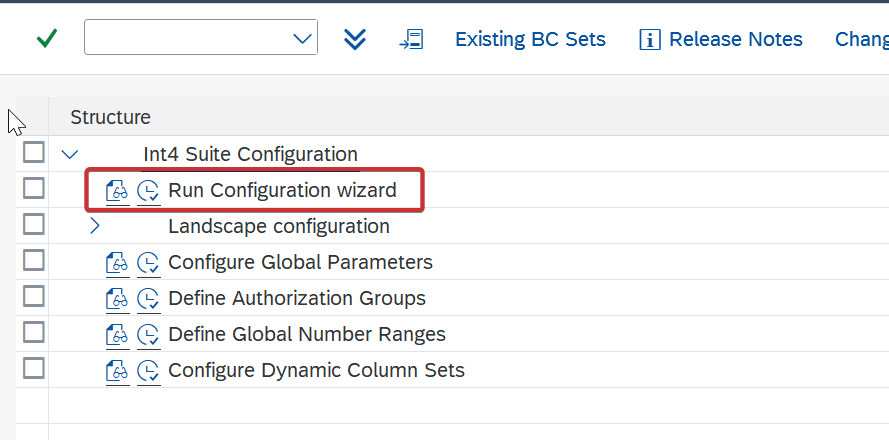
Go back and run “Run Configuration Wizard”
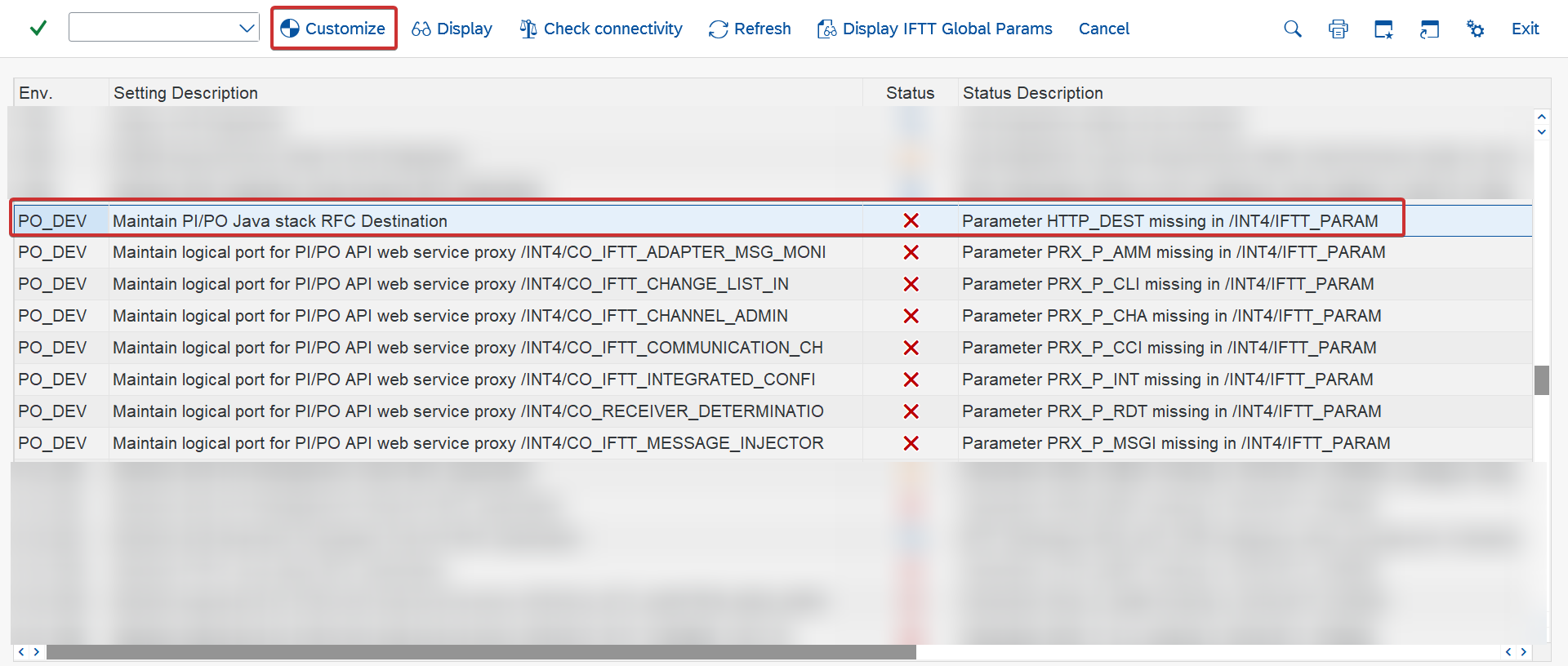
Locate your Environment entries and select “Maintain PI/PO Java stack RFC Destination” and select “Customize” button.
There are two options to configure this:
-
Assign existing RFC
-
Create new destination
Assign existing RFC
Point to the right destination of type G.
Create new destination
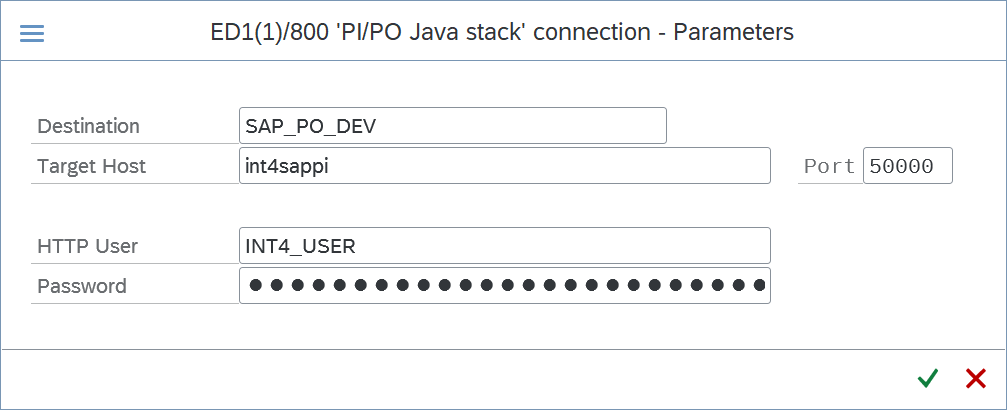
Fill out all necessary field and click on green tick button.
Roles for technical user can be found here: Roles for SAP PI/PO communication user
After RFC is assigned you can perform test connection

This will check if RFC was maintained correctly. In case of errors. please investigate the log:
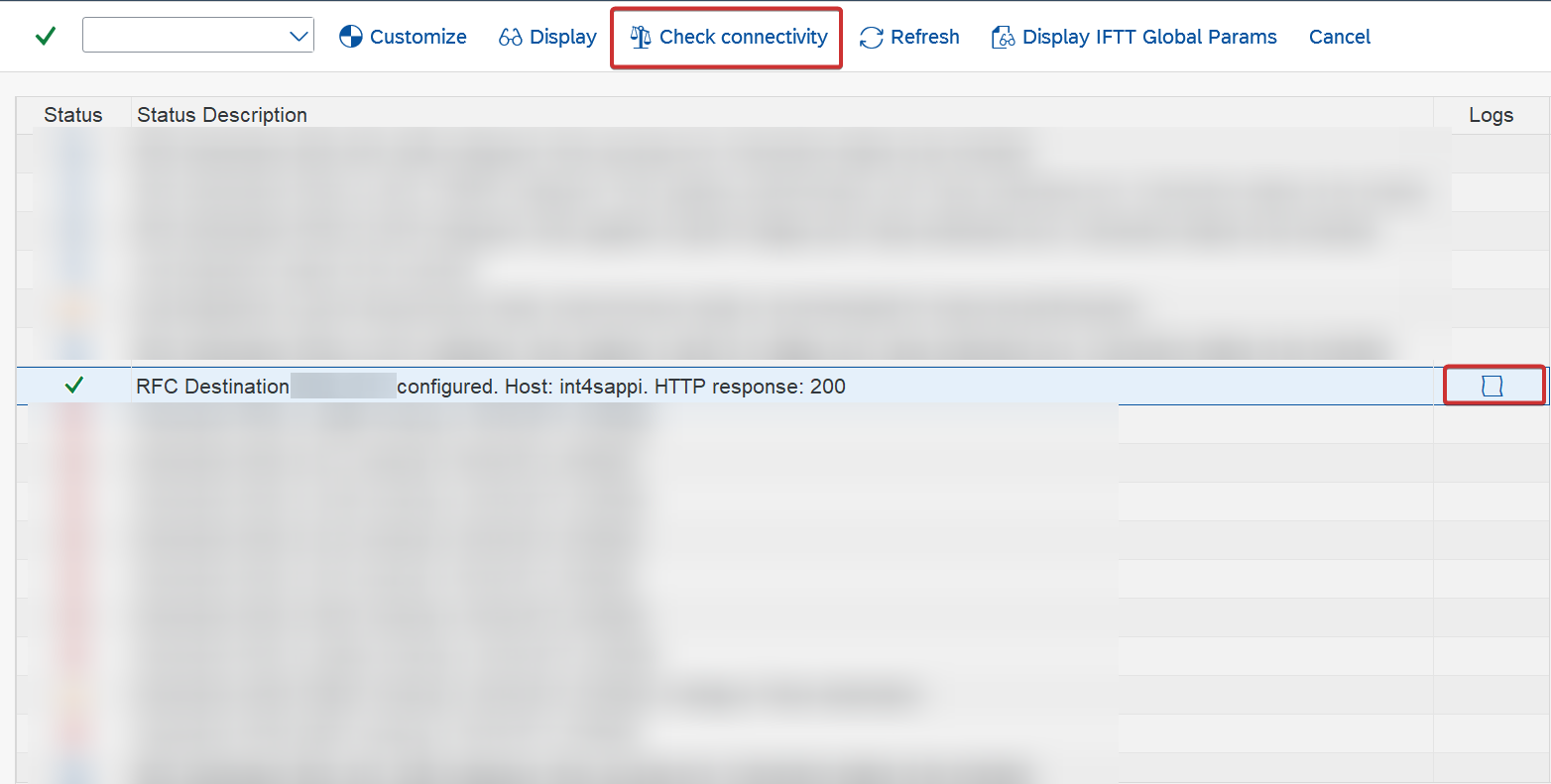
After RFC was successfully maintained and test connection is also successful, configure next activities.
For each activity “Maintain logical port for PI/PO API web service proxy …“ Click on “Customize“ button, and create or assign logical port.
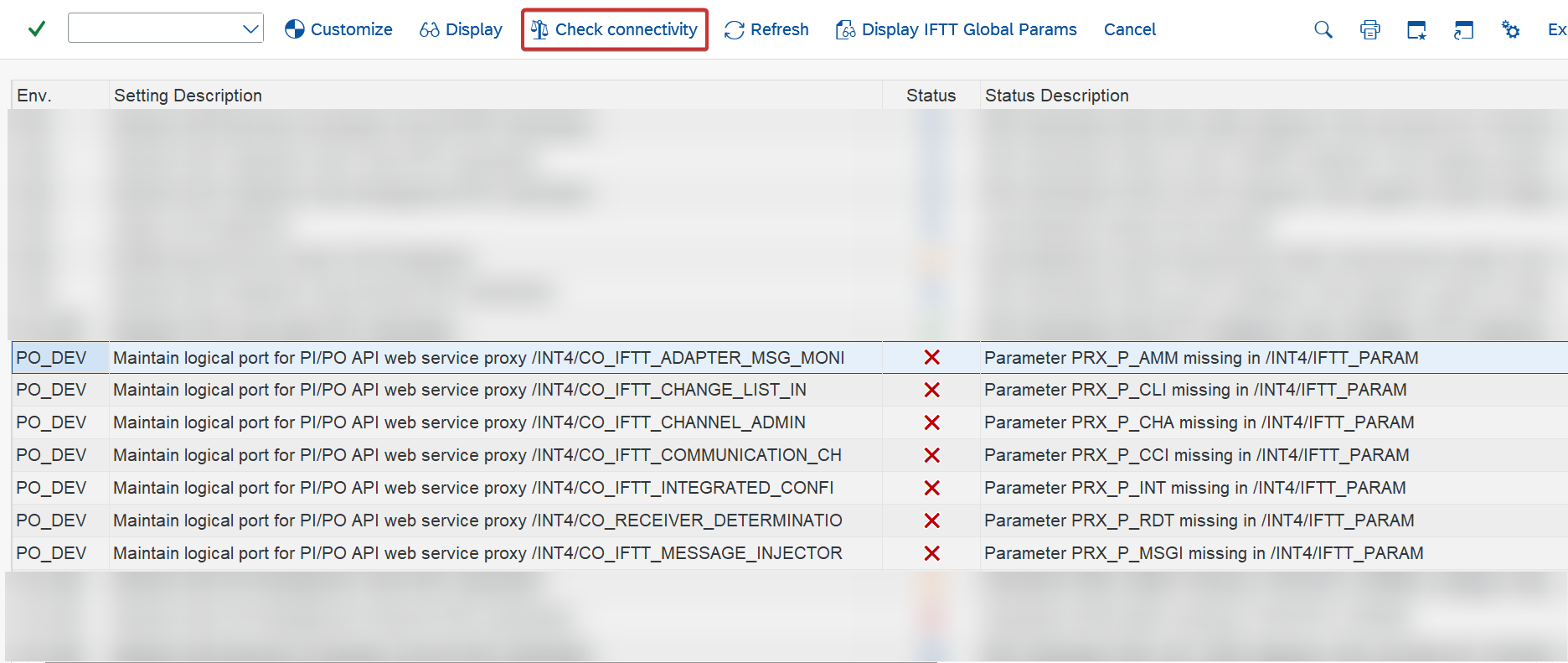
In future when password used in RFC will be changed, you need to also regenerate the actvities for Web Services. It won’t be updated automatically.
Production Environment
For production environment the checkbox “Production“ needs to be checked on environment level:

This will prevent sending messages to production environment by user mistake. Rest activities needs to be done the same as for non-production environment. Roles for the technical user can be find here: A read-only role for SAP PO connection to production systems
SAP Integration Suite -Cloud Foundry
For SAP Integration Suite there is a need to configure 3 RFCs per each environment:
-
Managment destination - this destination is needed for: deploying iFlow, getting list of iFlows, getting payloads, etc.
-
Managment - Token destination - this destination is needed to fetch OAuth2 token which is used in calls in Managment destination,
-
Runtime destination - this destination is needed for executing Test Cases on SAP Integration Suite Environment
Non-prod Environment
Create environment or add checkbox “CPI“ to existing one:

When you enter “Run Configuration Wizard“ in /INT4/IFTT_IMG transaction.
Now you need to configure those 3 activities:
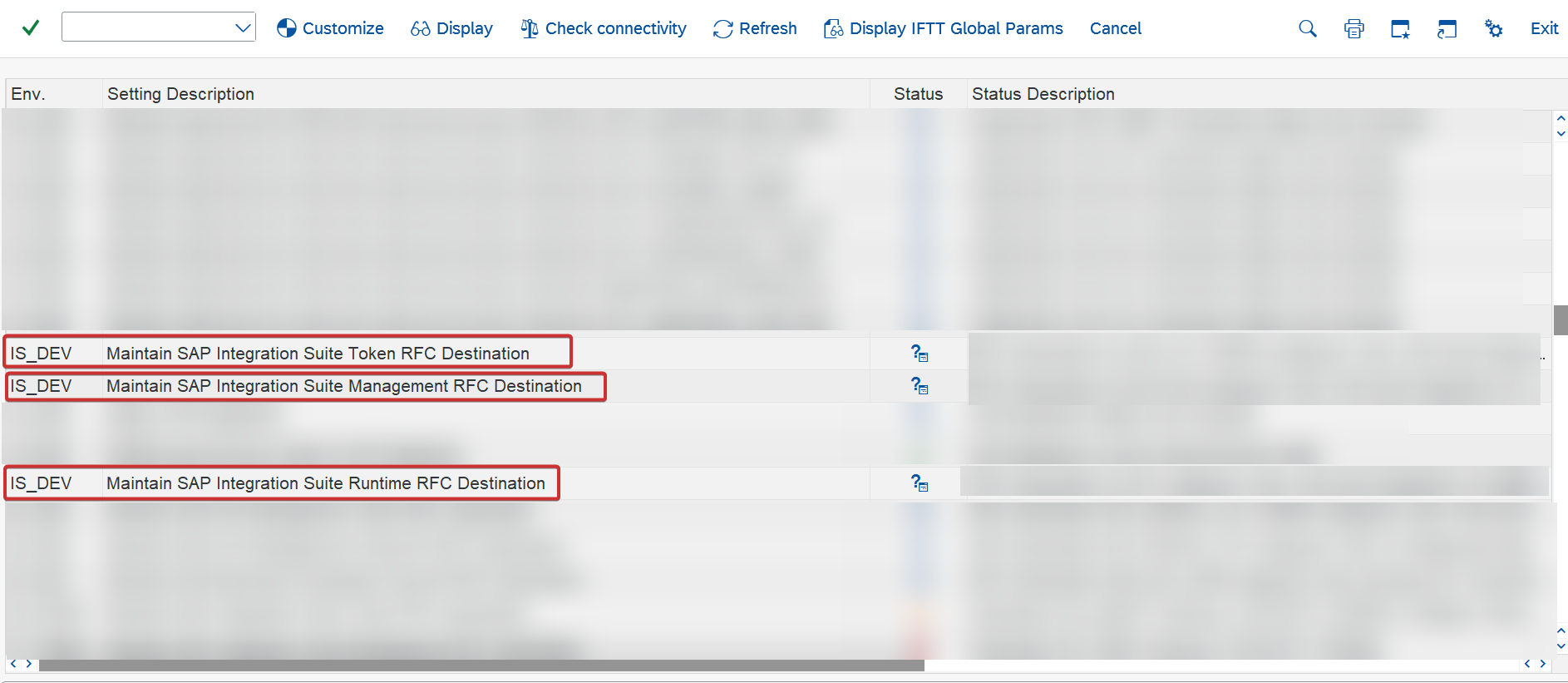
Configure “Maintain SAP Integration Suite Token RFC Destination” Click on “Customize” button. Similarly as for SAP PI/PO, you can choose to create new RFC, or assign already existing one.
You need key from SAP BTP instance where SAP Integration Suite is deployed. For service Process Integration Runtime, plan api.
|
RFC |
Value of Service Key |
|---|---|
|
HTTP User |
clientid |
|
Password |
clientsecret |
|
Target Host |
tokenurl |
For Target Host remember to remove ‘https://' and '/oauth/token"’part.

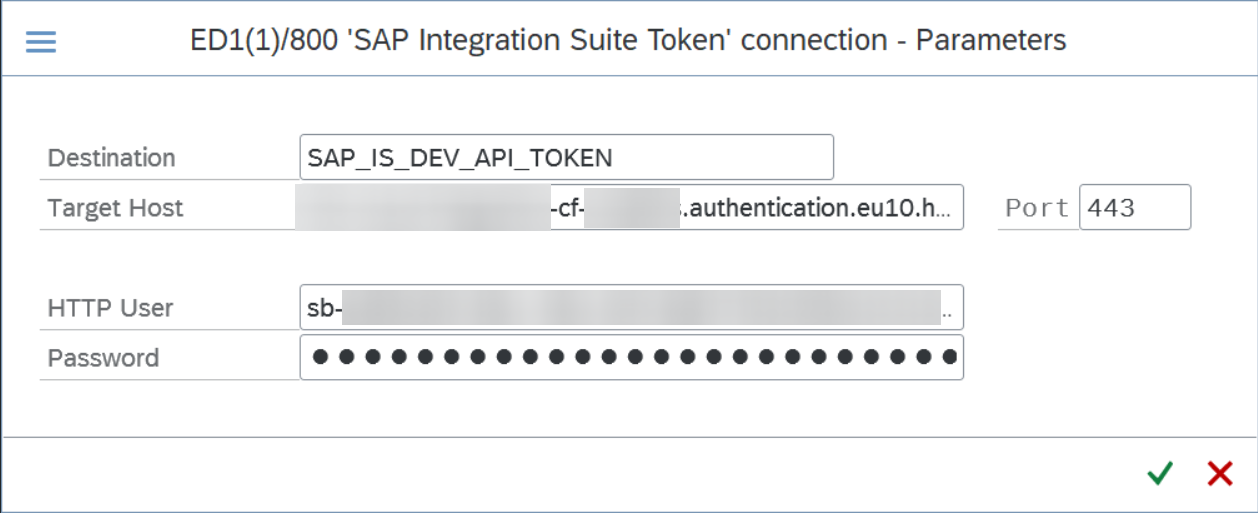
After configuration is done you can check connectivity of the assigned RFC:
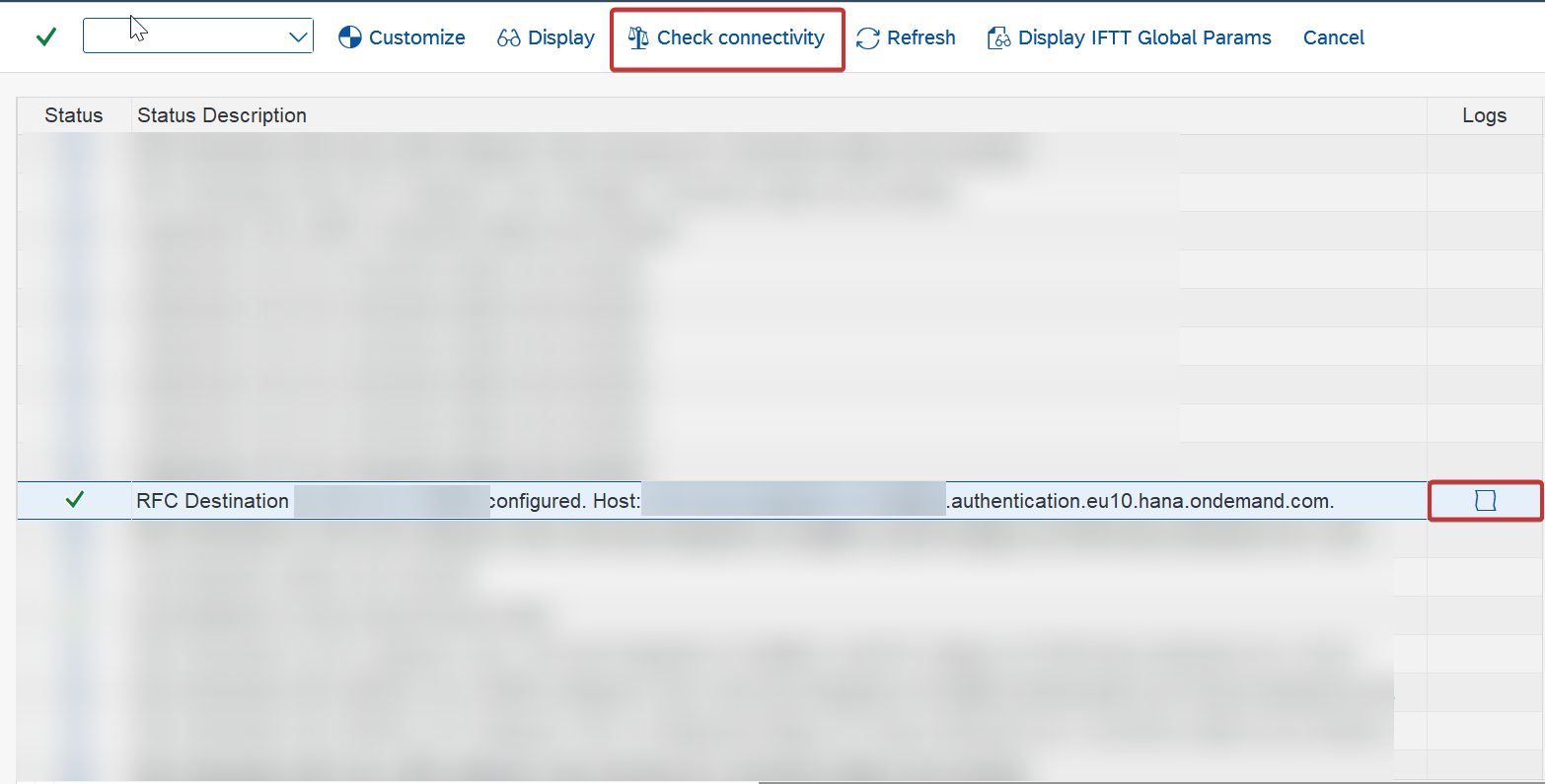
You should see name of the endpoint like in the screenshot above. If there are some problems you can investigate it in logs.
Click on 'Maintain SAP Integration Suite Management RFC Destination', in this destination you need to maintain only host for SAP Cloud Integration:
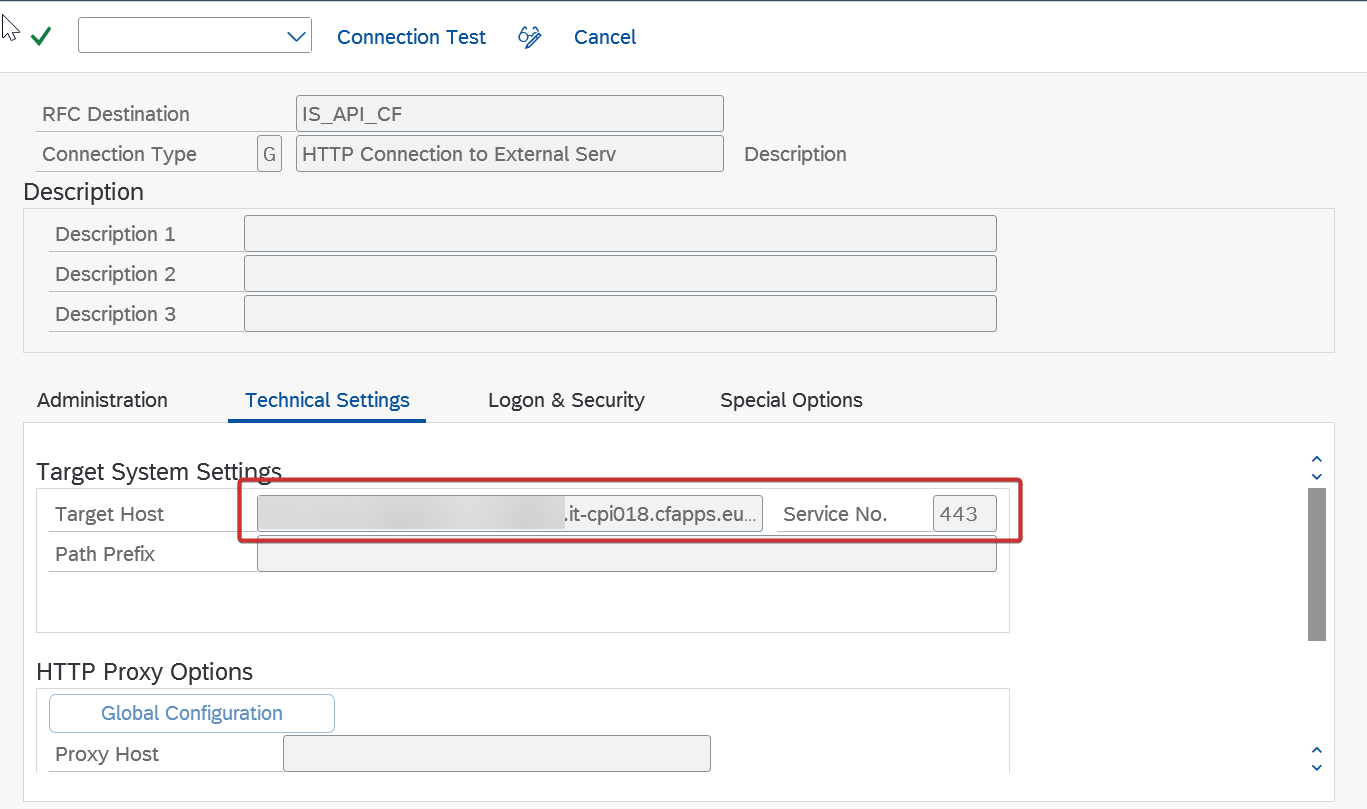
This is only host, do not configure any user/password under Logon & Security.

You need to use 'url' value.
After RFC is maintained, perform connectivity test:
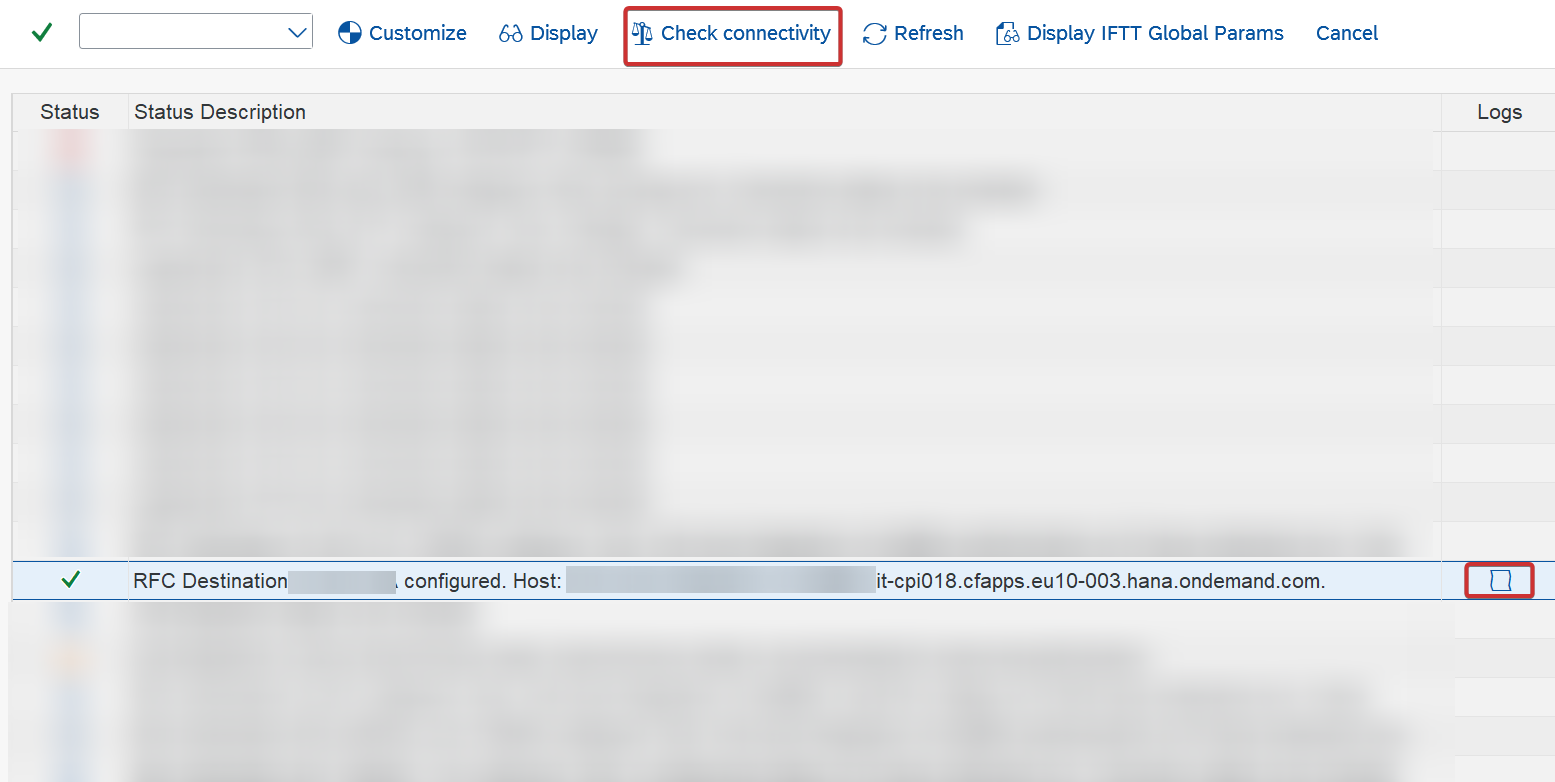
In case of any issues, please investigate the logs.
Choose ‘Maintain SAP Integration Suite Runtime RFC Destination' and click on 'Customize’ .
For this destination you need Service Keys created under Process Integration Runtime, integration-flow plan.
Here is example key with values that needs to be used in RFC.

|
RFC |
Value of Service Key |
|---|---|
|
HTTP User |
clientid |
|
Password |
clientsecret |
|
Target Host |
url |
After RFC is configured, perform connection test:
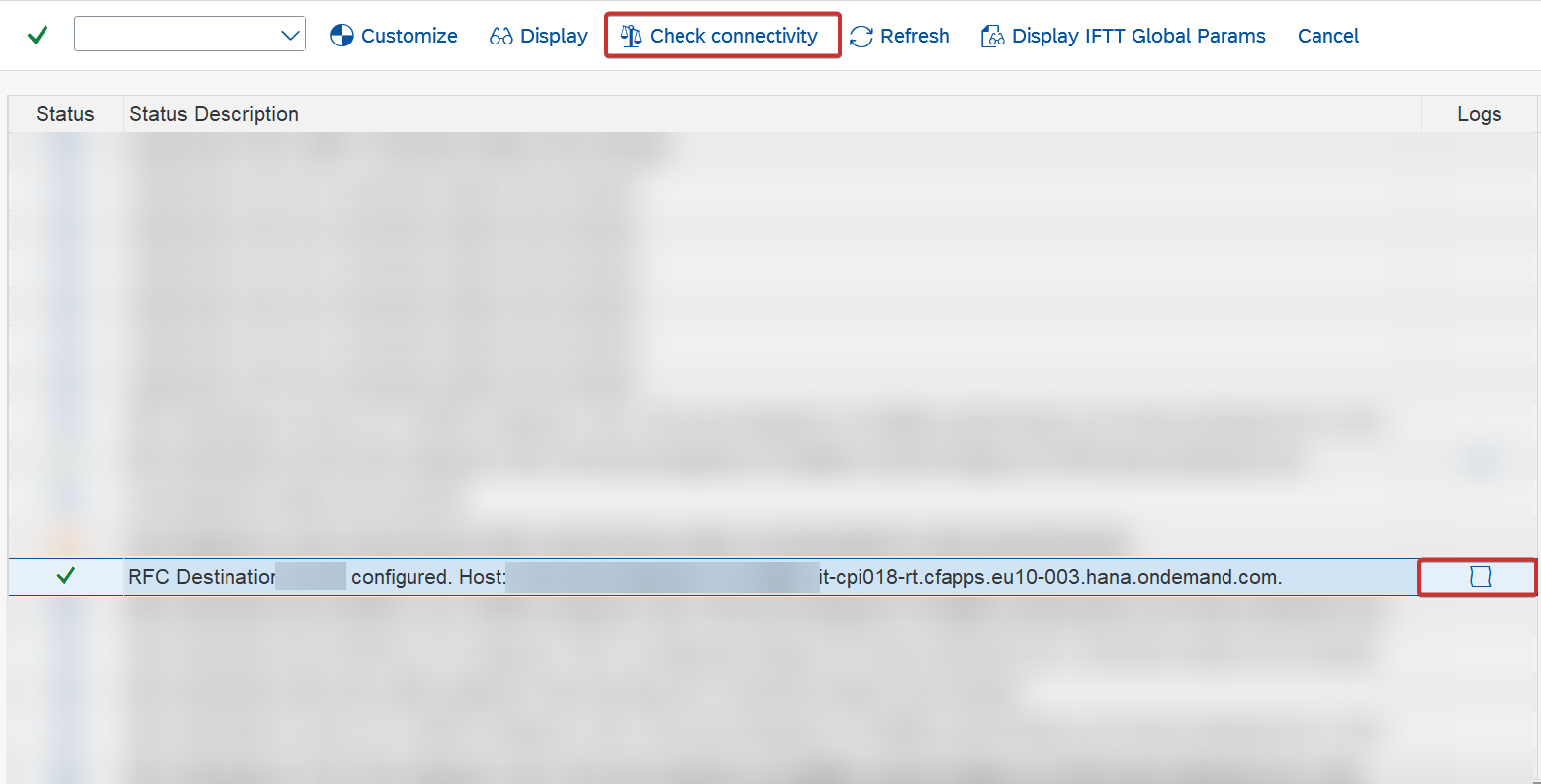
In case of any issues, please check logs.
Integration Suite HTTP Senders with Certificate Based Authorization
Omission of this step will lead to an HTTP 401 error during message execution in the Int4 Dispatcher HTTP receiver step, preventing the message from being passed to the tested iflow.
To support HTTP senders using certificate-based authorization in Integration Suite, add the Cloud Integration certificate as a Key in the Process Integration Runtime Instance of BTP.
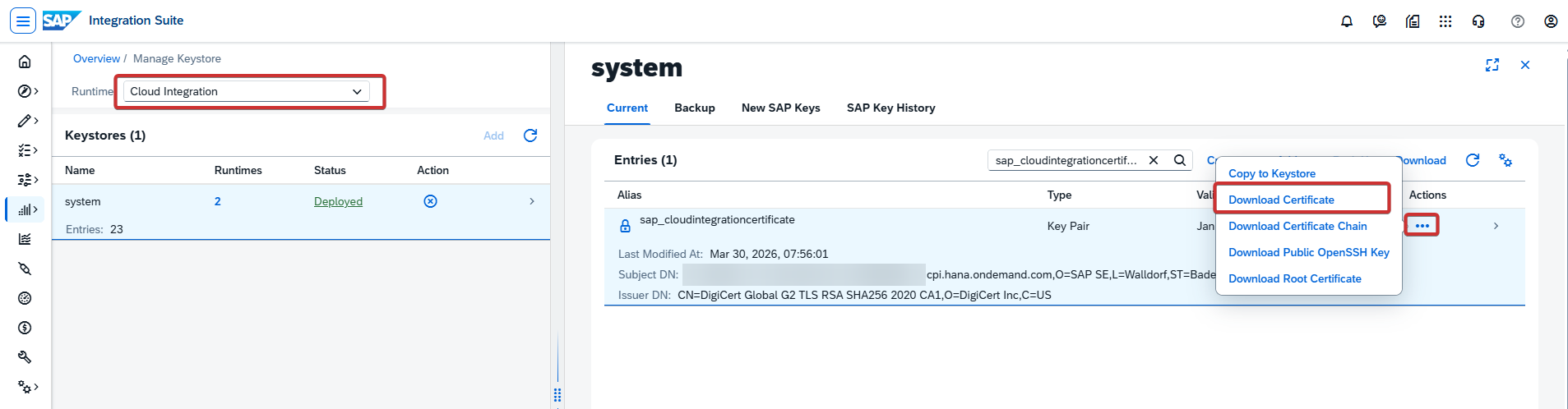
Certificate can be downloaded from the Key Store of Cloud Integration:

Select Runtime for Cloud Integration. You need to find it under “Current“ section. Look for sap_cloudintegrationcertificate. When you find it click on “Actions“ and select “Download Certificate“.
After you successfully downloaded certificate, go to instance in BTP subaccount where SAP IS is deployed. Locate instance for plan integration-flow.
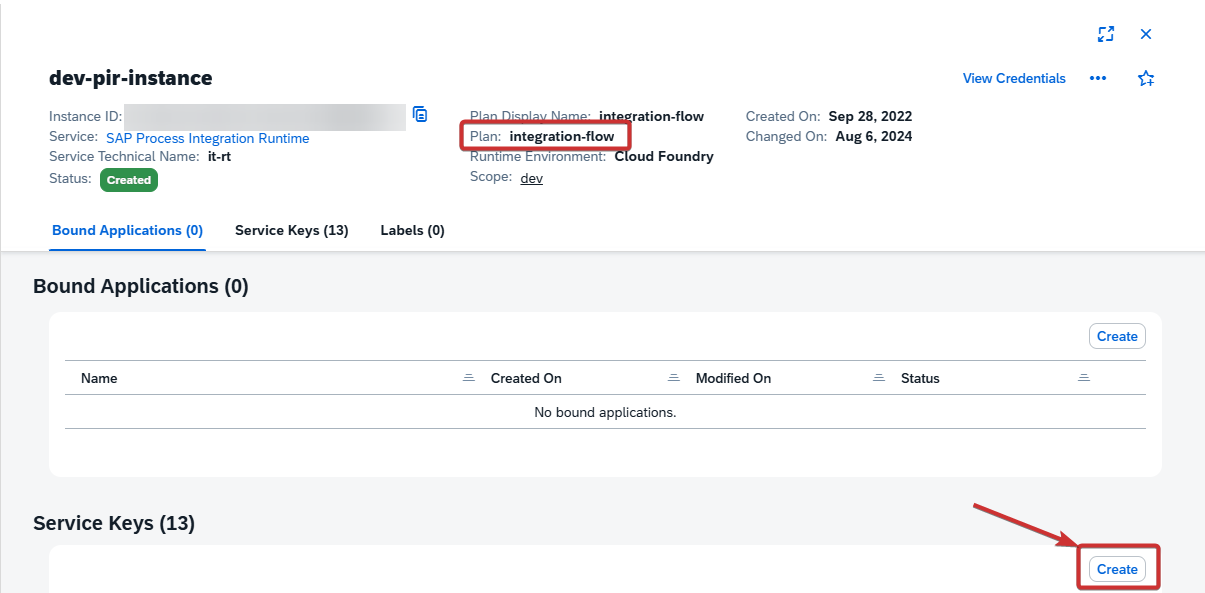
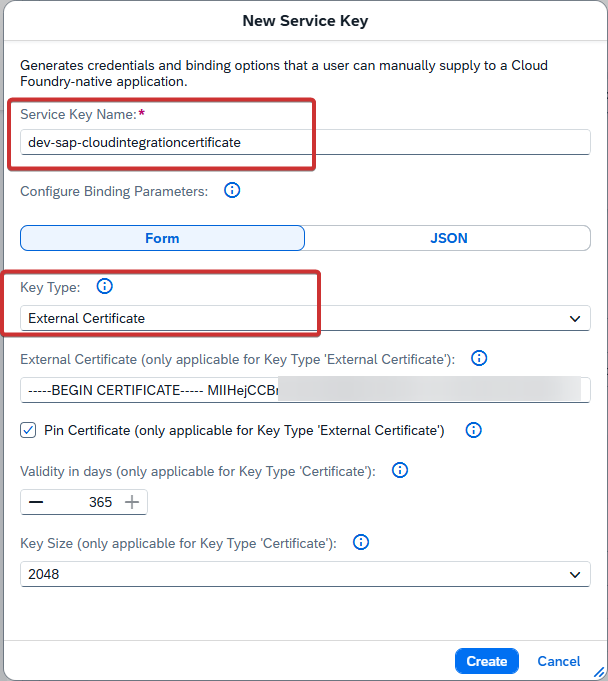
Under section Service Keys locate the “Create“ button. After you click on it you should see this window:
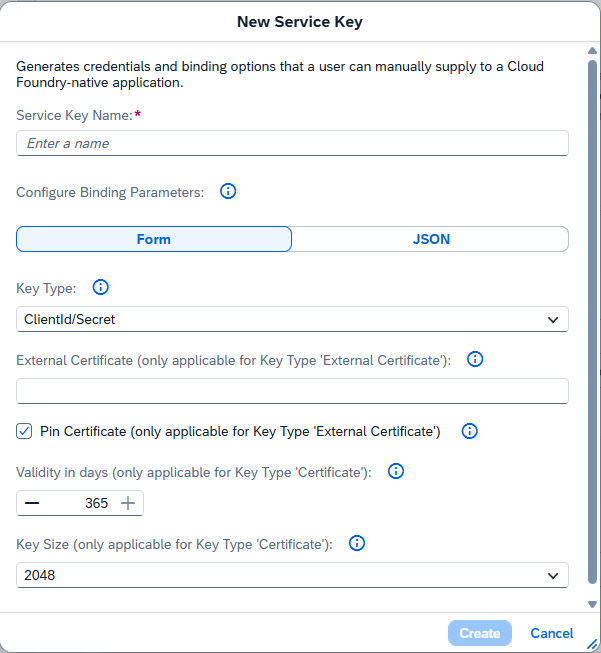
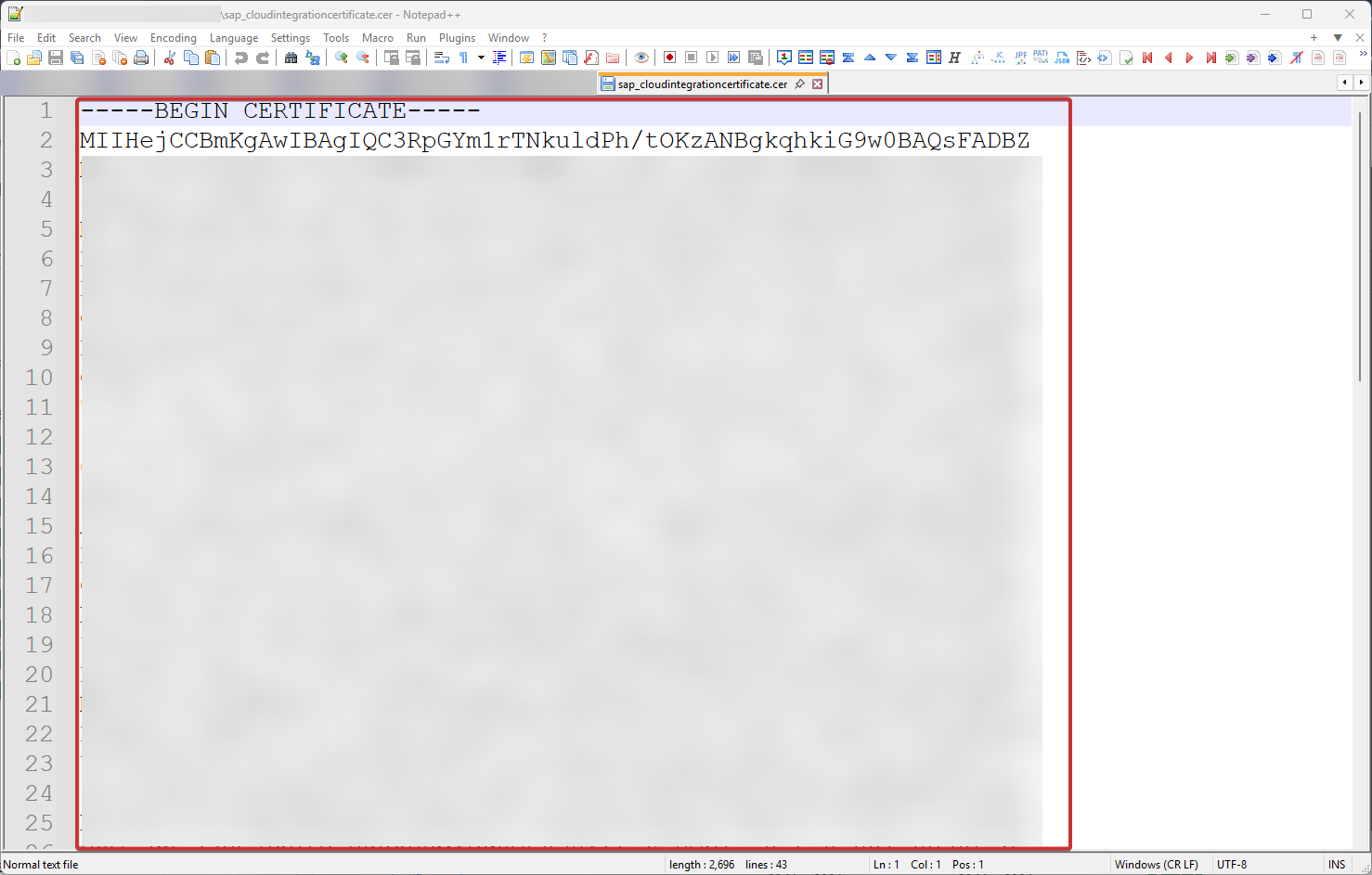
Provide Service Key Name, switch Key Type to “External Certificate“, for “External Certificate” value, open file sap_cloudintegrationcertificate.cer with text editor, for example Notepad and copy the whole content of that file:
At the end your window should look like this:
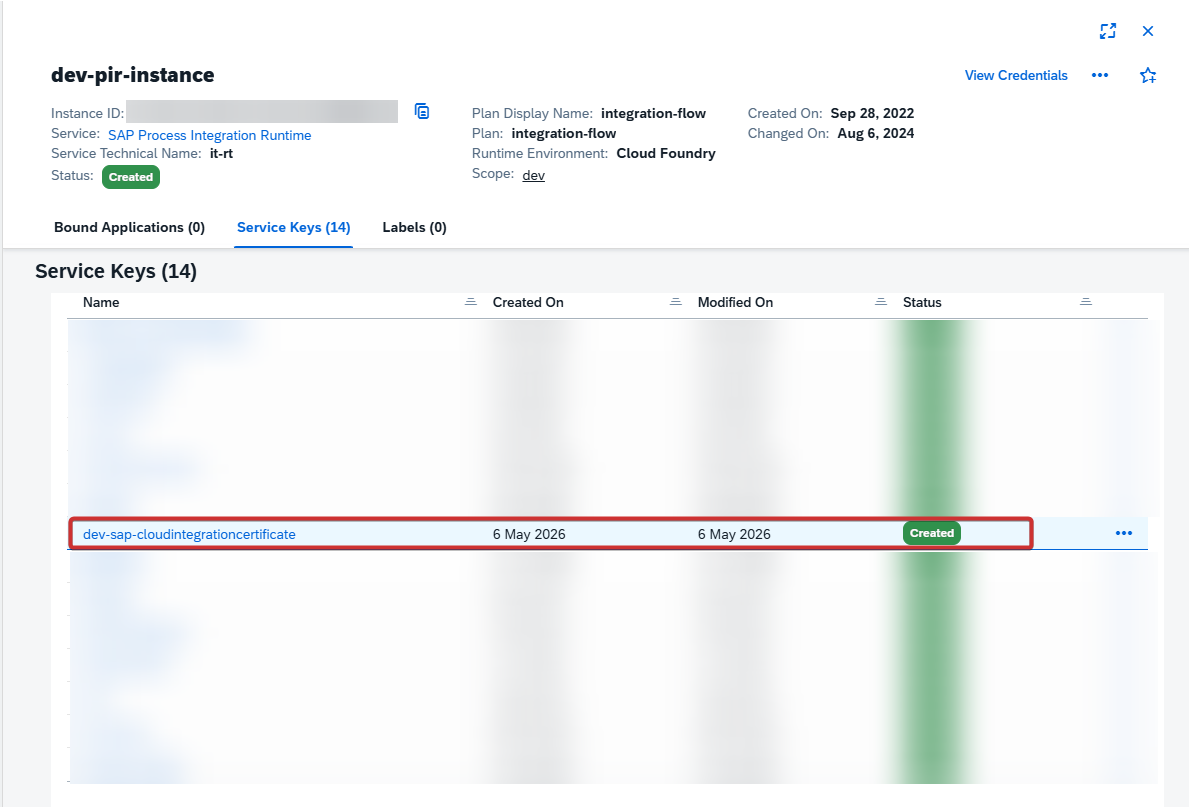
Click on “Create“ button to create the Service Key.
Production Environment
Setup of production Environment is similar like non-production one. During configuration you need to mark “Production“ checkbox on Environment:

This will prevent sending messages to production environment.
For Production tenant of SAP Integration Suite there is a need to configure 2 RFCs per:
-
Managment destination - this destination is needed for: deploying iFlow, getting list of iFlows, getting payloads, etc.
-
Managment - Token destination - this destination is needed to fetch OAuth2 token which is used in calls in Managment destination.
For Production tenant there is no need to create Runtime RFC Destination. For production environment sending messages shouldn’t be allowed from Int4 Suite.
For setup those 2 RFC’s you can follow previous section as the process is similar to non-production tenant.For setup those 2 RFC’s you can follow previous section as the process is similar to non-production tenant.