
Int4 Suite brings in a set of features and tools that, when connected with a suitable large language model capable of tool calling, provide a chat interface enabling natural language interaction with the test data and triggering test execution.
Agentic features
Int4 Suite chat provides these tools at the model disposal, enabling a natural language interface for these activities:
-
Listing test cases and test folders
-
Running selected test cases
-
Browsing test cases using business dimensions
-
Using master data for enhanced browsing experience
-
Understanding Configuring Int4 Suite Environments for test case selection and execution
-
Scheduling agent execution for daily execution of dynamically selected test cases - https://int4support.atlassian.net/wiki/spaces/IUM/pages/2834989067/Int4+Suite+AI+Features#Monitoring-and-removing-scheduled-jobs
-
Analyzing changes in SAP Integration Suite Cloud Integration iFlows to drive test case selection
-
Mapping Automation Objects to system changes (currently limited to SAP Cloud Integration) for test case selection
-
Creating and changing test cases
Changed Test Cases will be saved in subfolder named 'AI Generated Test Cases'
-
Selecting messages from middleware (message selector)
Enabling agentic features
The following steps are necessary to enable the agentic features. Without these settings, the chat will not be able to operate with Your data and run test cases.
Enabling business dimensions and indexes
Prompt adjustments
Chat responses are influenced by several factors. Most control is gained by choosing the right model (see more in Global Parameters List) and by adjusting prompts which influence chat actions and responses.
Int4 Product team used the OpenAI API and GPT-4.1 model while working on these features for the 3.11 release of Int4 Suite.
Customers, however, will run their own preferred models, and we include ready-to-use configuration templates inside Int4 so that any compatible model can be plugged in seamlessly. We will be more than happy to assist our customers in setting up the AI features, whether they choose a different API provider or model family.
Using Chat
Navigate to the Chat Interface
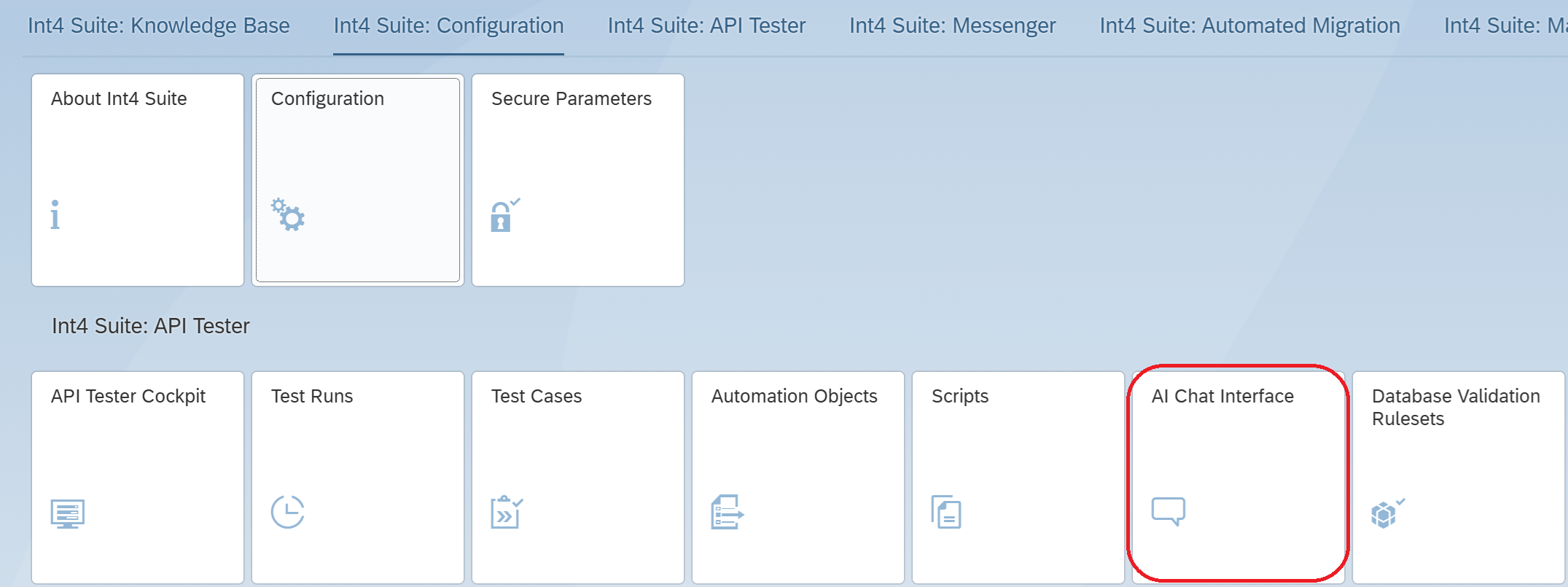
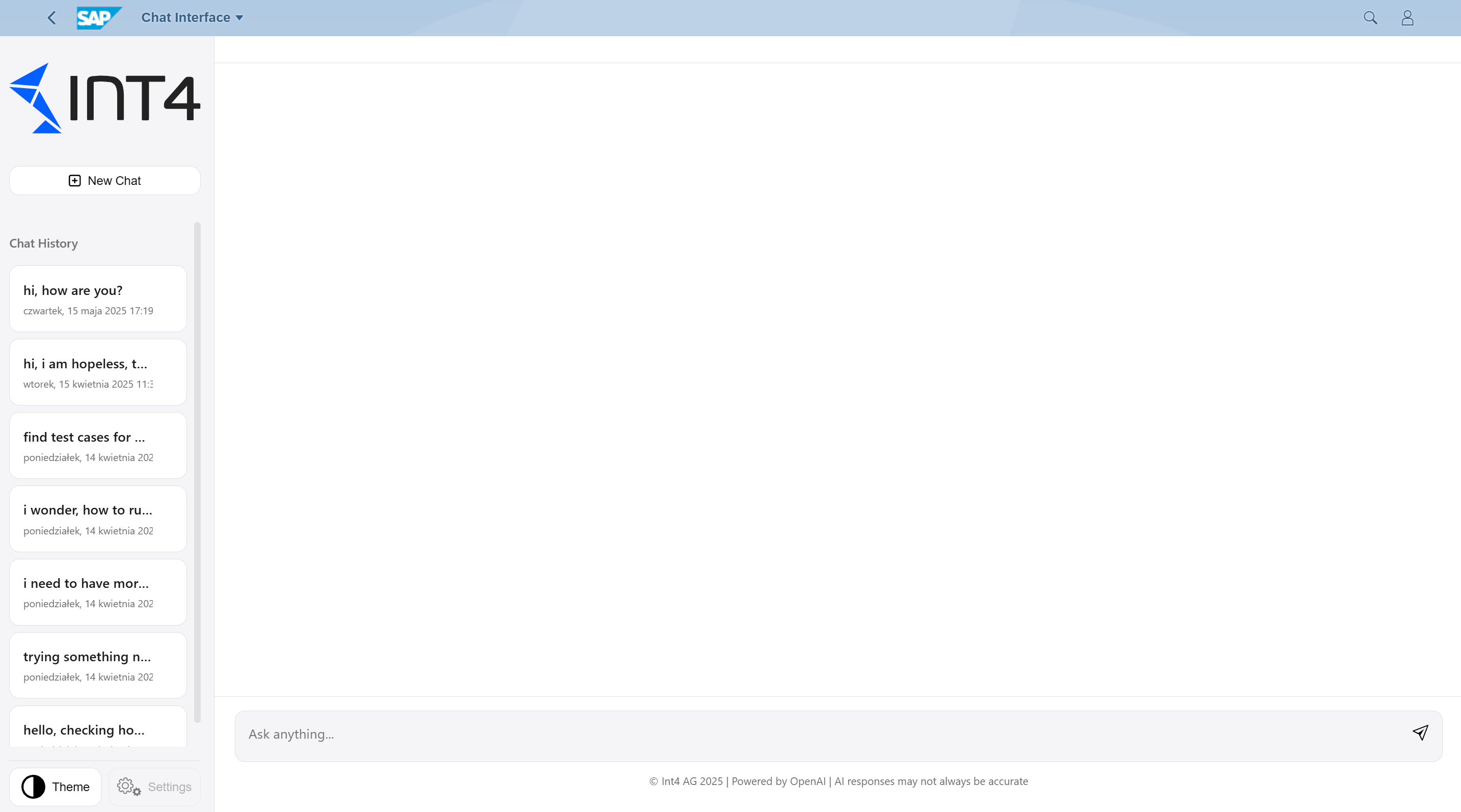
Use the chat interface, by typing in Your requests in the bottom box. Use Enter key or the arrow icon to send Your request. The responses will pop up in the chat window.
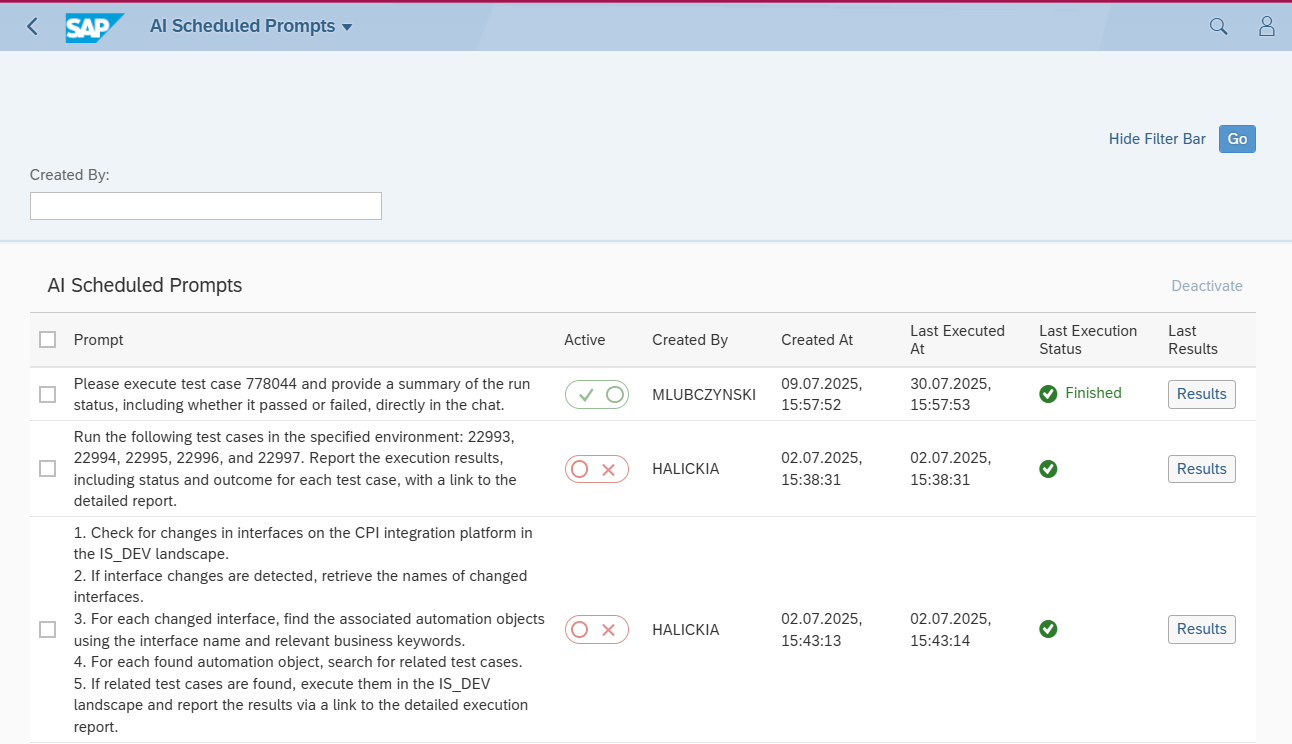
Monitoring and removing scheduled jobs
As the AI Chat enables You to operate in full agentic mode by scheduling a repeated AI-driven task, is’t mandatory to allow manual control over the jobs and view of their results.
In order to access the relevant application, log into Fiori launchpad and search for “AI Scheduler admin”

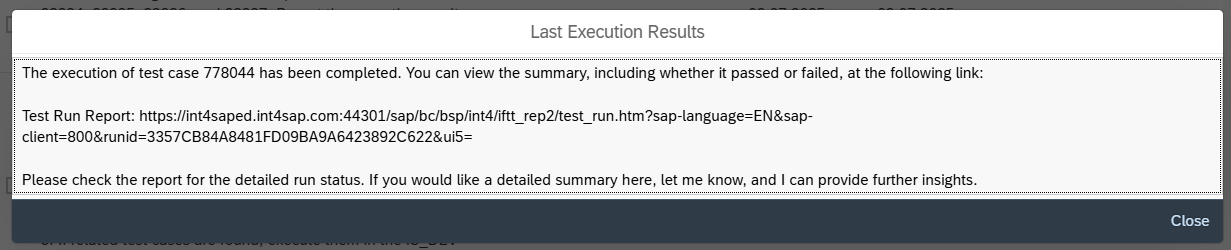
This application allows de-activating any of the scheduled jobs for Your user and viewing the results of last execution.
Test Run Error Resolution Help

Button 'AI Help' will open Chat which will immediately provide tips how to resolve test run errors.
Automatic Test Run Summary
Table /INT4/IFTT_TRT (Test Run Type) contains configuration for automatic test run summary generation.
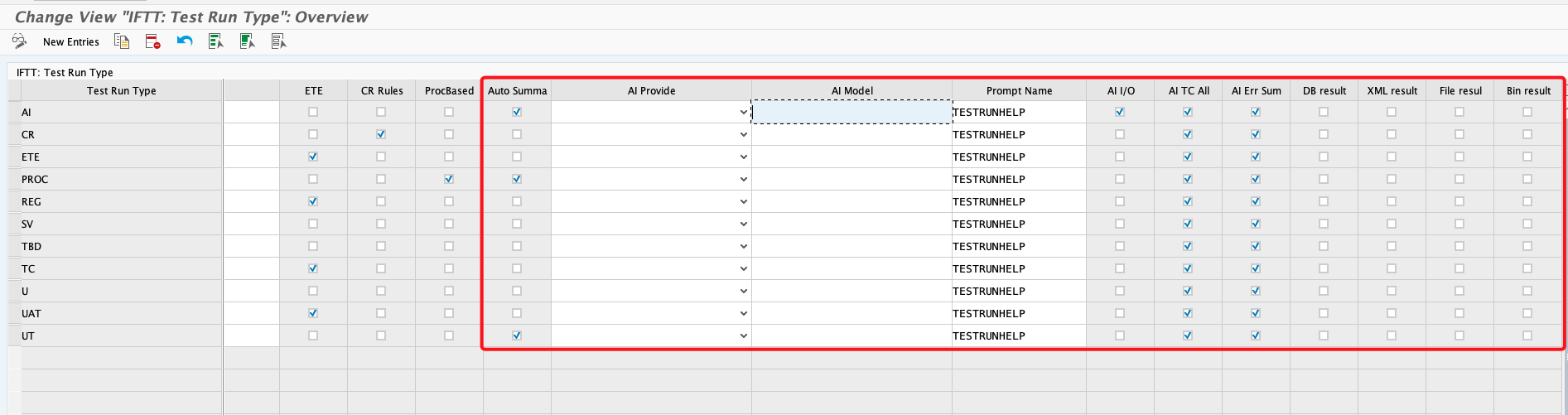
Columns:
-
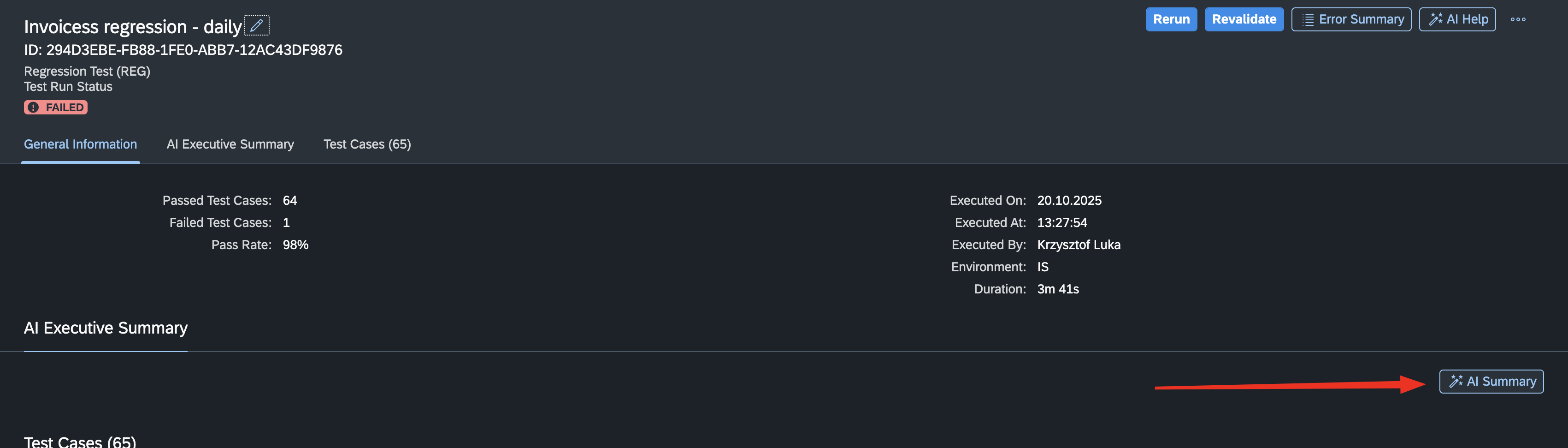
Auto Summary - if marked AI summary will be generated automatically for a respective test run type. If it’s not marked button will appear in the UI for manual generation.
-
AI Provider - if left empty it will be fetched from global parameters. Available options: OPEN_AI
-
AI Model - if left empty it will be fetched from global parameters. Ex. gpt-4.1
-
Prompt Name - prompt name which is defined in /INT4/EDIT_PROMPTS.
-
AI I/O - include input/output variables
-
AI TC All - include all test run details for the summary generation. If marked all below columns are ignored.
-
DB results - include database comparison results
-
XML results - include XML comparison results
-
File results - include File comparison results
-
Bin results - include bin comparison results