ALM Test Cases Creation
1. Automated Test Case
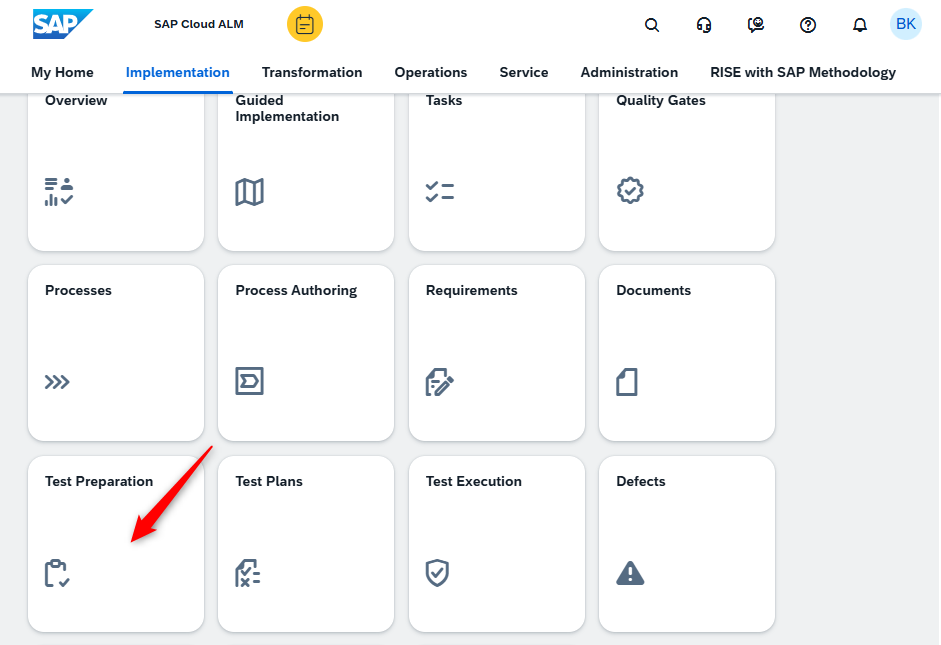
Go to Test Preparation App in Sap Cloud ALM.
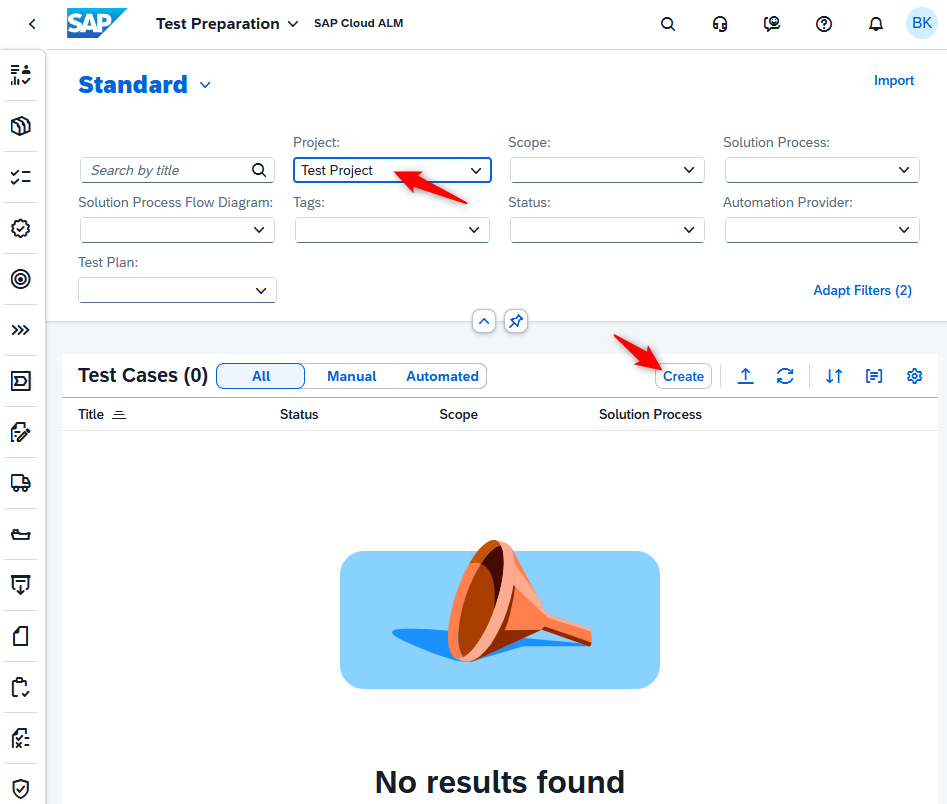
Select your Project and click Create.
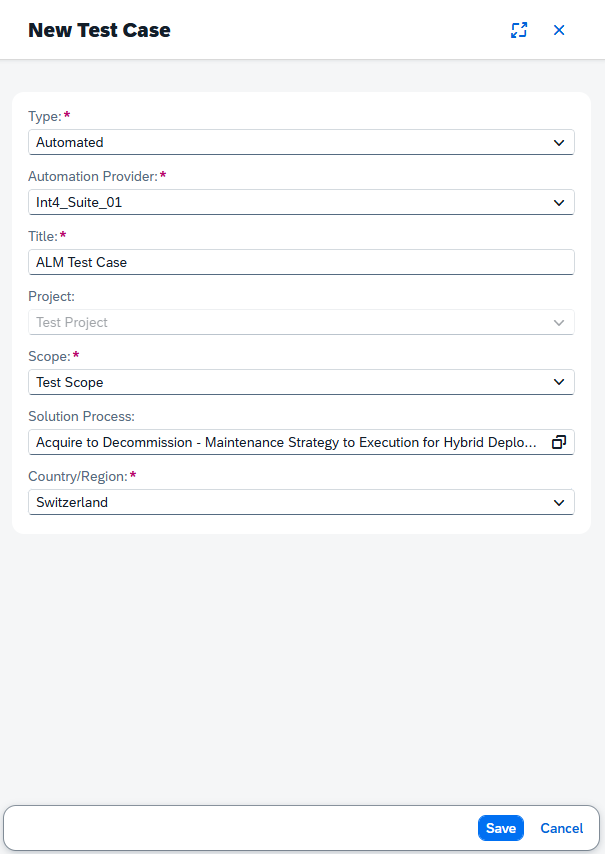
Provide below details for new ALM Test Case
|
Property |
Description |
Value |
|---|---|---|
|
Type |
Type of ALM Test Case |
Automated |
|
Automation provider |
Name of Configured Endpoint to Int4 SuiteInt4 Suite SAP Cloud ALM preparation |
example: Int4_Suite_01 |
|
Title |
Test Case Title |
example: ALM Test Case |
|
Project |
ALM Project |
|
|
Scope |
ALM Scope |
|
|
Solution Process |
ALM Solution Process |
|
|
Country/Region |
ALM Country/Region |
|
New folder structure is automatically created in Int4 Suite according to data provided in ALM.
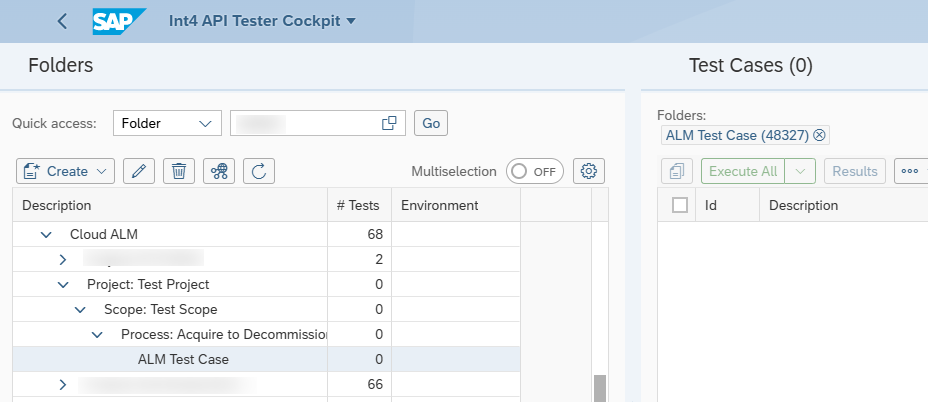
2. Int4 Suite Test Cases and synchronization
Create new Test Cases in ALM Test Case folder.
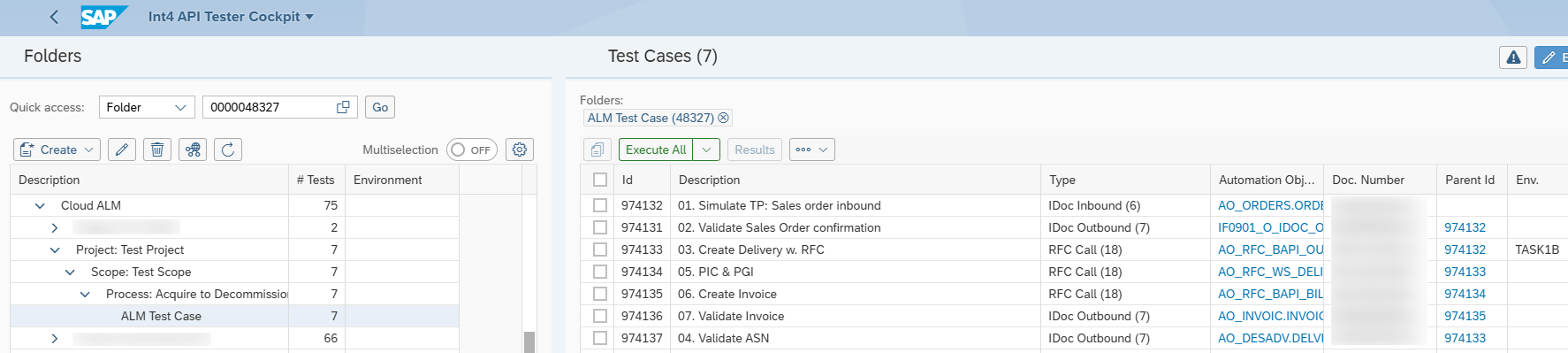
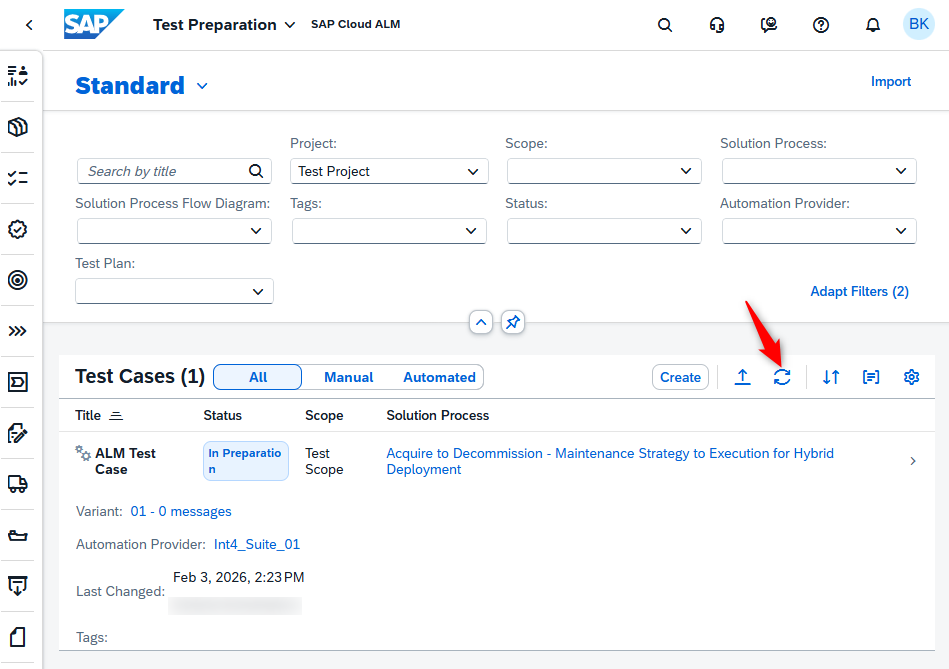
Synchronize Automated Test Cases in ALM. This function can always be used to synchronize Test Cases from Int4 Suite to ALM.
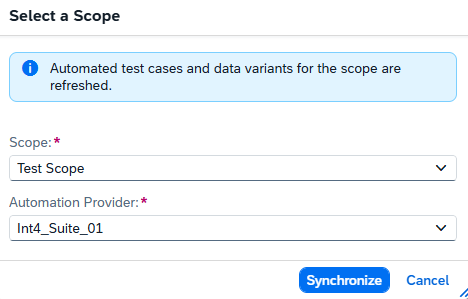
Provide Scope and Automation Provider.
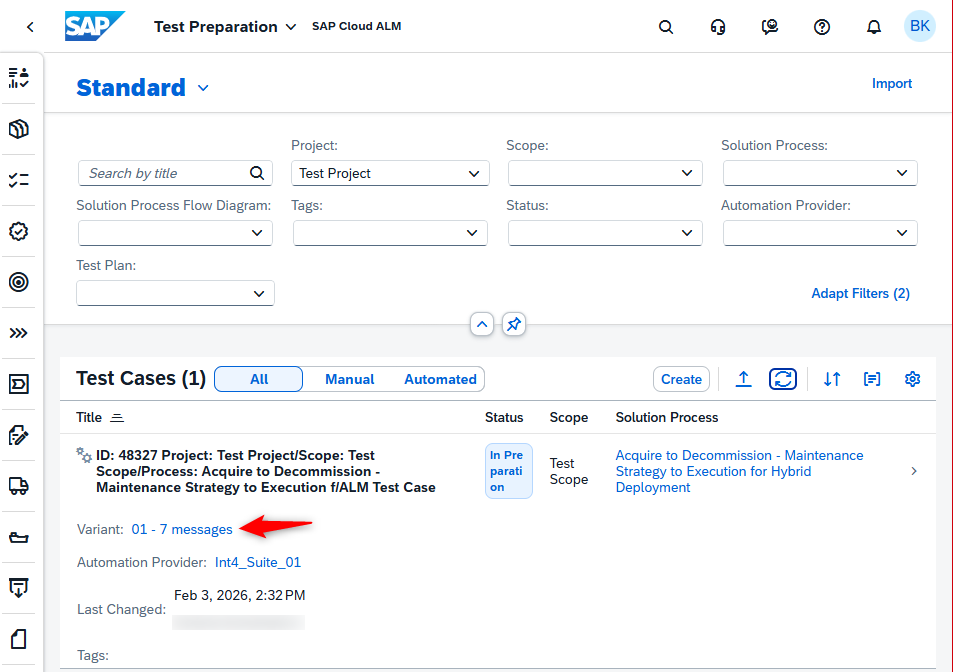
7 Test cases were found. You can click on Variant link, it will navigate to linked Int4 Suite Folder.
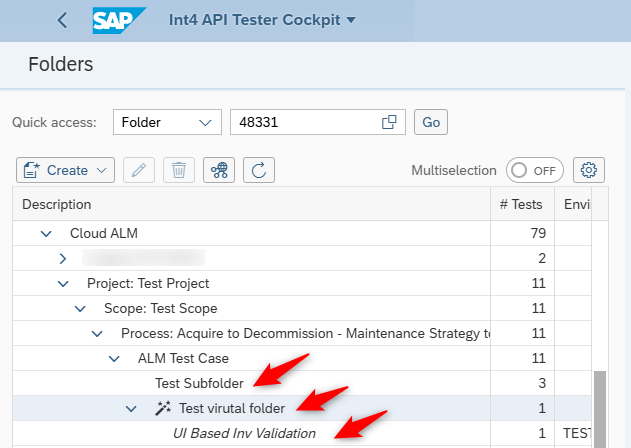
Int4 Suite also can provide ALM with Test Cases created under subfolders or from Virtual Folders
Add some subfolders with Test Cases and/or Virtual Folder under ALM Test Case folder.
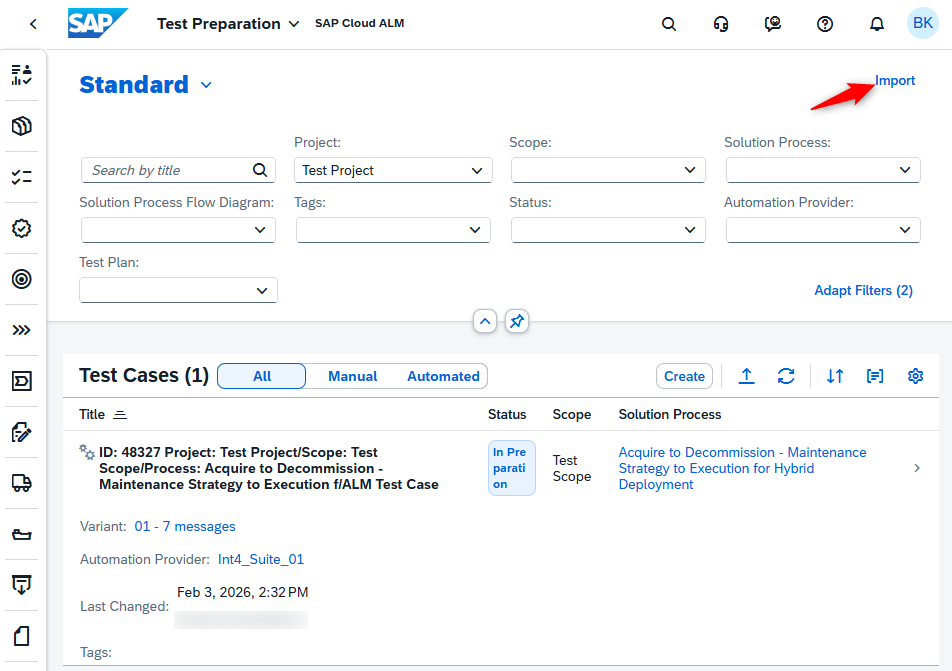
In Test Preparation app Click Import.
Select Automation Provider and click Go.
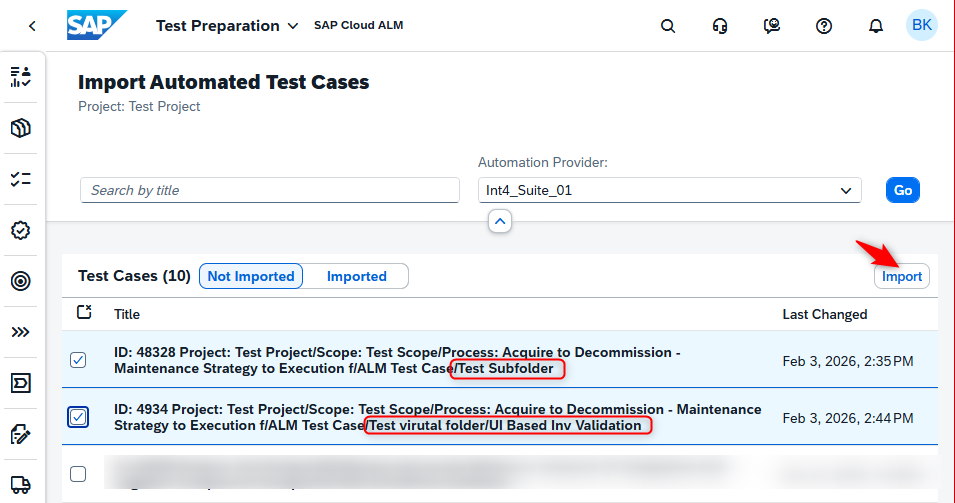
Select Test Cases and click Import.
Select Scope and Solution Process according to your folders and click Save.
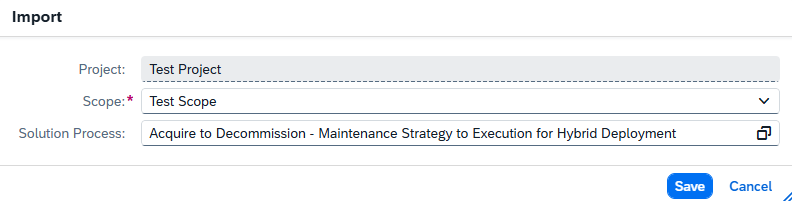
Test Cases are now available in ALM.
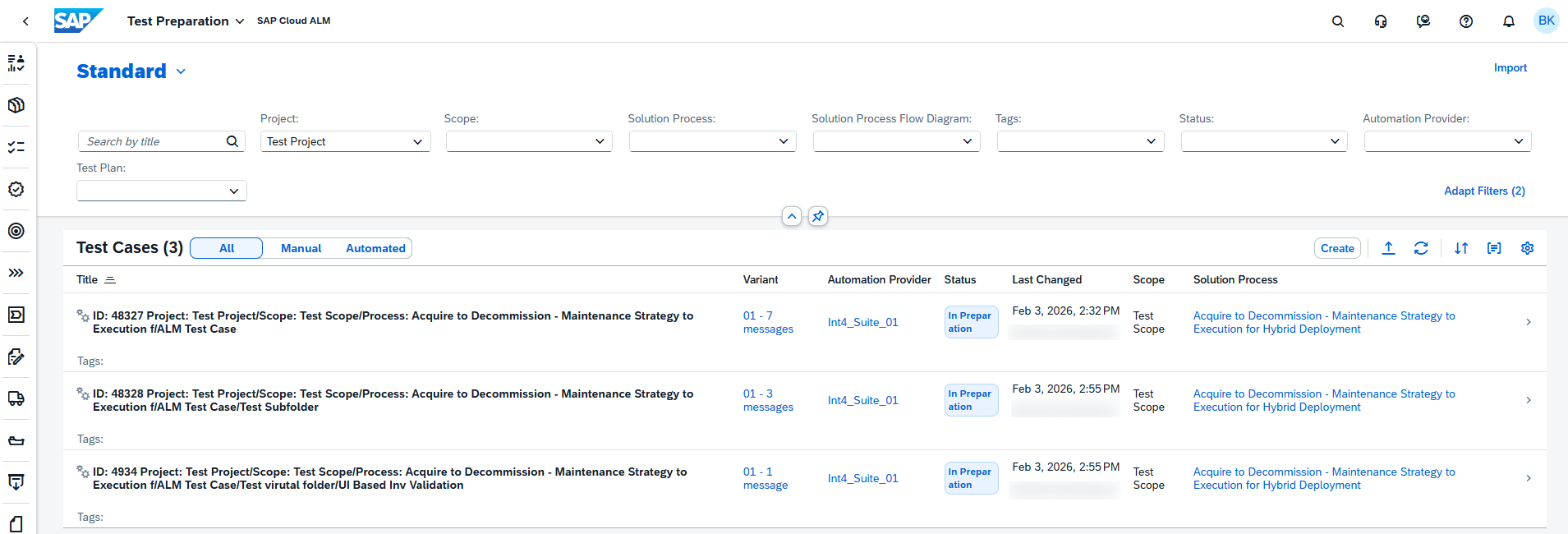
Test Case Execution
1. Execute ALM Test Cases
Go to Test Execution app.
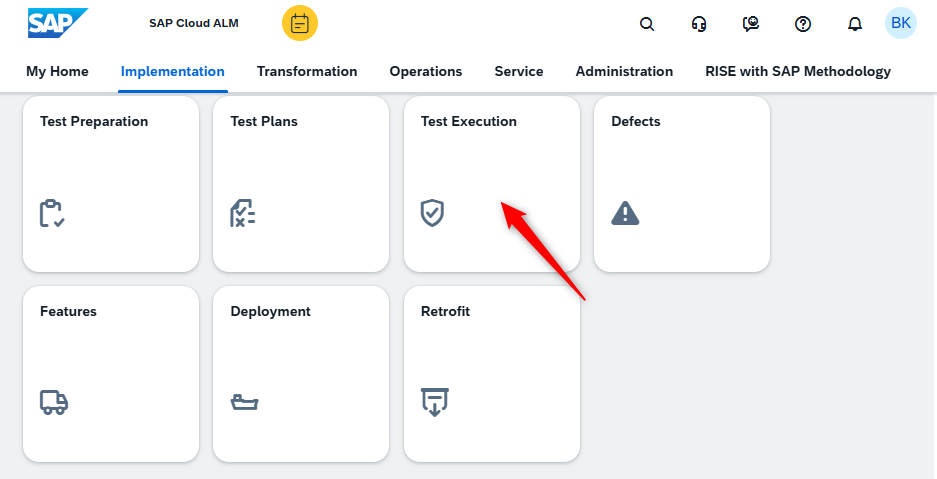
Filter Test Cases, provide at least Project. Click on Execute.
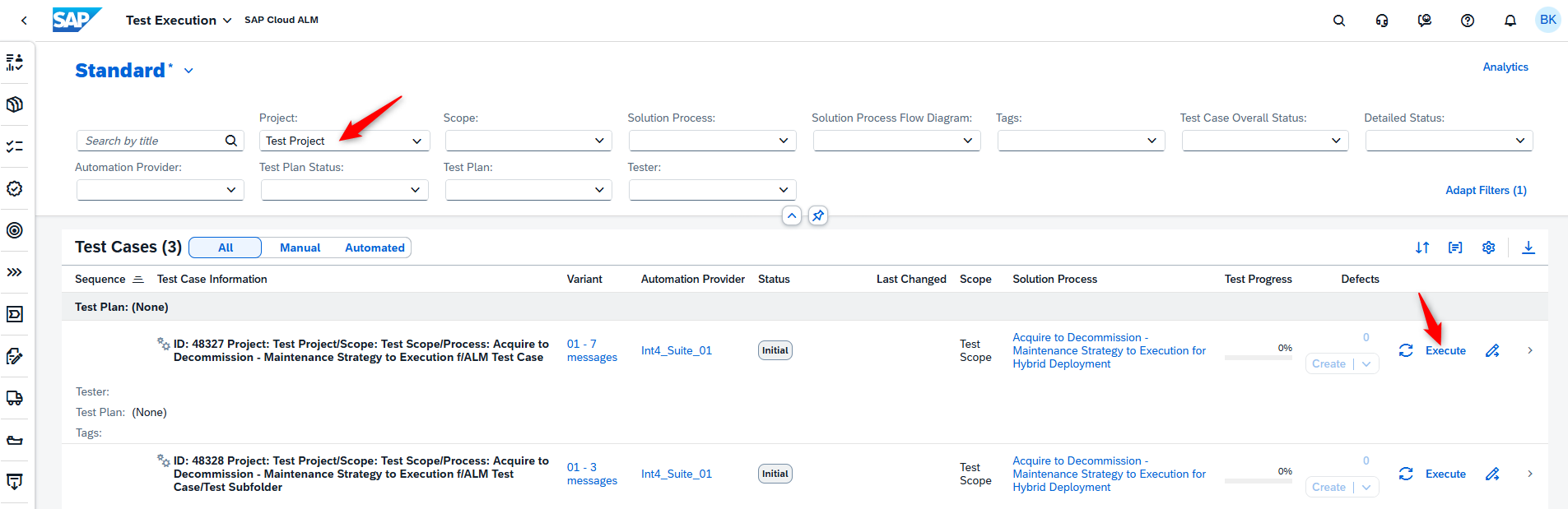
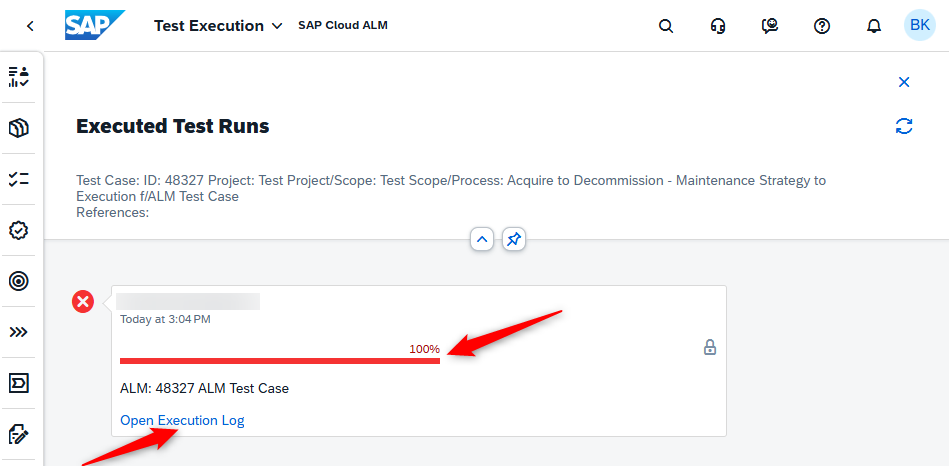
Test case is being executed in Int4 Suite. To see the results click on Executed Test Case.
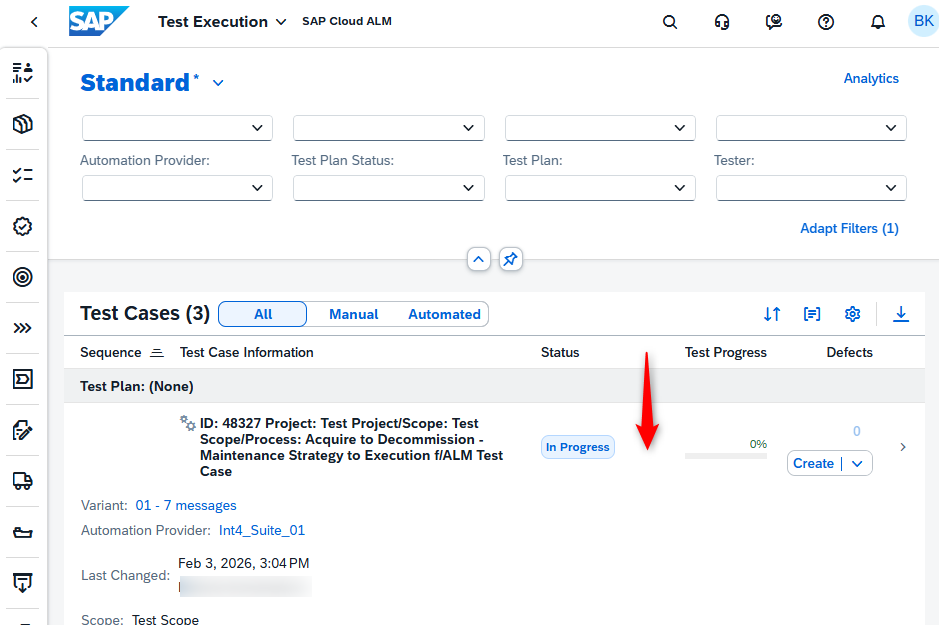
Refresh Test Run results.
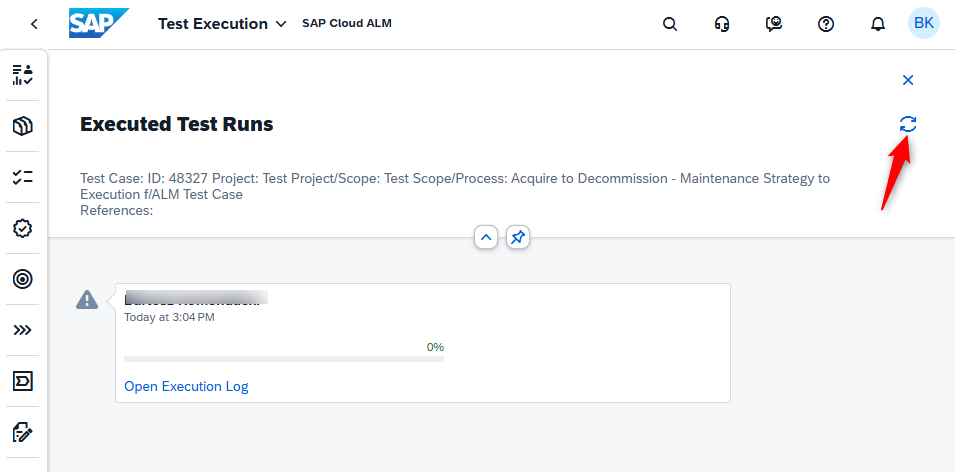
You will see Test Execution Progress and Result. To Navigate to Int4 Suite Test Run details click on Open Execution Log.