
Int4 Suite Test Case Loader allows the user to upload payloads from local computer or application server location and create test cases based on the content.
How to access the Test Case Loader
Test Case Loader can be started via transaction code /INT4/TC_LOADER.
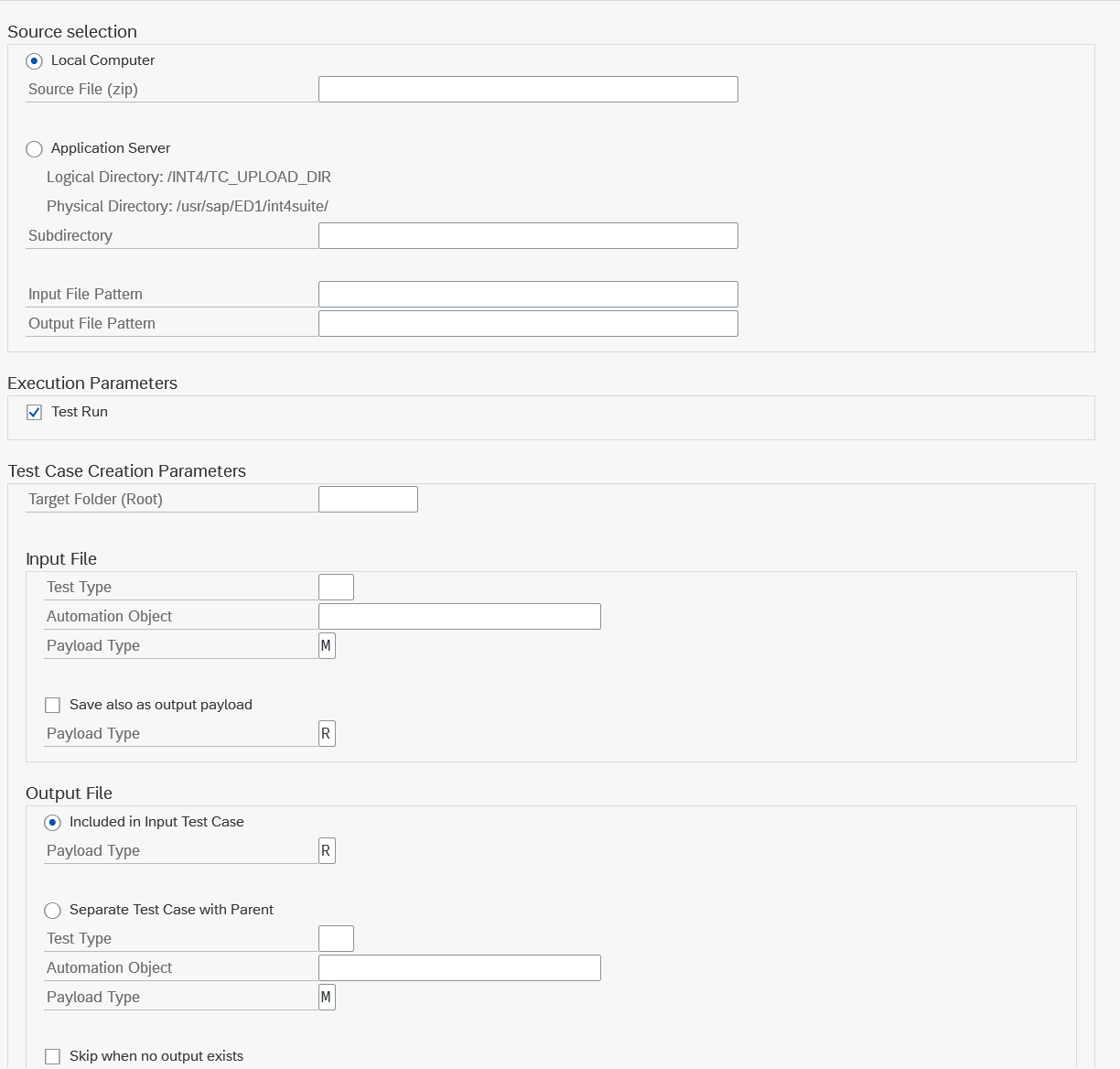
How to upload payloads from local computer
-
Prepare zip file with the payloads
Zip file can contain folders. Folder structure will be reflected in APITester Cockpit -
Select zip file on the selection screen
How to upload payloads from application server
Test Case loader uses Logical Path /INT4/TC_UPLOAD_DIR.
This path has to be mapped to physical path in transaction FILE
Select path /INT4/TC_UPLOAD_DIR and maintain Assignment of Physical Paths to Logical Path selecting your desired folder
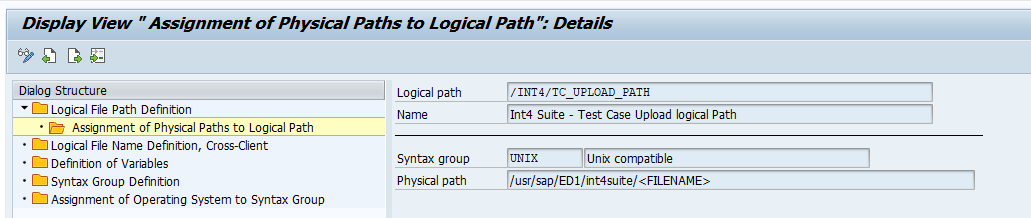
Test Case Loader can search any subfolder under Logical Path /INT4/TC_UPLOAD_DIR.
How to match input & output payloads
Specify regex pattern for matching input files
Use groups to capture parts of file name to be used to match outputs
Example:
Input file name: HS3_INVOICE_IN_S4HIDOC_100272880_0090065687.xml
Output file name: HS3_INVOICE_OUT_EDIFACT_100272880_0090065687.edi
Input pattern : [\w]+_IN_S4HIDOC_([0-9]+)_([0-9]+).xml (two groups to capture numbers)
Output pattern: [\w]+_OUT_EDIFACT_$1_$2.* ($1, $2 will be replaced by values from input file name)
How to configure test case creation
-
Select target folder
-
Select target test type & Automation Object for input payloads
-
Output payloads can be loaded to the same test case (e.g. SAP CPI E2E Inbound (12) with input and output) or as separate test case linked by parent ID (e.g. SAP CPI E2E Inbound (12) linked with SAP CPI E2E Outbound (13) )
Skip when no output exists - skip creation of test case with input only. Useful when we expect unstructured data source that might contain some unprocessed inputs.
Test Case Loader can be started in Test Mode to verify the parameters and file selection.