
License: Included in Int4 Suite Enterprise and Int4 APITester
License details
|
Feature or limit |
Int4 Suite Enterprise |
Int4 APITester |
Int4 Shield |
Int4 Shield Lite |
Int4 Messenger |
|---|---|---|---|---|---|
|
UI testing |
|
|
|
|
|
Anything a license model does not include can be added through a custom license. The license installed for you is shown in the app under Profile → License. All features by product version
Overview
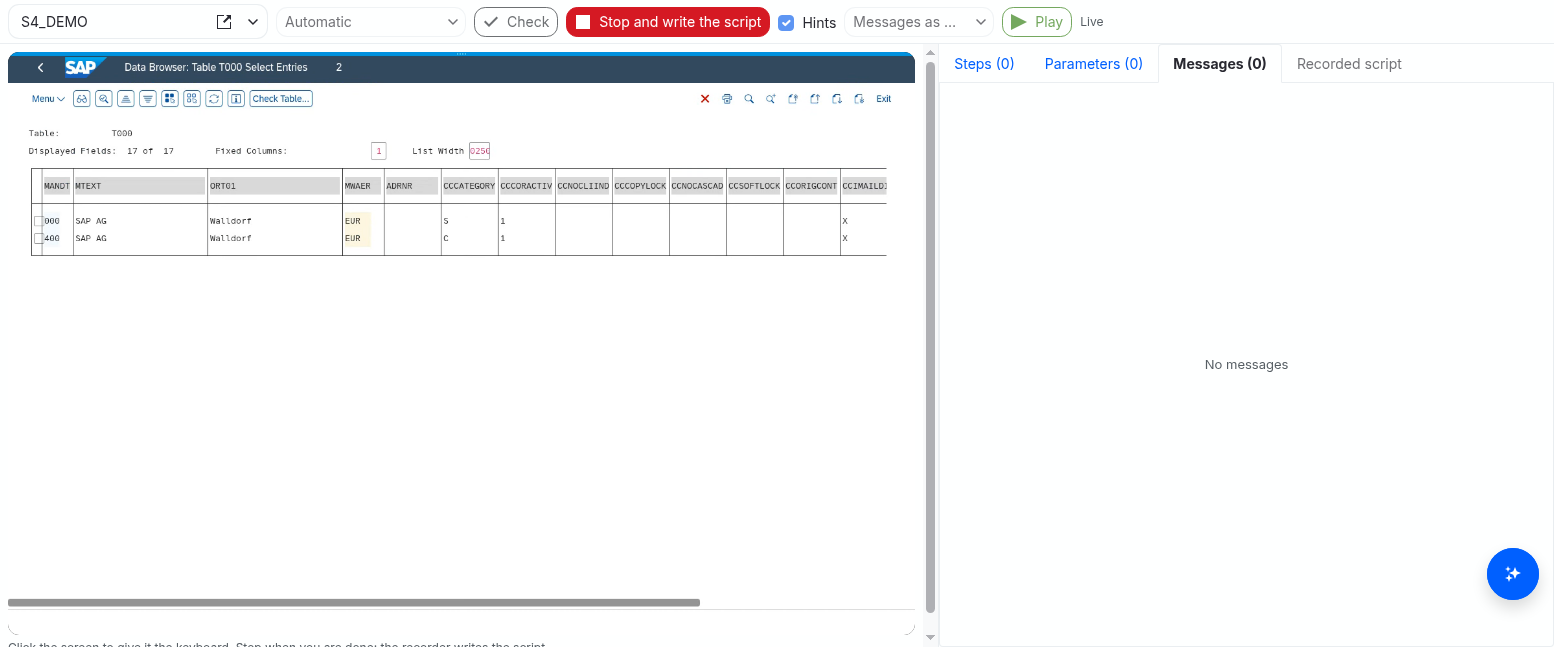
A UI test script is written, recorded and tried out in the script editor. When the script's type is UI test, the lower half of the editor holds the workbench instead of the output and messages panes: a toolbar to pick the SAP system, a screen of the UI test runner, and tabs with the steps, parameters and messages of what you did last.
With the workbench you can:
-
record a script: the runner logs on to the system, shows you its screen in the page, and writes a script while you work in it;
-
check a script: the runner reads it as a test run would and lists what is wrong, and the parameters it declares;
-
play a script as it stands in the editor, saved or not, and watch it step by step on the runner's screen;
-
find out why a step failed: the error, what the runner found instead, the checks that did not hold, and the step's screenshot.
Nothing you do in the workbench is a test run: it is not recorded under test runs and needs no test case. Once the script does what it should, a UI test automation object plays it in test cases — see the UI testing overview. What the script itself can say — blocks, steps, parameters, reads, checks — is explained in Writing UI test scripts.
Tasks
How to create a UI test script
-
Open Scripts and click Create New. For a script that belongs to one automation object, add it under the automation object's local scripts instead.
-
Enter the Script ID, pick UI test as the type, and click Save.
You can start from an empty script and record into it, or paste a script and play it.
How to record a script
-
Open the script and click Edit. Recording writes into the editor, so Record stays disabled while the script is only displayed.
-
Pick the system in System to record and play on. The list offers SAP ABAP systems; one without a SAP GUI or Fiori connection refuses to record or play and says why (see How to prepare a system for UI tests). If the system has more than one SAP GUI channel, a second list offers them; Automatic records on the system's default channel.
-
Decide what the recording writes besides the steps:
-
Hints (ticked by default) writes what the recorder noticed into a Fiori or Web Dynpro recording as comments: each step's notes above it, and the values the step left on the screen as suggested reads you can uncomment. An SAP GUI recording always carries them.
-
SAP messages decides how an SAP GUI recording writes the SAP messages it saw: Messages as soft checks (the default) checks each one softly when the script plays — a missing message warns but does not fail — while Messages as comments only notes them as comments.
-
-
Click Record. The runner logs on with the system's SAP GUI user and its screen appears in the workbench. For more room, switch to the full view.
-
Click the screen to give it the keyboard, and work as you would in SAP. Start from SAP Easy Access: open transactions from the SAP menu, your favorites or the command field. In a Fiori recording, the browser tabs the app opens appear as Browser tabs in the toolbar; click one to switch to it.
-
Click Stop and write the script. The Recorded script tab opens with the script the recorder wrote.
-
Read it, then click Use in editor to put it into the editor, or Discard to drop it. The script replaces the editor's whole content; Ctrl+Z in the editor brings the previous content back.
-
Click Save.
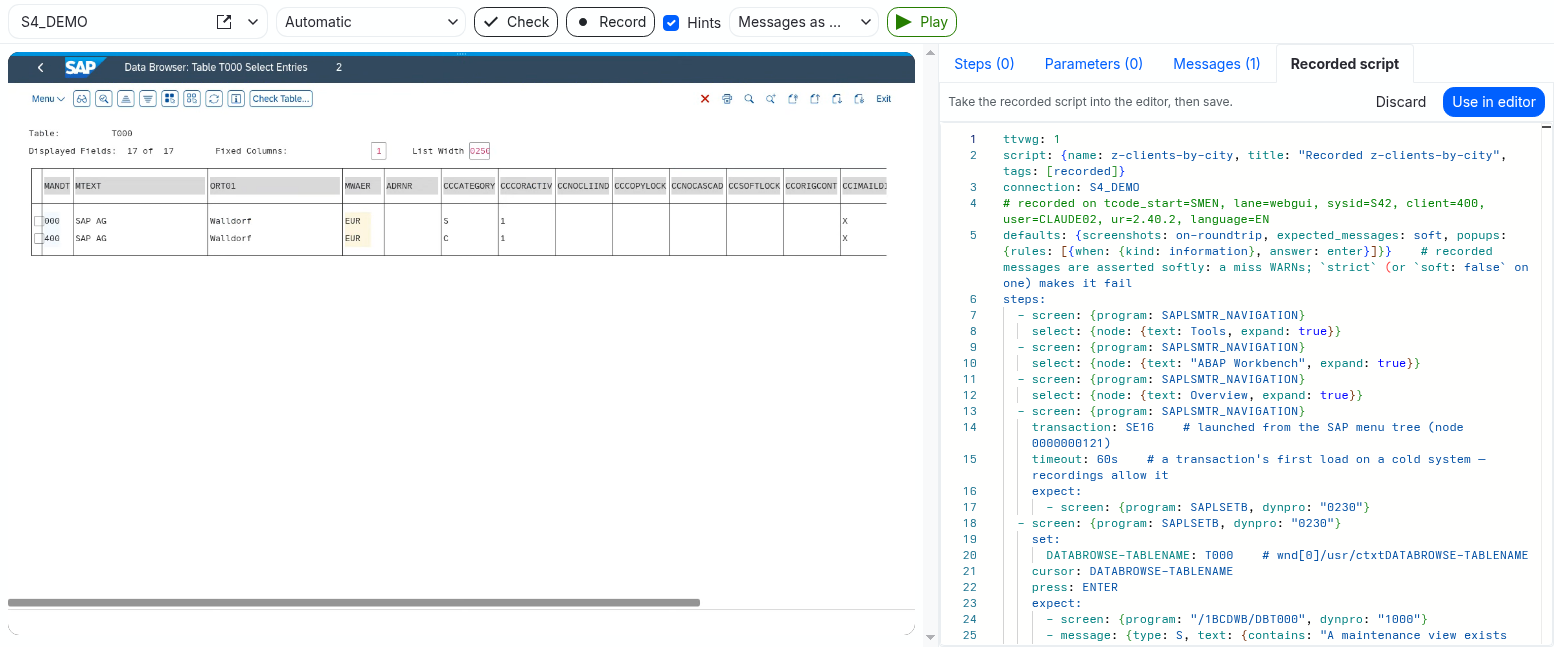
A recording that crossed from one technology to another — from a Fiori app into an SAP GUI transaction, for example — is written as a flow: a main script and linked documents. Use in editor creates the linked documents as UI test scripts beside this one, named by their paths. If one cannot be created (its name is taken, for example), the tab stays open and offers Create the linked scripts that failed.
A recording is not finished until you take it into the editor. Leaving the page during a recording, or before taking the recorded script into the editor, asks first (Leave the workbench?): leaving stops the recording and loses what it recorded.
Before you use a recording in test cases, turn it into a test: give it parameters, reads and the checks that matter — see How to turn a recording into a test.
How to check a script
Click Check. The runner reads the script as it stands in the editor, the way a test run would:
-
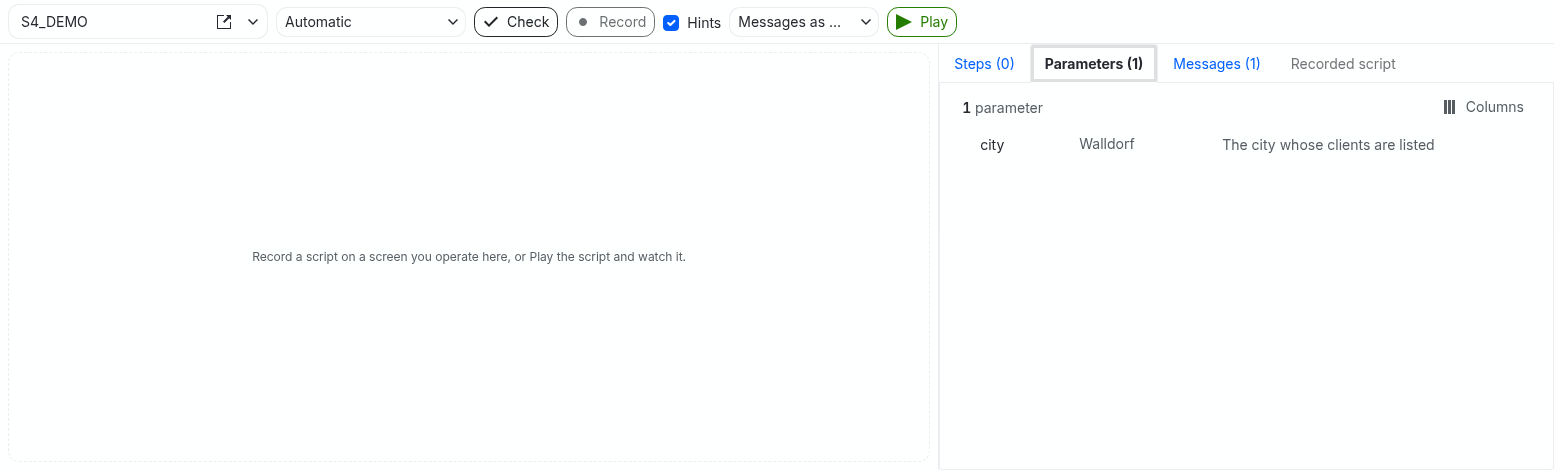
Errors and warnings are listed on the Messages tab. A script without errors says The UI runner's loader accepts the script..
-
The Parameters tab lists the parameters the script declares, with their defaults and descriptions. Type a value into a row to play the script with it; a row left empty plays with the default.
Check needs no system and changes nothing. It proves that the script loads, not that its screens and fields exist: only playing finds that out.
How to play a script
-
Pick the system in System to record and play on, and the channel if the system has several (Automatic plays on the channel the script needs).
-
Optionally click Check and fill in parameter values on the Parameters tab.
-
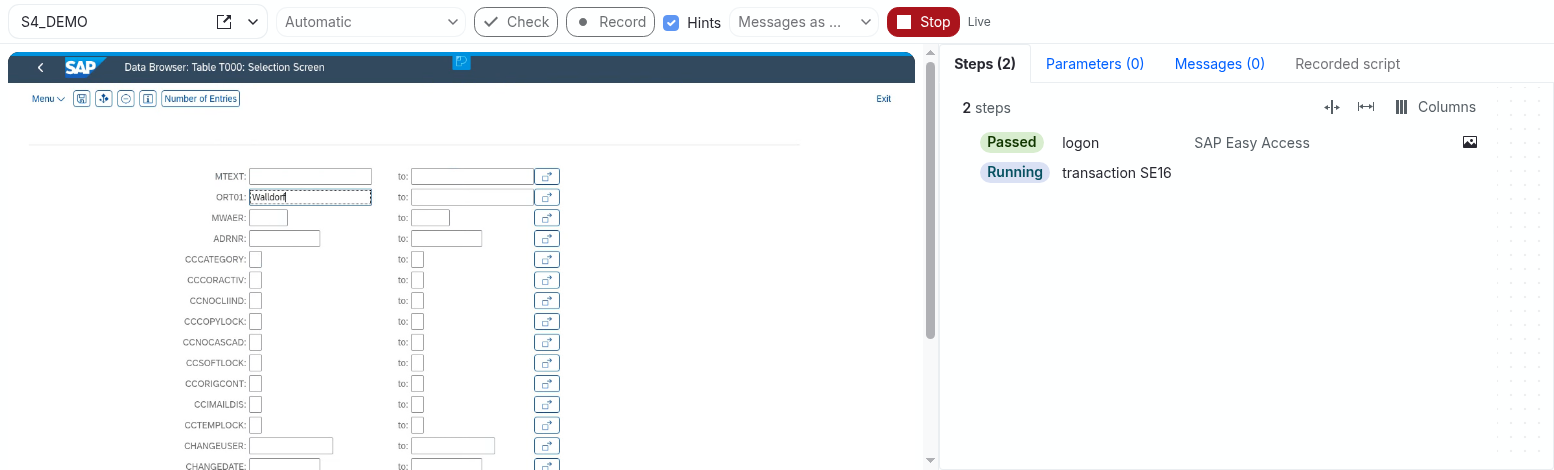
Click Play. The script plays as it stands in the editor — unsaved changes included. Where the installation shows the runner's screens, the screen appears and you can watch the run; the toolbar counts the steps done. The full view gives the screen the whole window.
-
Stop ends the playback early.
-
When the playback ends, the toolbar shows the verdict, such as
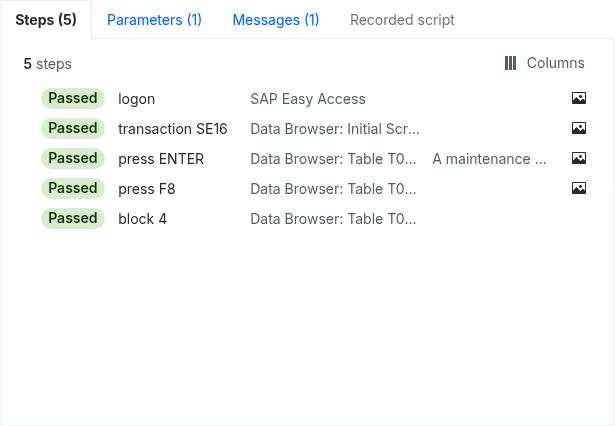
PASSED,PASSED_WITH_WARNINGSorFAILED, and the Steps tab lists every step with its status, the screen it left and its message. Click a row with a screenshot icon to see the screen as the step left it. -
Report downloads the runner's full report of the playback as an HTML file.
How to use the full view
-
Click the full-screen icon in the toolbar (Full view: the screen over the whole window). The workbench covers the whole window: the toolbar stays, with record, play and stop, and the screen is scaled to the room it has.
-
Click Steps to show the steps, parameters and messages beside the screen, and again to hide them.
-
Click the icon again (Leave the full view) to go back to the editor. Keys you type on the screen go to SAP, so the full view is left only with its icon.
How to find out why a step failed
A failed step is marked red, and its message column shows the error — for example TARGET_NOT_FOUND: No control 'ORT01-LOW' … — rather than the SAP message on the screen, which often belongs to an earlier step.
-
Click the arrow in front of the failed step. The row opens to everything the runner said about it (see Step detail below): the error and its hint, the fields the runner found on the screen instead, the checks that did not hold and what the screen showed, a popup nothing answered, and the SAP message the step saw.
-
Click the row to open its screenshot.
-
For the full picture — every round trip, every message, the screen's fields — download the Report.
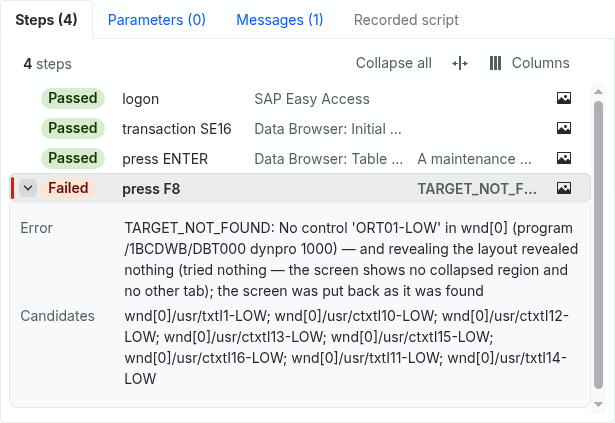
Here the script typed into ORT01-LOW, which the selection screen does not have; the candidates show the names its fields really have (I2-LOW is the city). Fix the field name in the editor and play again.
Field reference
Toolbar
|
Element |
What it does |
|---|---|
|
System to record and play on |
The SAP system to record and play on. The workbench remembers your choice for the next script. |
|
SAP GUI channel |
Shown when the system has more than one SAP GUI channel. Automatic: Play takes the channel the script needs, Record the system's default channel. Or pick one: SAP GUI for HTML, SAP GUI for Java, SAP Fiori launchpad. |
|
Check |
Reads the script as a test run would and lists its errors, warnings and parameters. |
|
Record |
Starts a recording on the runner's screen. Needs edit mode and an installation that shows the runner's screens. While recording: Stop and write the script. |
|
Hints |
Writes the recorder's notes and suggested reads into a Fiori or Web Dynpro recording as comments. |
|
SAP messages |
How an SAP GUI recording writes the SAP messages it saw: Messages as soft checks or Messages as comments. |
|
Play |
Plays the script in the editor. While playing: Stop. |
|
Full-screen icon |
Puts the workbench over the whole window, the screen scaled to fit; click it again to leave. |
|
Steps |
In the full view: shows or hides the steps, parameters and messages beside the screen. |
|
Verdict |
The playback's verdict once it ends. |
|
Report |
Downloads the runner's report of the last playback (HTML). |
Tabs
|
Tab |
Shows |
|---|---|
|
Steps |
The steps of the last playback, as they finish. |
|
Parameters |
The parameters the last Check found; type a value to play with it. |
|
Messages |
What the workbench and the runner said: check results, why a recording or playback could not start, the playback's verdict. |
|
Recorded script |
The script the last recording wrote, until you take it into the editor or discard it. |
Step columns
|
Column |
Description |
|---|---|
|
Status |
Passed, Warning, Failed, Errored, Skipped, Cancelled, or Running while it plays. |
|
Step |
The step's name: the |
|
Screen |
The screen the step left: its title, or its program and screen number. |
|
Message |
For a failed step its error; otherwise the SAP message the step saw. |
|
Screenshot |
An icon where the step has a screenshot; click the row to open it. |
Step detail
|
Line |
What it says |
|---|---|
|
Error |
The error code and message, such as |
|
Hint |
What the runner suggests to do about it. |
|
Candidates |
The controls the runner found on the screen instead of the one the step names (the first eight). |
|
Nearest |
The control that came closest to what the step names. |
|
Check |
A check that did not hold, with what the screen showed. |
|
Popup |
A popup no rule answered, with its text. |
|
SAP message |
The SAP message on the step's screen, when the error took its place in the row. |
|
Summary |
The runner's summary of the failed step. |
|
Recovered by |
The |
Tips & edge cases
-
Play takes the editor, not the saved version. You can try a change before saving it. A test run always plays the saved script.
-
Recording needs the runner's screens. If the installation does not show them, the screen area says This installation shows no UI runner screens: Play runs without a live view, Record is not available.: Play still works, without a live view, and Record is not available. Ask your administrator.
-
An automation object's local scripts play together. When you play a script local to an automation object, its other local UI test scripts travel with it, so
include:libraries and flow segments are found. A shared script opened from the script catalogue plays alone in the workbench; in a test run it gets the automation object's local scripts. -
The command field may be hidden. Some SAP GUI for HTML themes on S/4HANA show no command field in the header. Start transactions from the SAP menu or your favorites; the recorder still writes them as
transaction:steps. -
The recording is only as good as what you did. Every click is recorded, including the ones you did not mean, such as menu entries you opened and closed. Delete those steps before you use the script.
-
Passwords are never recorded. A password field is written as
${secret}, which a script cannot type. -
Leaving the page ends what it started. Navigating away stops a recording or a playback that is still going on. A recording you leave idle also ends on the runner after a while, and a playback after its time budget.
-
The steps can trail the screen. The steps list fills as the runner reports finished steps, which can be a few seconds behind what the screen shows.
-
Playbacks are yours. Another user cannot open or stop a recording or playback you started.
Related features
-
UI testing overview — systems, automation objects, test cases and results for UI tests.
-
Writing UI test scripts — the script format: blocks, steps, parameters, reads and checks.
-
Scripts — the script catalogue and the script editor.
-
Automation Objects — the UI test automation object that plays a script in test cases.
Prerequisites & permissions
About permissions. What you can see and do is decided by the roles assigned to your user. Each role bundles permission groups, and each permission group allows activities — Read, Write, Delete, Execute and, for schedules, Change owner — on a kind of record (for example Test Case, Automation Object, System Under Test). A role grants its groups per project scope, so you may be allowed to change records in one project but only view, or not see, those of another.
If a button is disabled, a page says you don't have access, or a list comes back empty, missing permissions are the most likely cause — or, for whole product areas, the installed licence. You can review your own access under Profile → My access; an administrator can change your roles under IAM → Users.
Specifically for the workbench:
-
Opening a script requires Script: Read; editing it and Record require Script: Write.
-
Check and Play require Script: Execute.
-
Recording and playing reach the system, which also requires System Under Test: Execute on it.
-
Playing a script local to an automation object requires Automation Object: Read on it.
-
The workbench needs the UI testing licence feature and a UI test runner configured for the installation.