
License: Included in Int4 Suite Enterprise and Int4 APITester
License details
|
Feature or limit |
Int4 Suite Enterprise |
Int4 APITester |
Int4 Shield |
Int4 Shield Lite |
Int4 Messenger |
|---|---|---|---|---|---|
|
UI testing |
|
|
|
|
|
Anything a license model does not include can be added through a custom license. The license installed for you is shown in the app under Profile → License. All features by product version
Overview
A UI test script is a YAML text that the UI test runner plays against an SAP system the way a user works: it starts a transaction or opens an app, types values, presses keys and buttons, and after every step checks what SAP answered. All input is real keyboard and mouse input, and every step waits for SAP's answer before the next one starts, so there are no fixed pauses to tune.
You rarely write a script from nothing. Record in the workbench writes it while you work in SAP, Check tells you whether it loads, and Play replays it. This page explains the format behind it: enough to read a recording, change it, give it parameters, add reads and checks, reuse parts of it, and keep it working when SAP shows a popup or a message only some of the time.
There are two formats. The ttvwg key at the top of a script says which one it uses:
|
Format |
For |
What a step is |
|---|---|---|
|
|
SAP GUI transactions, in SAP GUI for HTML or SAP GUI for Java |
a block: what a user does on one screen, ending in the one action that sends the screen to SAP (a key, a button, a transaction) |
|
|
Fiori/UI5 apps and Web Dynpro applications in the Fiori launchpad, or a flow that links several scripts |
a step with a |
All steps of a ttvwg: 2 script are ui5: steps or all are webdynpro: steps. A journey that crosses from a Fiori app into an SAP GUI transaction or a Web Dynpro application is a flow (see How to reuse steps across scripts).
Each technology names screen elements its own way. An SAP GUI script names a field by its technical name (VBAK-VBELN) and a screen by its program and screen number (dynpro). A Fiori script names a control by what it means in the app — an action (semantic_action: search), a view-local id (stable_id), a data binding (property, path), an entity key — never by the generated id the browser shows. A Web Dynpro script names a control by its view and id ({view: V_SELECT_OPTIONS, stable_id: TK_ATTR_7}). The words a control shows are kept beside it as evidence: {accessible_name, language}; they help find the control only when the run is in the language they were recorded in.
The root of a script holds these keys; any other key is refused when the script loads:
|
Key |
Format |
What it holds |
|---|---|---|
|
|
both |
|
|
|
both |
|
|
|
both |
the name of the system the script was written for — never a URL or a password |
|
|
both |
named values a run can change |
|
|
both |
rows: all steps play once per row |
|
|
both |
run-wide policies: timeouts, screenshots, messages, popups |
|
|
both |
what the script does |
|
|
|
libraries of sections, named step lists, and steps that rescue a failing step |
|
|
|
several scripts in one browser session, instead of |
In a test, a UI test automation object plays the script. Each test case gives it a parameter document — a JSON object of name: value pairs, prefilled from the script's params: — and, optionally, an expected values document that the values the script read are compared with. See How to parameterise a value and How to read a value for the test case.
Tasks
How to read a recorded script
An SAP GUI recording writes one block per screen you sent to SAP. A recording that opened SE16 from the SAP menu and listed table T000:
ttvwg: 1
script:
  name: z-clients-by-city
  title: 'Recorded z-clients-by-city'
  tags: [recorded]
connection: S4_DEMO
# recorded on tcode_start=SMEN, lane=webgui, sysid=S42, client=400, user=TESTER, ur=2.40.2, language=EN
defaults:
  screenshots: on-roundtrip
  expected_messages: soft
  popups: { rules: [{ when: { kind: information }, answer: enter }] }
steps:
  - screen: { program: SAPLSMTR_NAVIGATION }
    transaction: SE16 # launched from the SAP menu tree (node 0000000121)
    timeout: 60s
    expect:
      - screen: { program: SAPLSETB, dynpro: '0230' }
  - screen: { program: SAPLSETB, dynpro: '0230' }
    set:
      DATABROWSE-TABLENAME: T000 # wnd[0]/usr/ctxtDATABROWSE-TABLENAME
    cursor: DATABROWSE-TABLENAME
    press: ENTER
    expect:
      - screen: { program: '/1BCDWB/DBT000', dynpro: '1000' }
      - message:
          type: S
          text: { contains: 'A maintenance view exists for table T000' }
    # suggested reads (uncomment to record values):
    # read: {message: {message: text}}    # was "A maintenance view exists for table T000"
    # read: {maximum_number_of_selected_entries: "wnd[0]/usr/txtMAX_SEL"}    # was "500 "
  - screen: { program: '/1BCDWB/DBT000', dynpro: '1000' }
    cursor: I1-LOW
    press: F8 # (F8) — button tbar[1]/btn[8]
    expect:
      - screen: { program: SAPMSSY0, dynpro: '0120' }
The menu clicks before the transaction are recorded as select: {node: {text: Tools, expand: true}} blocks; a test does not need them, because transaction: SE16 starts the transaction from any screen.
|
Part |
What it is |
|---|---|
|
|
the same in every SAP GUI recording: a screenshot per screen sent, SAP messages checked softly (a missing one warns), information popups answered with Enter |
|
|
where the block must start: the program and screen number. The block waits up to 2 seconds for it, then fails |
|
|
the values you typed, by field name; the comment shows the full control id |
|
|
where the cursor stood when you pressed the key |
|
|
the commit: the one action that sent the screen to SAP. A block has at most one |
|
|
checks written from what the recorder saw: the screen reached, a popup opened or closed, each status-bar message |
|
|
values the screen showed that you did not type. Uncomment the ones the test should keep |
Whatever order you write them in, a block's keys always play in this order: screen → set → select → cursor → the commit → popup rules and the message policy → expect → read → screenshots.
A Fiori recording writes one step per gesture. Its first step opens the app by its launchpad intent and waits for the control the next gesture needs; with Hints ticked when recording, what the recorder noticed is written as comments:
ttvwg: 2
steps:
  # the recording pressed the launchpad tile 'Manage Purchase Requisitions'
  - ui5:
      navigate:
        intent: { semantic_object: PurchaseRequisition, action: maintain }
        ready:
          control:
            semantic_action: create
            stable_id: addEntry
            role: button
            evidence: { accessible_name: Create, language: en }
          timeout: 60s
-
A Fiori recording checks messages by type only (
- message: {type: E}), so a replay in another language does not fail on a translation. The wording goes into a note. -
The key of an object you opened, a row you picked or a value-help hit becomes a parameter (
${params.folder_id}). A number the app created and a later step typed is read off the app and reused as${vars.<name>}, so the replay works with the document it created itself. -
A gesture the recorder could not name is written as an
unresolved:step. It fails before doing anything until you rewrite it as a step or delete it. A Web Dynpro recording writes a drop-down pick, a checkbox, a toggle or a radio button this way. -
A Web Dynpro recording has the same shape, with
webdynpro:steps whose targets are named by view and id.
How to turn a recording into a test
A recording replays as it is in most cases, but it knows nothing about your intent. Before you use it in test cases:
-
Give it a meaningful
script:name and title, and give important steps aname:. -
Turn values that vary between test cases into parameters (next task). A Fiori recording has already turned business keys into parameters; an SAP GUI or Web Dynpro recording has not.
-
Rewrite or delete every
unresolved:step and every# … replace with …comment. -
Delete steps nobody meant: a key that changed nothing, a click that only mattered on the day of the recording (a replayed Fiori key that changes nothing fails
NO_EFFECT). On SAP GUI, check fields markedpre-filled on entry: SAP filled them from the recording user's parameter memory. -
On the message that is the result — the save that names the new document — add
soft: false(see How to check an SAP message). Delete message checks that only describe the day's data. -
Add what a recording cannot hear: a
read:of a value the test case should compare, a popup rule for a popup that appears only sometimes, a longertimeout:for a slow application. Password fields are recorded as${secret}; a script cannot type a password, so change or remove such a step. -
Move repeated parts into sections and debris popups into handlers (see the tasks below).
Then use Check and Play in the workbench.
How to parameterise a value
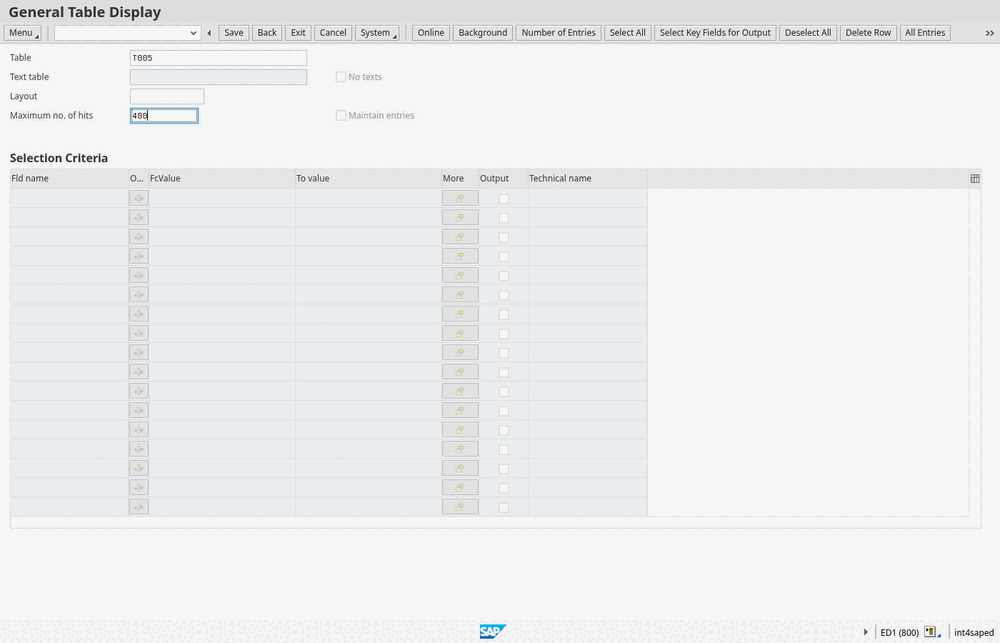
Declare the value under params: and use it as ${params.NAME} wherever the script types, names or compares a value:
params:
  table: T000 # short form: the value is the default
  max_hits: # long form
    default: '200'
    description: Maximum number of hits
    required: true
steps:
  - transaction: SE16N
    timeout: 60s
  - screen: { program: SAPLSE16N, dynpro: '0100' }
    set:
      GD-TAB: '${params.table}'
      GD-MAX_LINES: '${params.max_hits}'
    press: ENTER
In a test case, the parameter document holds one entry per parameter, prefilled with the defaults. Change the values per test case; a value given there wins over the script's default:
{ "table": "T005", "max_hits": "400" }
-
Quote every value that contains
${…}. -
required: truestops the run before logon when the value is empty. A default satisfies it. -
A placeholder is replaced once: a parameter value that itself contains
${…}is typed literally. Write$$for a literal$. -
Fiori and Web Dynpro steps take placeholders in the values they type and compare. An
aster:check reads parameters asPARAMS["TABLE"], never as${…}.
To play all steps once for each of several sets of values within one run, add rows — data: {rows: [{TABLE: T000}, {TABLE: T005}]} — and use ${row.TABLE}.
How to read a value for the test case
read: keeps a value in a variable, named by you. Later steps use it as ${vars.NAME}, and the test run compares it with the test case's expected values. On SAP GUI, read a field, a message, a window title or a table:
- name: save — SAP names the new document
  screen: { program: SAPLMEGUI }
  press: CTRL+S
  expect:
    - message: { type: S, text: { matches: "\\d{8,10}" }, soft: false }
  read:
    pr: { message: { regex: "0*(\\d{8,10})" } }
In a Fiori or Web Dynpro step, every source is a mapping:
- ui5:
    press: CTRL+S
    expect:
      - message: { type: I }
    read:
      purchase_requisition:
        app: { property: hash, regex: "PurchaseRequisition='([^']+)'" }
      approval: { field: { property: ApprovalStatusName } }
-
A later block types the new number with
"${vars.pr}". -
regex:keeps the part in parentheses (the whole match if there are none). -
A block's or step's
expectruns before itsread. To check a value you have just read, put the check in the next block or step. -
A later read under the same name replaces the earlier value.
The test case's expected values document lists the values the script must read, by variable name:
{ "purchase_requisition": "*", "approval": "Approved" }
* accepts anything, read or not. An empty expected value against an empty read is not evaluated. Any other expected value for a name the script never read fails the comparison. Only single values are compared: a table read (a grid, a list, rows) stays in the run's report; check it inside the script with var: or aster:. With Validate Read Values switched off on the automation object, nothing is compared and the runner's verdict alone decides.
How to add a check
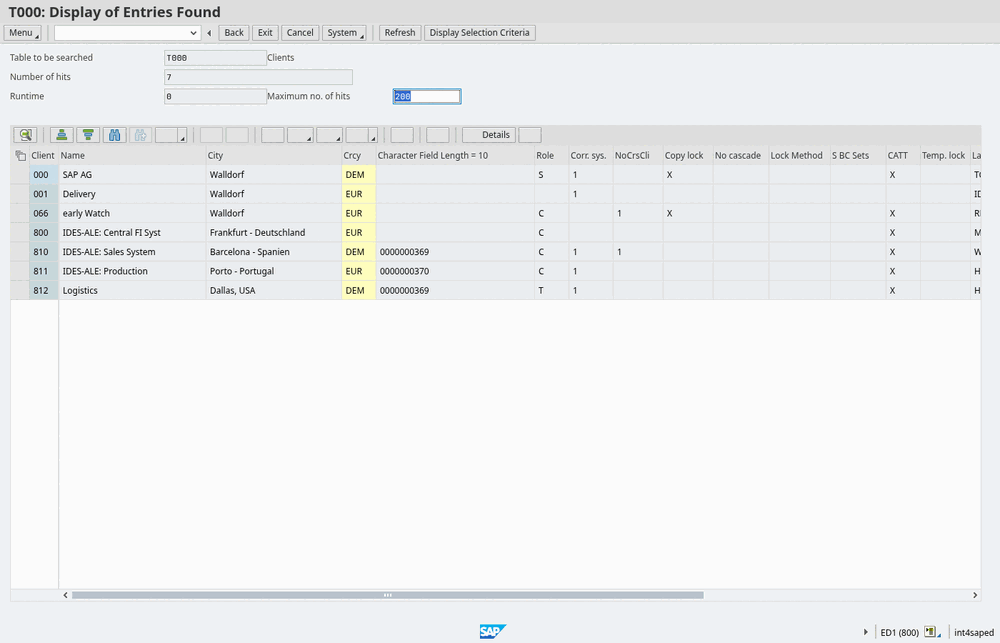
expect: is a list of checks on the screen the step left. On SAP GUI each check is judged once, right after the commit; in a Fiori or Web Dynpro step it is retried until it holds or the step's timeout runs out. A check that does not hold fails the step EXPECTATION_FAILED.
- press: F8
  expect:
    - screen: { program: SAPLSE16N, dynpro: '0200' }
  read:
    entries: { grid: RESULT_LIST, columns: [MANDT, MTEXT] }
- screen: { program: SAPLSE16N, dynpro: '0200' }
  expect:
    - var: { 'entries[0].MANDT': '000', 'entries.length': { gte: 1 } }
    - popup: none
  press: F3
-
var:checks a value the script read earlier, by its path; rows count from 0. That is why the check sits in the block after the read. -
field:checks what a field shows:field: {VBAP-POSNR: {equals: '10', normalize: {leading_zeros: strip}}}. In a Fiori step:field: {target: {property: Supplier}, value: '10300006'}; a list:rows: {path: /C_PurchaseReqnHeader, count: {gte: 1}}. -
A bare value is an exact comparison; a mapping with one operator (
contains,starts_with,matches,gte, …) is a matcher. See Matchers and Checks. -
To check something no single matcher can say, use an
aster:check (see How to write an ASTER check).
How to check an SAP message
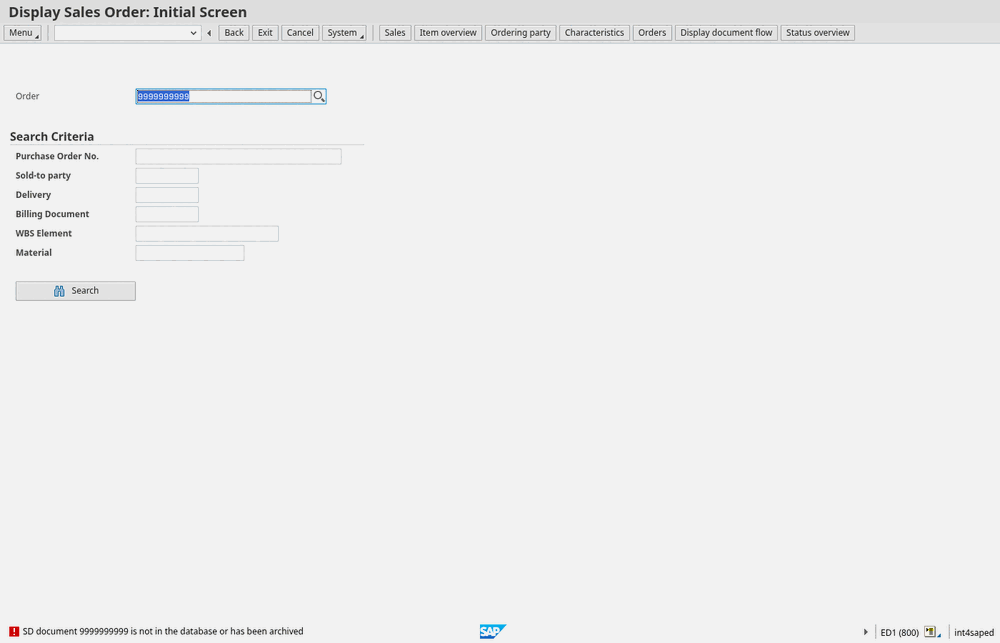
- screen: { program: SAPMV45A, dynpro: '0102' }
  set: { VBAK-VBELN: '9999999999' }
  press: ENTER
  expect:
    - message: { type: E }
-
A message check is soft. When the expected message does not come, the step warns instead of failing. Add
soft: falseto the check that proves the result, or setdefaults: {expected_messages: strict}for the whole script. -
A message the step's own check matches is accepted, even an
E: that is how a negative test is written, as above. -
Any other message is judged by the message policy. By default
SandIpass,Wwarns andEfails the stepSAP_MESSAGE. Change it for the script or one step:defaults: {messages: {W: pass, E: warn}}. AnA(abort) message always fails. -
A strict check takes over from the policy. While a step holds a strict message check (
soft: false, orexpected_messages: strict), that check alone judges every message the step brought: a message it does not match gets no policy, and the step fails only when the check itself misses (EXPECTATION_FAILED). An extraEbeside it does not fail the step on its own; anAmessage still does. -
SAP GUI only:
messages: {W: enter}presses Enter on a warning SAP waits for, at most five times. -
SAP GUI:
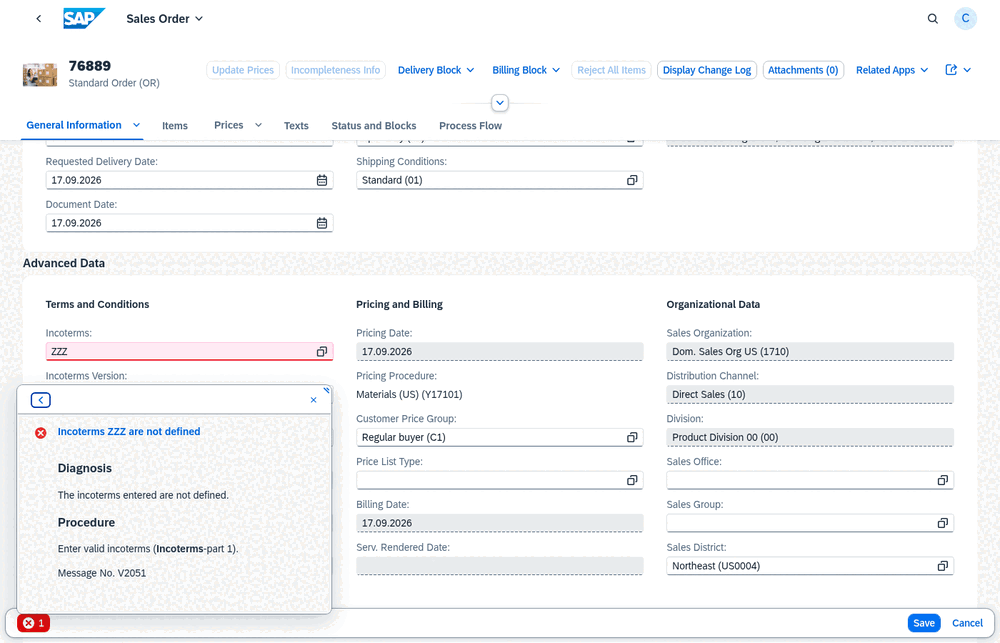
message: {type: S, text: {contains: "has been saved"}};message: noneasserts that no message came. Fiori and Web Dynpro put the text matcher next to the type:message: {type: E, contains: "not defined", soft: false}. -
Check by type where the run may use another logon language: the text is translated, the type is not.
-
When you record, the workbench's SAP messages option writes the messages an SAP GUI recording saw as soft checks (Messages as soft checks, the default) or as
# observed S-message: …comments (Messages as comments).
How to handle a popup or screen that comes only sometimes
Pick the tool by what has to happen:
|
You want to |
Write |
Works in |
|---|---|---|
|
answer a popup with one key or button, whenever it comes |
a popup rule under |
all; on one SAP GUI block: |
|
play a block only when its screen is there |
|
SAP GUI |
|
play different steps depending on which screen came |
|
SAP GUI |
|
play several steps when a step would otherwise fail on a screen |
a handler under |
SAP GUI |
|
keep going when a dialog comes that no rule answers |
|
Fiori, Web Dynpro |
A popup rule names facts of the popup under when and the answer under answer. Rules are tried in order, so put a narrow rule before a broad one:
defaults:
  popups:
    rules:
      - when: { program: SAPLSPO1, text: 'Copy changes' }
        answer: yes
      - when: { kind: decision }
        answer: no
-
kindisinformation,decision(buttons such as Yes/No),value_help,dialog(has an input field) or, on SAP GUI only,express(an SAP express notice, see below). On SAP GUI you can also nameprogram,dynpro,title,text,buttons,window; on Fiorititle,text,buttons,state,type. Every Web Dynpro window iskind: window: name it bytitle,textorbuttons. -
Answers on SAP GUI:
enter,esc,yes,no,cancel,continue, a key such asF2, or a button name. On Fiori:ok,cancel,yes,no,closeand the other standard buttons, a key, or a button'sstable_id. On Web Dynpro: a key or a button's<VIEW>.<STABLE_ID>.answer: failfails the step. -
SAP GUI answers popups nobody wrote a rule for: an information popup with Enter, a value help with Escape. A decision or a dialog fails the step
UNEXPECTED_POPUP. Fiori and Web Dynpro have no such built-in answers. -
A popup the next block or step works in is left alone for it.
An SAP express notice ("Express Information") belongs to no step: SAP shows it on whatever screen comes next after a document was sent to the user as express, so a script cannot plan for it. Unanswered, it fails the step UNEXPECTED_POPUP. A rule for kind: express goes on past it, and the step warns with the notice's text. SAP also reports failed updates this way ("Update was terminated"), so a warned step does not prove that the document was saved: keep such a notice fatal with a rule written before the one that skips:
defaults:
  popups:
    rules:
      - when: { kind: express, text: 'Update was terminated' }
        answer: fail
      - when: { kind: express }
        answer: enter
The text is matched in the logon language. In a flow, put the rules in the SAP GUI script's defaults: a Fiori step never meets an express notice.
-
title,textandbuttonsare wording: they match only in the logon language they were written in. Preferkind,programanddynpro.
A handler plays steps when a step is about to fail on a screen it recognises, and then the step resumes. The commit is never repeated:
handlers:
  - name: exit-without-saving
    when: [{ popup: { text: { contains: 'save your data' } } }]
    run:
      - screen: { window: 1 }
        click: no
        expect: [{ popup: none }]
A handler is asked only when the step's screen: did not come, a popup stands that nothing answered, or a screen or popup check failed. Its when must be specific: a screen needs a dynpro, title or window. It fires once per step unless max: allows more; verdict: warn marks the rescued step as warned.
optional: true and when: look once, without waiting; when the screen is not there, the block is skipped and the run goes on. A block with screen: {program: SAPLSPO1, dynpro: '0100', window: 1}, optional: true and click: yes confirms a popup only on the days it comes. A case: plays the first arm whose when holds, or its else: case: [{when: [{screen: {program: SAPMSSY0, dynpro: '0120'}}], run: with_rows}, {else: no_rows}].
How to reuse steps across scripts
Sections (SAP GUI) are named lists of steps, played with run:. args: declares what the section takes, with: passes it, and the section reads it as ${args.NAME}:
sections:
  open_for_change:
    args:
      order: { required: true, description: The sales document }
    steps:
      - transaction: VA02
        timeout: 60s
      - screen: { program: SAPMV45A, dynpro: '0102' }
        set: { VBAK-VBELN: '${args.order}' }
        press: ENTER
steps:
  - run: open_for_change
    with: { order: '${params.order}' }
Libraries (SAP GUI) share sections between scripts. A library holds only sections: (and optionally ttvwg: 1 and a descriptive script:); a script puts them in scope with include:, by a path relative to itself: include: [lib/sd-common.yaml].
Flows (ttvwg: 2) play several scripts, one after another, in one browser session logged on once to the Fiori launchpad. Each segment is a script of one technology — Fiori, Web Dynpro, or SAP GUI for HTML inside the launchpad — and with: hands it values an earlier segment read:
ttvwg: 2
flow:
  - id: create
    script: fiori_pr_to_me53n/create.yaml
  - id: open
    script: fiori_pr_to_me53n/launch.yaml
  - id: display
    script: fiori_pr_to_me53n/me53n-display.yaml
    with: { requisition: '${segments.create.pr}' }
    attach:
      technology: webgui
      relation: descendant-or-child
      expect: { tcode: ME53N }
      timeout: 60s
-
${segments.create.pr}is the variableprthat the segmentcreateread; the receiving script uses it as${params.requisition}. -
attach:says where a segment plays: its technology (ui5,webguiorwebdynpro) and how its surface is found. A recording that crossed technologies writes the flow and its segments for you. -
In the Suite, a library or a flow segment is a UI test script local to the automation object that plays the main script, and its script ID is the path the
include:orflow:names (for examplelib/sd-common.yaml). A test run sends all the automation object's local UI test scripts along with the main script, whether the main script is local or shared. In the workbench, a local script plays with its automation object's other local scripts, but a shared script opened from the script catalogue plays alone. Record a flow from the automation object's own script editor, so its linked documents are created there.
How to write an ASTER check
An aster: check is an expression in ASTER, the Suite's expression language, over values the script read in earlier steps. It never looks at the screen. Use it when one matcher is not enough: several values together, a sum, a number or date in the user's format.
After a block of VA03 has read the order's net value (header_net: {field: VBAK-NETWR}) and its items (items, the item table with scan: true), the next block checks that the header is the items' sum:
- name: The header is the items' sum
  screen: { program: SAPMV45A, dynpro: '4001' }
  expect:
    - aster: |
        D = PARAMS["DECIMAL"];
        SUM = 0;
        FOR(I = 1, I <= COUNT(ITEMS), I = I + 1, SUM = SUM + NUM(ITEMS[I]["VBAP-NETWR"], D));
        R[1] = (ROUND(SUM, 2) == ROUND(NUM(HEADER_NET, D), 2));
        R[2] = COUNT(ITEMS) & " items sum to " & SUM;
        R
decimal is a parameter holding the user's decimal mark (,): an SAP GUI screen on ECC does not say which one it uses, so NUM is told. S/4HANA's SAP GUI for HTML and the Fiori launchpad say it themselves, and NUM(T) needs no second argument there.
|
Rule |
Example |
|---|---|
|
a read variable is its name, in any case |
|
|
parameters, data rows and loop values are tables |
|
|
rows count from 1, and column keys are upper case |
|
|
|
|
|
|
|
|
the check passes only on true ( |
|
|
a list's first element is the verdict, the second the report's message |
|
|
|
|
-
An expression never contains
${…}. -
An error in it (a misspelt name, text where a number is needed) fails the check; it never counts as false.
-
Do not give a read variable the name of something the expression assigns (
R,SUMabove): the read value and the expression's own value would be the same name.
How to loop over the rows of a table
Read the rows with scan: true (SAP sends a table one screenful at a time; the scan pages through all of it), then play a section once per row with for_each (SAP GUI). Inside the section, the row is ${item.COLUMN} and the pass number ${loop.index}, from 1:
steps:
  - screen: { program: SAPMV45A, dynpro: '4001' }
    read:
      items:
        table: TCTRL_U_ERF_AUFTRAG
        columns: [VBAP-POSNR, RV45A-MABNR]
        scan: true
        where: { VBAP-POSNR: { not_empty: true } }
  - screen: { program: SAPMV45A, dynpro: '4001' }
    expect:
      - var: { 'items.length': { gte: '1' } }
  - for_each: { var: items, as: item }
    run: open_item
    max: 10
sections:
  open_item:
    - screen: { program: SAPMV45A, dynpro: '4001' }
      click: BT_POPO # Position…: reach the item by its number
      expect:
        - popup: any
    - screen: { window: 1 }
      set: { RV45A-POSNR: '${item.VBAP-POSNR}' }
      press: ENTER
      expect:
        - popup: none
    - screen: { program: SAPMV45A, dynpro: '4001' }
      cursor: 'RV45A-MABNR(1)'
      click: BT_ITEM # the positioned item is now the first row
      expect:
        - screen: { program: SAPMV45A, dynpro: '4003' }
    - repeat: [{ press: F3 }]
      until: [{ screen: { program: SAPMV45A, dynpro: '4001' } }]
      max: 3
-
maxis a budget, not a cut: a list longer thanmaxfails the step before the first pass. Withoutmaxthe budget is 100;max: alllifts it. -
An empty list skips the loop without failing; the count check before the loop is what fails a document with no items.
-
Reach a row by its value (for example through the transaction's own "Position…" function), not by its position on the screen: the scan leaves the table scrolled.
-
where:keeps only rows that hold a value, so a table control's empty entry rows are not looped over. -
To repeat steps until a screen comes, use
repeatwithuntiland a requiredmax:repeat: [{press: F3}],until: [{screen: {program: SAPMV45A, dynpro: '4001'}}],max: 3.
How to retry or recover a part that sometimes fails
try (SAP GUI) plays a section or a list of steps whose failure does not end the run. recover brings the screen back to a known state after each failed attempt, and retry plays the part again when that is safe: try: open_for_change with recover: [{okcode: /nVA02, timeout: 60s}] and retry: {times: 3, wait: 15s} beside it.
A retry happens only when the failed step sent nothing to SAP or SAP refused it with an E or A message; otherwise only recover plays. A rescued part marks the run as passed with warnings (verdict: pass beside try makes it passed). A lost SAP session or a step that timed out waiting for SAP is never rescued.
Reference
SAP GUI blocks (ttvwg: 1)
|
Key |
What it does |
|---|---|
|
|
a label for the report; free text |
|
|
where the block starts: |
|
|
|
|
|
play the block only if all its checks hold now |
|
|
type values into fields: |
|
|
one selection: |
|
|
put the cursor into a field before the key (F4 opens that field's value help) |
|
|
commit: a key — |
|
|
commit: a button — |
|
|
commit: start a transaction — |
|
|
commit: a function code typed into the command field, for a function with no key — |
|
|
popup rules for this block, tried before the script's rules |
|
|
the message policy for this block |
|
|
checks and reads, after the commit |
|
|
an extra screenshot ( |
|
|
a fixed pause before the commit — rarely right; how long each answer from SAP may take (default 30 s) |
|
|
|
|
|
play the block again when that is safe: |
Control steps take the place of a block, with name, note and when beside them:
|
Key |
What it does |
|---|---|
|
|
play a section, or an inline list of steps |
|
|
play the first arm whose checks hold |
|
|
play steps whose failure does not end the run |
|
|
play steps until the checks hold, at most |
|
|
play steps once per row of a list a |
Fiori and Web Dynpro steps (ttvwg: 2)
A step is ui5: or webdynpro: with optional name and note. Its keys play in this order: navigate → screen → set → cursor → the gesture → expect → read.
|
Key |
What it does |
|---|---|
|
|
open an app by its launchpad intent |
|
|
check where the run is: Fiori |
|
|
a list of |
|
|
put the focus into a control, for a following |
|
|
gesture: a control, a row ( |
|
|
gesture: |
|
|
gesture: a key where the focus is |
|
|
checks and reads |
|
|
as on SAP GUI, except that |
|
|
written by a recording for a gesture it could not name; fails until replaced |
Checks
The same checks serve expect: and, on SAP GUI, conditions (when:, case, until:, handlers) — except changed and session, which only expect: takes.
|
Check |
SAP GUI |
Fiori |
Web Dynpro |
Checks |
|---|---|---|---|---|
|
|
✓ |
program, screen number, transaction, title, window |
||
|
|
✓ |
✓ |
✓ |
an SAP message by type and text |
|
|
✓ |
✓ |
✓ |
a field's value (SAP GUI also |
|
|
✓ |
a value the script read, by its path |
||
|
|
✓ |
✓ |
|
|
|
|
✓ |
✓ |
✓ |
rows of a table: how many, which match |
|
|
✓ |
✓ |
✓ |
which columns a table shows, and in which order |
|
|
✓ |
✓ |
✓ |
an ASTER expression over what was read |
|
|
✓ |
the screen differs from the one the last block left; |
||
|
|
✓ |
the object the page shows |
||
|
|
✓ |
✓ |
the app: Fiori hash, semantic object, action, title; Web Dynpro application, configuration |
|
|
|
✓ |
the page title |
||
|
|
✓ |
the grand total of an analytical table |
Matchers
|
Shape |
Holds when |
|---|---|
|
|
the text is the same |
|
|
the text differs |
|
|
the text contains / begins with it |
|
|
the regular expression finds a match |
|
|
the text is empty / not empty |
|
|
both sides read as numbers |
|
|
both sides compared without leading zeros |
|
|
both sides compared in upper case |
Spaces at both ends are ignored and runs of spaces count as one.
Reads
|
Source |
SAP GUI |
Fiori |
Web Dynpro |
Hands back |
|---|---|---|---|---|
|
|
✓ |
✓ |
✓ |
the text a field shows |
|
|
✓ |
✓ |
✓ |
a message's text, or part of it with |
|
|
✓ |
the window title (or part of it); program, screen number, transaction and title; the lines of the popup on top |
||
|
|
✓ |
the rows of an ALV grid or a table control ( |
||
|
|
✓ |
the lines of a classic list, by column heading |
||
|
|
✓ |
the hits of an open value help |
||
|
|
✓ |
✓ |
the rows of a table (with |
|
|
|
✓ |
✓ |
a property of the app, such as a part of the Fiori URL hash |
|
|
|
✓ |
the page title |
||
|
|
✓ |
whether the page shows that object: |
||
|
|
✓ |
an analytical table's grand total, or its group headers |
Placeholders
${params.NAME} a parameter · ${row.COLUMN} the current data: row · ${vars.NAME} a value read earlier, ${NAME[0].COLUMN} a row of a table read earlier (from 0), ${NAME.length} its number of rows · ${args.NAME} a section's argument · ${item.COLUMN}, ${loop.index} the for_each row and pass (from 1) · ${run.short} a short id of the run, to make test data unique ("TT${run.short}") · ${segments.ID.NAME} in a flow's with:, a value an earlier segment read · $$ a literal $.
Defaults
defaults: sets policies for every step of the script; a step's own key of the same name overrides it.
|
Key |
Default |
What it decides |
|---|---|---|
|
|
|
how long a step waits for SAP's answer |
|
|
|
how long an SAP GUI block waits for its |
|
|
|
|
|
|
|
what each step hands back: |
|
|
|
what an SAP message no check matched does |
|
|
|
|
|
|
|
popup rules; Fiori and Web Dynpro: |
|
|
|
SAP GUI: |
|
|
|
|
|
|
|
the browser window size in pixels (not SAP GUI for Java) |
Tips & edge cases
-
Values are text, exactly as written.
0230,000,XandYesstay text. Quote a value that holds${…},:or#, or that starts with&,%or*. -
Every load states
timeout: 60s. Write it on everytransaction:,navigate:and flowattach:; do not raisedefaults: {timeout: …}for the whole script. -
One commit per block, one gesture per step;
expectbeforeread. Two commits in one SAP GUI block, or two gestures in one Fiori step, are refused when the script loads. In one block or step the checks run before the reads, whatever order you write them in. -
screen: SE16Nis a transaction code. A single word in upper-case letters and digits is read as a transaction; writescreen: {program: SAPLSE16N}for a program. -
A Fiori
message: Ecompares the text. Writemessage: {type: E}to check the type. On SAP GUI,message: Echecks the type. -
A Fiori field with suggestions takes the row it proposes. A plain
set:on a field that offers suggestions waits for its list and takes the row the field proposes, with what that row fills in (a material's suggestion can fill the plant). To take another row, writeselect: {suggestion: {target, value, key}}with the row's key, such asMaterial='RM12',Plant='1110'. The recorder writes it when you click a suggestion or pick one with the arrow keys. -
Wording ties a script to a language. Labels (
label[Partner]), button texts ({text: Execute}), popup texts andevidencefind a control only in the language they were written in. Prefer field names, function codes, keys and ids. -
A different release is a different script. When a screen differs between ECC and S/4HANA, keep a variant of the script, not a condition, and say where each runs with
runs_onandnot_oninscript:. Their entries name a release and a channel:ecc/webguiands4/webgui(SAP GUI for HTML),ecc/sapguiands4/sapgui(SAP GUI for Java),ecc/fioriands4/fiori(the launchpad). The Suite uses them to choose among the system's SAP GUI channels. -
Never put a password in a script or a parameter. A script names a system with
connection:; the Suite logs on with the system under test's dialog user. -
Check is not Play.Check proves that the script loads. Whether a screen, field or button exists is known only when the script plays.
-
A read inside a loop keeps only the last value. After a
for_each, a variable read in its body holds the last row's value. -
In a test run, screenshots and capture come from the automation object. Its settings decide which screenshots the run keeps and what each step hands back.
Related features
-
UI testing overview — how UI tests fit into Int4 Suite.
-
The UI test workbench — record, check and play a script.
-
Automation Objects — the UI test automation object that plays a script in test cases.
-
Scripts — the script catalogue where UI test scripts are kept.
Prerequisites & permissions
About permissions. What you can see and do is decided by the roles assigned to your user. Each role bundles permission groups, and each permission group allows activities — Read, Write, Delete, Execute and, for schedules, Change owner — on a kind of record (for example Test Case, Automation Object, System Under Test). A role grants its groups per project scope, so you may be allowed to change records in one project but only view, or not see, those of another.
If a button is disabled, a page says you don't have access, or a list comes back empty, missing permissions are the most likely cause — or, for whole product areas, the installed licence. You can review your own access under Profile → My access; an administrator can change your roles under IAM → Users.
Specifically for UI test scripts:
-
Opening and editing a UI test script requires Script: Read and Script: Write; recording one also requires Script: Write.
-
Check and Play require Script: Execute. Recording and playing reach a system under test, which also needs System Under Test: Execute on that system.
-
UI testing needs the UI testing licence feature, and a UI test runner configured for the installation.