
License: Included in Int4 Suite Enterprise and Int4 APITester
License details
|
Feature or limit |
Int4 Suite Enterprise |
Int4 APITester |
Int4 Shield |
Int4 Shield Lite |
Int4 Messenger |
|---|---|---|---|---|---|
|
UI testing |
|
|
|
|
|
Anything a license model does not include can be added through a custom license. The license installed for you is shown in the app under Profile → License. All features by product version
Overview
Some steps of a business process exist only in a user interface: an order is changed in an SAP GUI transaction, a purchase requisition is approved in a Fiori app, a document is checked on a screen before it is posted. UI testing automates those steps the way a user does them. A UI test plays a script on an SAP system — it starts transactions, types values, presses keys and buttons — checks what SAP answers after every step, reads the values the test needs, and keeps a screenshot of each screen as evidence.
UI tests are test cases like any other: they live in folders, run in test runs, sit in process tests beside interface tests, and report their results on the same pages. What is particular to them is where the work happens: a UI test runner — a separate service of the installation with its own browsers — logs on to the SAP system and works through its screens. The Suite hands it the script, the system's connection and the test case's values, and reads back the report.
A UI test is built from five pieces:
|
Piece |
What it holds |
Where |
|---|---|---|
|
A system under test of type SAP ABAP Backend |
the SAP GUI channels the runner can use — SAP GUI for HTML, SAP GUI for Java, the Fiori launchpad — and the dialog user it logs on with |
|
|
A UI test script |
what to do on the screens: a YAML text you record, check and play in the script editor |
|
|
A UI Test automation object |
which script plays, what each run keeps (screenshots, field values) and how long it may take |
|
|
Test cases |
a parameter document with the values the script types, and optionally the values the script must read back |
|
|
Test runs |
the verdict, every step with its message, the values read against the expected ones, the screenshots, and a live view while it runs |
One script serves many test cases: the script describes the steps, and each test case gives it different values — a different city, customer or order number — through its parameter document. The same script can also be played on another system by running the test case against a different group of systems.
Tasks
How to prepare a system for UI tests
UI tests run against an SAP ABAP backend system. Its SAP GUI connection is set up once, on the system itself:
-
Open the system under test (type SAP ABAP Backend) and click Edit.
-
Switch on Use SAP GUI / Fiori connection (UI tests).
-
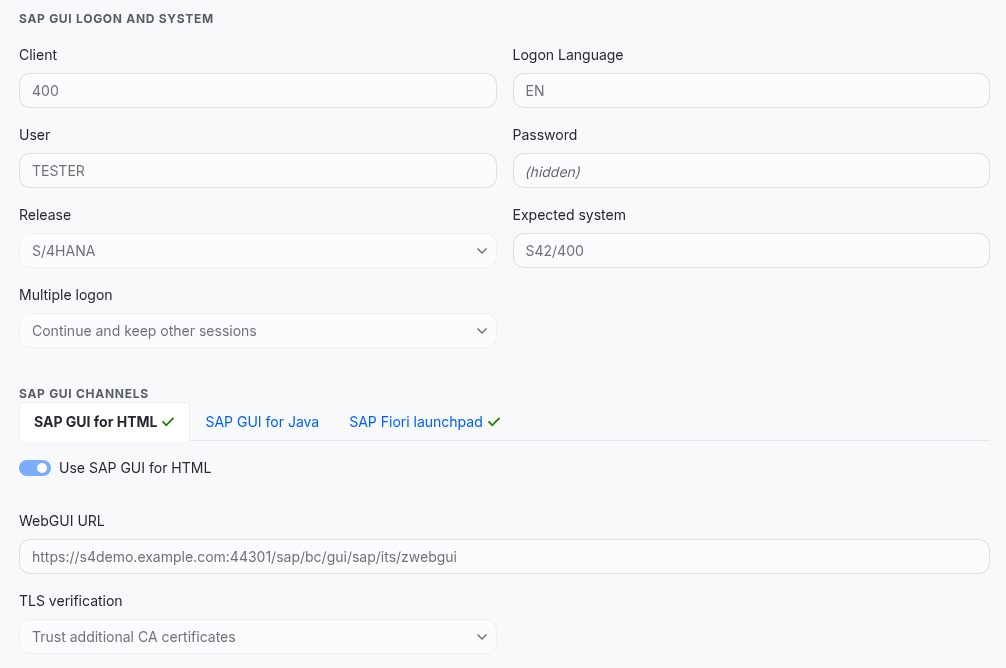
Under SAP GUI logon and system, enter the dialog user the runner logs on with — Client, Logon Language, User, Password — and the Release. Optionally enter the Expected system (for example
S42/400), so a logon that lands on another system is refused. -
Under SAP GUI channels, switch on the channels the system offers and enter their addresses: the WebGUI URL for SAP GUI for HTML, the Launchpad URL for the Fiori launchpad, or the application server for SAP GUI for Java. For each channel, choose how its certificate is trusted (TLS verification) and how the runner reaches it (Network Route).
-
Save, and click Check connection on a channel to see that the runner can reach it.
How to create a UI test script
Create a script of type UI test, either in the shared Scripts catalogue or among an automation object's local scripts, and record it in the workbench. Then turn the recording into a test — parameters for the values that change, reads for the values to compare, checks for what must hold: see Writing UI test scripts.
The libraries and flow segments a script uses belong among the automation object's local scripts: a test run sends them all along with the main script, whether that one is local or shared.
How to set up a UI test automation object
-
In Automation objects, create an automation object of type UI Test. The type is offered only when the installation has a UI test runner and the licence includes UI testing.
-
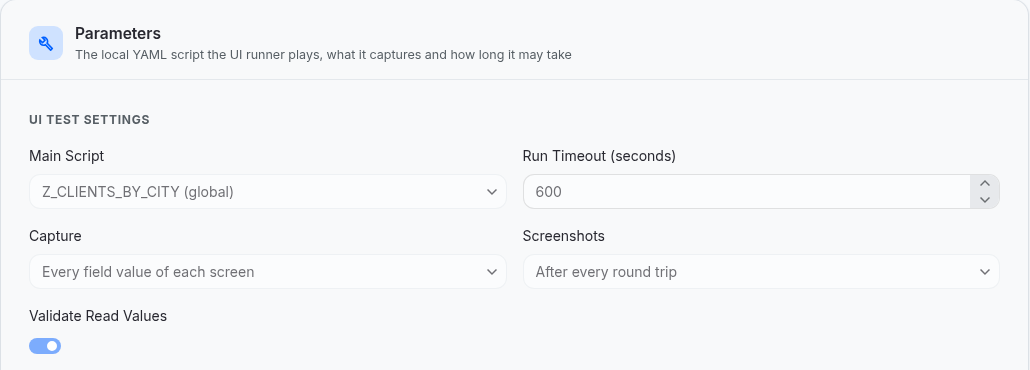
Under UI Test Settings, pick the Main Script. The list shows the object's local UI test scripts first, then the shared ones marked (global); a local script wins over a shared one of the same name.
-
Decide what each run keeps: Screenshots and Capture. Keep Validate Read Values on to compare the values the script reads with the test case's expected values.
-
Save.
A shared script is not tied to the automation object's version: the next run plays its current version. A local script is versioned with the automation object.
How to create UI test cases
Create test cases on the automation object as usual, in the cockpit. For a UI test nothing is fetched from a system: the test case starts with a parameter document — a JSON object with one entry for each parameter the script declares, holding its default — for example:
{ "city": "Walldorf" }
-
Change the values for this test case. Each test case of the automation object can play the same script with different values.
-
To check the values the script reads, add an expected message with the values it must read, by name.
*accepts any value:JSON{ "hits": "2", "notice": "*" } -
Save. Run the test case like any other.
How to read the result of a UI test
Open the test run and the test case's execution (Test run details). For a UI test the execution shows:
-
Summary: how many steps the script played, how many passed and failed, and how many expected values matched.
-
UI test result: the runner's verdict, and every step with its status, a summary of what it did and the screen it reached, its message, duration and screenshot; below them the Expected values — each value the test case expects next to the value the script read.
-
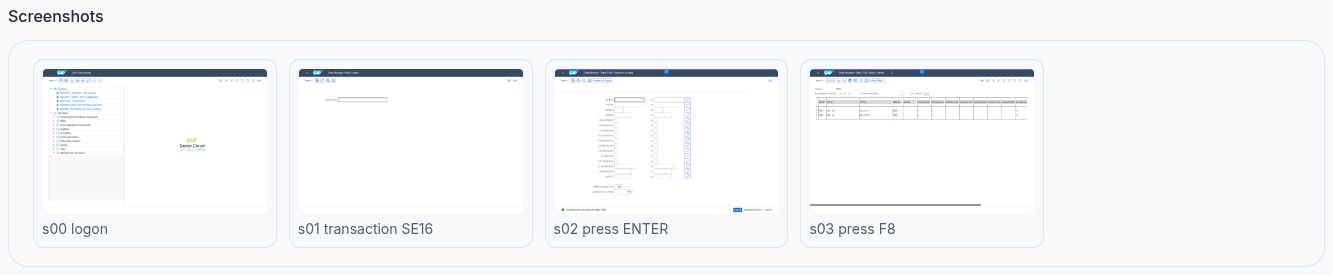
Screenshots: the screens as the steps left them, in order. Click one to see it full size.
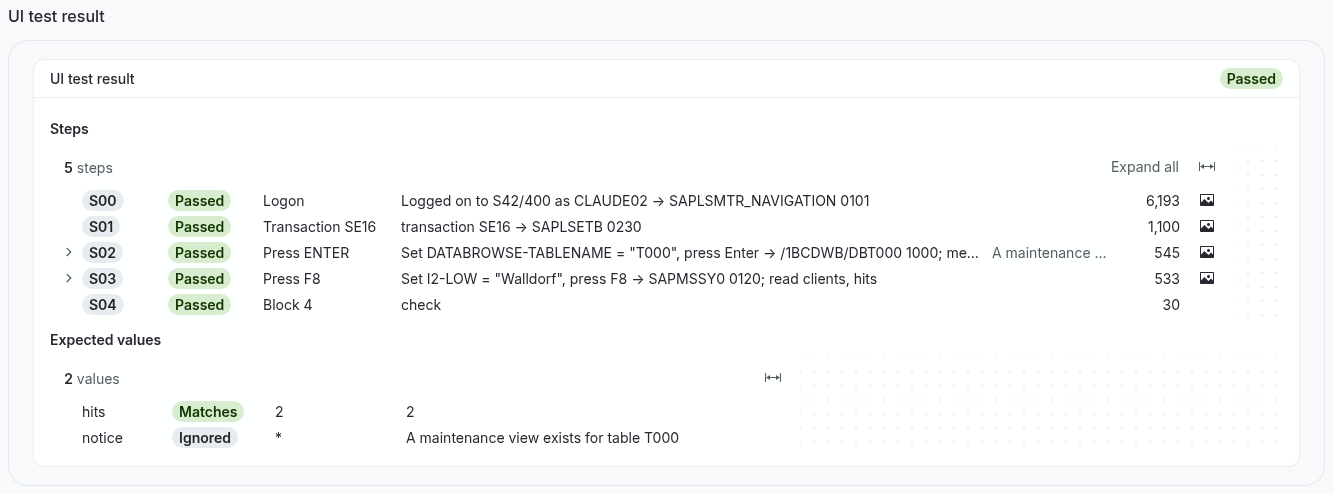
The execution passes when the runner's verdict passes and every expected value matches. A verdict of PASSED_WITH_WARNINGS passes, with a warning for each warned step. A failed step names its error in its summary; click the arrow in front of a step to read its whole summary and message. For the runner's hint, the fields it found instead and the checks that did not hold, play the script in the workbench on the same system and open the failed step there.
How to watch a UI test while it runs
Where the installation shows the UI test runner's screens, a UI test plays on a screen you can watch. Open the execution while the test runs and click Watch live in the Live view section. The screen is read-only: you see what the runner does, but cannot type into it. When the test ends the screen closes.
Field reference
SAP GUI connection of a system under test
|
Field |
Description |
|---|---|
|
User |
The SAP dialog user the runner logs on with. For SAP GUI for HTML it needs the authorization |
|
Password |
Kept in the installation's secret store; enter it again when you change a channel, the user or the trust. |
|
Release |
ECC / NetWeaver or S/4HANA. Scripts can say on which releases they run; the release picks among the system's channels. |
|
Expected system |
Optional |
|
Multiple logon |
What the runner answers when SAP reports that the user is already logged on: end the other sessions, keep them, or cancel the logon. |
|
SAP GUI scripts run on |
With both SAP GUI for HTML and SAP GUI for Java set: which one plays scripts of SAP GUI screens. |
|
WebGUI URL |
The SAP GUI for HTML service, for example |
|
Launchpad URL |
The Fiori launchpad, for example |
|
TLS verification |
System trust store, Trust additional CA certificates (paste the root and intermediate CA certificates), or Ignore certificate errors. |
|
Network Route |
Direct, or SAP BTP Cloud Connector with its location ID and any further hosts the browser must reach. |
UI test automation object
|
Field |
Default |
Description |
|---|---|---|
|
Main Script |
required |
The UI test script the runner plays: the object's local script of that name, else the shared one. |
|
Capture |
Every field value of each screen |
What each step hands back about the screen it left, beyond what the script reads: Nothing beyond what the script reads, Every field value of each screen or Field values and rendered table rows. |
|
Screenshots |
After every round trip |
Which screenshots the run keeps: After every round trip, After every step, On failure only or None. |
|
Run Timeout (seconds) |
600 (30–3600) |
How long a run may take, counted from when the runner starts it; past it the run is ended and the test case fails as a timeout. A run the runner refuses while it is busy is offered again for at most as long, from the first refusal. |
|
Validate Read Values |
on |
Compare the values the script reads with the test case's expected values. Off: the runner's verdict alone decides. |
A UI test automation object also offers business dimensions, the dimension pipeline and custom validations, like other types. A custom validation receives the runner's report.
Tips & edge cases
-
The runner is part of the installation. Without a configured UI test runner, a UI test automation object cannot be created, and runs of existing ones fail with a message saying so. Ask your administrator.
-
The script chooses the channel. A script of SAP GUI screens (
ttvwg: 1) runs on SAP GUI for HTML or SAP GUI for Java, a Fiori or Web Dynpro script (ttvwg: 2) on the launchpad. Among the channels the system has, the script's ownruns_onandnot_onentries decide first, then the system's default, then SAP GUI for HTML. The execution's log says which channel was taken and why. -
SAP GUI for Java needs its own runner. The standard runner drives SAP GUI for HTML and the Fiori launchpad; SAP GUI for Java needs a runner host with the SAP client installed.
-
The run timeout is the only time limit. A UI test stays Executing while its run goes on. Run Timeout (seconds) counts from when the runner starts the run; past it the run is ended and the test case fails as a timeout. When the runner is busy with other runs and refuses a new one, the test case offers it again until as many seconds have passed since the first refusal, then fails as a timeout.
-
Use a dedicated test user. The runner logs on as the system's dialog user, for every UI test case on that system. A personal user's parameter memory, favorites and open sessions change what a script sees.
-
Screenshots are evidence, not decoration. They are stored with the execution as attachments, so the run can be reviewed later without the system. On failure only keeps storage small; After every step shows everything.
-
A UI test changes what a user would change. It posts documents and saves data like a person at the screen; run it only against non-production systems.
Related features
-
UI test workbench — record, check and play a script in the script editor.
-
Writing UI test scripts — the script format.
-
Systems under test — where the SAP GUI connection is set up.
-
Automation objects — the UI test type among the others.
-
Process tests — chain UI tests with interface tests into a business process.
-
Test run details — the result of a run and of each test case.
Prerequisites & permissions
About permissions. What you can see and do is decided by the roles assigned to your user. Each role bundles permission groups, and each permission group allows activities — Read, Write, Delete, Execute and, for schedules, Change owner — on a kind of record (for example Test Case, Automation Object, System Under Test). A role grants its groups per project scope, so you may be allowed to change records in one project but only view, or not see, those of another.
If a button is disabled, a page says you don't have access, or a list comes back empty, missing permissions are the most likely cause — or, for whole product areas, the installed licence. You can review your own access under Profile → My access; an administrator can change your roles under IAM → Users.
Specifically for UI testing:
-
The licence must include the UI testing feature, and the installation needs a configured UI test runner.
-
Setting up the SAP GUI connection requires System Under Test: Write; recording and playing on a system require System Under Test: Execute on it.
-
Scripts need Script: Read, Script: Write and Script: Execute as described in UI test workbench.
-
Automation objects, test cases and test runs need the same permissions as for any other type.